





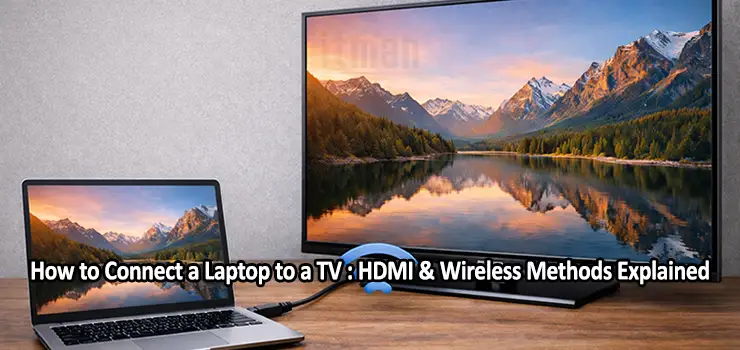
Connecting a laptop to a TV has become a common need for both work and entertainment. Whether you want to watch movies on a larger screen, give a presentation in a meeting room, play games with better immersion, or simply mirror your laptop display for convenience, knowing the right connection method can save you time and frustration. Modern laptops and TVs offer multiple ways to connect, ranging from traditional HDMI cables to advanced wireless screen-sharing technologies. This guide explains all practical methods in detail, helping you choose the best option based on your devices and your specific use case.
Why Connect a Laptop to a TV?
Before diving into the technical steps, it is useful to understand why people prefer connecting a laptop to a TV instead of using the laptop screen alone. TVs provide significantly larger displays, often with higher brightness and better sound output. For home users, this means a more enjoyable experience when streaming movies, browsing photos, or gaming. For professionals, a TV can act as a large external monitor for presentations, dashboards, or collaborative work.
Another key reason is flexibility. A TV can effectively replace a dedicated monitor in small offices or home setups, reducing hardware costs. In addition, many smart TVs support wireless technologies that eliminate the need for extra cables, making temporary setups quick and clean.
Understanding the Main Connection Types
In general, laptop-to-TV connections fall into two categories: wired and wireless. Wired connections rely on physical cables, most commonly HDMI, while wireless connections use Wi-Fi–based technologies such as Miracast, Chromecast, or AirPlay. Each method has advantages and limitations related to image quality, latency, compatibility, and ease of use.
Choosing the right method depends on factors such as the ports available on your laptop, the type of TV you have, and whether you prioritize stability or convenience.
Connecting a Laptop to a TV Using HDMI
What Is HDMI and Why It Is the Most Reliable Option
HDMI, which stands for High-Definition Multimedia Interface, is the most widely used standard for transmitting both video and audio over a single cable. Almost all modern TVs include at least one HDMI port, and most laptops support HDMI either directly or through an adapter.
The main advantage of HDMI is reliability. Because it is a wired connection, it provides stable image quality, minimal latency, and full audio support without relying on Wi-Fi performance. This makes HDMI the preferred option for gaming, professional presentations, and watching high-resolution content.
What You Need for an HDMI Connection
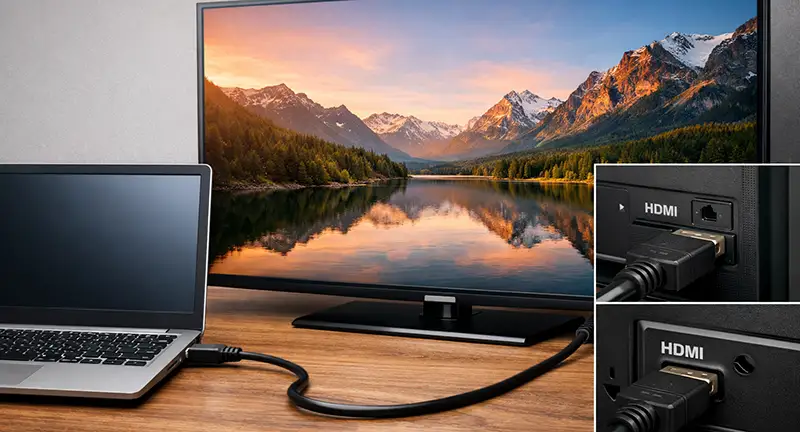
To connect your laptop to a TV using HDMI, you need an HDMI cable and compatible ports on both devices. Many laptops have a standard HDMI port, but thinner models may use USB-C or Mini DisplayPort instead. In such cases, a suitable adapter is required, such as USB-C to HDMI.
It is important to ensure that the cable and adapter support the resolution you intend to use. For example, 4K TVs require HDMI 2.0 or newer for smooth performance at higher refresh rates.
Step-by-Step Guide: HDMI Connection
Start by turning off or putting both the laptop and TV into standby mode. Connect one end of the HDMI cable to the laptop and the other end to an available HDMI port on the TV. Turn on the TV and select the correct HDMI input using the remote control. Then power on the laptop.
In most cases, the laptop will automatically detect the TV and mirror the screen. If this does not happen, you can manually adjust the display settings. On Windows, open Display Settings and choose whether to duplicate the screen, extend the display, or use the TV as the primary monitor. On macOS, go to Displays in System Settings and configure the external screen accordingly.
Common HDMI Issues and How to Fix Them
Sometimes users encounter problems such as no signal, incorrect resolution, or missing audio. If the TV shows no signal, double-check that the correct HDMI input is selected and that the cable is securely connected. Trying a different HDMI port or cable can also help.
If the image appears blurry or does not fill the screen, adjust the resolution in the laptop’s display settings to match the TV’s native resolution. For audio issues, ensure that the TV is selected as the default audio output device in the system sound settings.

Using Wireless Methods to Connect a Laptop to a TV
When Wireless Connections Make Sense
Wireless connections are ideal when you want a clean setup without cables or when the TV is mounted far from the laptop. They are especially convenient for casual content sharing, presentations, and video streaming. However, wireless methods may introduce slight latency and depend heavily on the quality of your Wi-Fi network.
Different wireless technologies are available, and compatibility varies between Windows laptops, MacBooks, and smart TVs.
Connecting a Windows Laptop to a TV Wirelessly
Using Miracast
Miracast is a wireless display standard supported by many Windows laptops and smart TVs. It allows you to mirror your laptop screen directly to the TV over Wi-Fi without additional hardware.
To use Miracast, make sure both the laptop and TV are connected to the same Wi-Fi network. Enable screen mirroring or wireless display mode on the TV. On the laptop, open the projection menu and select the TV from the list of available devices. After a short pairing process, your screen should appear on the TV.
Miracast works well for basic tasks, but performance may vary depending on network conditions and hardware support.
Using Chromecast
Chromecast is another popular option, particularly if you already use Google services. Some smart TVs have Chromecast built in, while others require an external Chromecast device connected to the TV’s HDMI port. To use Chromecast, install the Google Chrome browser on your laptop.
Make sure the laptop and TV are on the same Wi-Fi network. In Chrome, open the menu and select the cast option. You can choose to cast a browser tab, the entire desktop, or a specific media file. Chromecast is well suited for streaming videos and presentations, but full desktop mirroring may have higher latency compared to HDMI.
Connecting a MacBook to a TV Wirelessly
Using AirPlay
AirPlay is Apple’s wireless streaming technology, designed for seamless integration between macOS devices and compatible smart TVs or Apple TV units. AirPlay offers smooth performance and high image quality when used within the Apple ecosystem. To use AirPlay, ensure that both the MacBook and the TV are connected to the same Wi-Fi network. Enable AirPlay on the TV if required.
On the MacBook, open the screen mirroring option from the control center and select the TV. You can choose to mirror the display or use the TV as a separate screen. AirPlay is generally reliable for video playback and presentations, though it may not be ideal for fast-paced gaming due to latency.
Comparing HDMI and Wireless Methods
Image Quality and Stability
HDMI provides the best possible image quality with consistent performance. Wireless methods can deliver good quality as well, but they are more susceptible to interference, signal drops, and compression artifacts, especially on congested networks.
Latency and Responsiveness
For tasks that require real-time interaction, such as gaming or precise cursor control, HDMI is clearly superior. Wireless methods introduce a small delay that may be noticeable during fast movements or animations.
Convenience and Flexibility
Wireless connections win in terms of convenience. They eliminate cable clutter and allow you to connect from a distance. HDMI, on the other hand, requires physical proximity and cable management but offers unmatched reliability.
Using a TV as an Extended Display
Instead of simply mirroring the laptop screen, you can use the TV as an extended display. This allows you to move windows between screens, increasing productivity. This setup is particularly useful for multitasking, data analysis, or creative work. Both HDMI and wireless methods support extended displays, though configuration options may vary depending on the operating system and connection type.
Audio Considerations When Connecting a Laptop to a TV
When using HDMI, audio is transmitted along with video, making setup straightforward. Wireless methods may require manual selection of the TV as the audio output device. Always check the system sound settings if you experience audio playing from the laptop speakers instead of the TV. For users with external sound systems connected to the TV, routing audio through the TV often results in better sound quality.
Security and Privacy Tips
When using wireless connections, especially in shared environments, be mindful of privacy. Ensure that screen sharing is turned off when not in use and avoid connecting to unknown devices. On public or corporate networks, IT policies may restrict wireless display features. HDMI connections are inherently more secure because they do not transmit data over the network.
Troubleshooting Common Wireless Issues
If a wireless connection fails, start by checking that both devices are on the same Wi-Fi network. Restarting the router, laptop, or TV can often resolve temporary issues. Updating system software and TV firmware can also improve compatibility and performance. Interference from other wireless devices may affect stability, so reducing network congestion can help.
Choosing the Best Method for Your Needs
For professional use, gaming, and high-resolution content, HDMI remains the best choice due to its stability and performance. For casual use, presentations, and quick screen sharing, wireless methods offer unmatched convenience. Understanding your priorities and the capabilities of your devices will help you select the most effective connection method.
Final Thoughts
Connecting a laptop to a TV is easier than ever thanks to modern hardware and wireless technologies. Whether you choose a traditional HDMI cable or a wireless solution like Miracast, Chromecast, or AirPlay, each method has clear strengths. By following the steps and recommendations in this guide, you can achieve a smooth and reliable connection tailored to your specific needs. With the right setup, your TV can become a powerful extension of your laptop, enhancing both productivity and entertainment.