







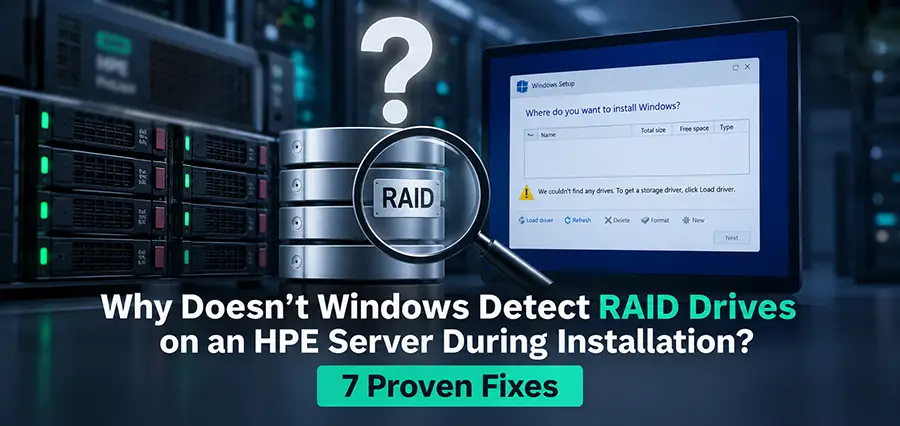
Installing Windows or Windows Server on an HPE server should normally be straightforward, but one issue appears surprisingly often: the RAID array has already been created, the physical drives are healthy, and the logical drive exists, yet Windows Setup shows no disk at all.
In most cases, this does not mean that the HDDs or SSDs are faulty. The problem is usually related to the RAID controller configuration, missing storage controller drivers, boot mode, or the way the logical drive was created. Understanding how HPE servers present RAID storage to the operating system makes troubleshooting much easier.
How Windows Sees RAID Storage on an HPE Server
When drives are connected to an HPE Smart Array controller, Windows usually does not communicate directly with each physical disk.
For example, imagine an HPE ProLiant server with four SAS drives configured as RAID 5. The Smart Array controller combines those physical drives and creates a logical drive. Windows Setup should detect that logical drive as a single storage device.
The storage path is essentially:
Physical HDDs or SSDs → HPE Smart Array Controller → Logical Drive → Windows
This distinction is important. If the RAID controller has not created a valid logical drive, Windows may have nothing available to install onto even though all physical drives are detected by the server.
On the other hand, the logical drive may exist perfectly, but Windows Setup may still fail to display it because it cannot communicate with the Smart Array controller.
The Most Common Cause: Missing HPE Smart Array Driver
One of the first things to investigate when Windows does not detect RAID drives is the storage controller driver.
Windows installation media includes drivers for many common storage controllers, but it does not contain every driver for every generation of HPE Smart Array hardware.
This issue is especially common when installing a newer Windows Server version on an older HPE ProLiant server or when using a Smart Array controller whose driver is not included in the standard Windows installation image.
In this situation, the RAID configuration may be completely correct.
- The server firmware detects the drives.
- The Smart Array controller detects the drives.
- The logical drive exists.
- The RAID status is healthy.
- But Windows Setup displays:
- “No drives were found.”
This usually means Windows Setup cannot properly communicate with the RAID controller.
Load the HPE Smart Array Driver During Windows Installation
If Windows Setup cannot see the logical drive, the appropriate HPE Smart Array controller driver can be loaded manually.
First, identify the exact storage controller installed in the server. Depending on the HPE ProLiant generation and configuration, this could be a controller such as an HPE Smart Array P440ar, P840, P408i-a, or another Smart Array model.
Download the Windows driver that matches both the controller and the Windows Server version being installed.
The driver should be extracted before use. Simply copying an executable installer to a USB drive may not be enough because Windows Setup generally needs access to the extracted driver files, particularly the INF files.
During Windows installation, continue until you reach the disk selection screen and choose:
Load driver
Insert or select the USB storage containing the extracted Smart Array driver. Browse to the appropriate driver folder and allow Windows Setup to load the storage controller driver.
If the missing driver was the cause, the RAID logical drive should then appear in the installation window.
Check Whether the RAID Logical Drive Actually Exists
A common troubleshooting mistake is assuming that selecting RAID 1, RAID 5, RAID 6, or RAID 10 automatically means a usable Windows disk has been created.
Before troubleshooting Windows itself, verify the storage configuration through HPE Smart Storage Administrator (SSA) or the server’s available storage configuration utility.
Confirm that the physical drives are detected and that a logical drive has been created.
For example, suppose the server contains four 1.2 TB SAS drives and you want RAID 5. The Smart Array controller should show those disks as members of an array and should also show a logical drive created from that array.
Windows installs onto the logical drive, not directly onto the individual RAID members.
If the physical drives are present but there is no logical drive, correct the RAID configuration before troubleshooting Windows Setup.
Check the Status of the RAID Array
The existence of a logical drive alone is not enough. Its status should also be checked.
Open HPE Smart Storage Administrator and inspect the array, logical drive, physical disks, and controller status.
A healthy configuration should normally show the logical drive in an OK or healthy state.
If one or more disks are failed, missing, predictive-failure, rebuilding, or otherwise unavailable, investigate those conditions first.
A degraded RAID array does not always prevent Windows from detecting the logical volume, but storage faults can complicate both installation and boot behavior.
For a fresh server deployment, resolving storage warnings before installing the operating system is strongly recommended.
UEFI and Legacy BIOS Mode Can Cause Installation Problems
Another important factor is the server’s boot mode.
HPE ProLiant servers may support UEFI boot, Legacy BIOS boot, or both, depending on the generation. The Windows installation media, disk partitioning scheme, and server boot configuration should be consistent.
For modern Windows Server deployments, UEFI with GPT is generally the preferred configuration when supported.
Problems can occur when Windows is installed in one boot mode and the server later attempts to start it using another.
For example, Windows might be installed while the USB installer is booted in UEFI mode, but the server is later configured to boot in Legacy mode.
The installation itself may complete successfully, yet Windows may fail to start afterward.
Therefore, before installation, verify the intended boot mode and keep it consistent throughout the deployment.
Windows Detects the RAID Drive but Does Not Boot After Installation
This is a different problem from Windows Setup not detecting the disk.
If Windows can see the logical drive, allows you to create partitions, completes the installation, and then fails to boot, the RAID driver is not necessarily the primary issue.
At this stage, check the boot configuration.
The first questions should be:
Was Windows installed in UEFI or Legacy mode?
Is the server currently configured for the same mode?
Does the boot manager contain a valid Windows Boot Manager entry?
Is the logical drive configured as the appropriate boot volume?
Is the Smart Array controller recognized correctly during POST?
Was the Windows boot partition created correctly?
This distinction saves considerable troubleshooting time. “Windows cannot see my RAID” and “Windows installs but does not boot from RAID” are two different problems and should not be diagnosed in the same way.
RAID 5 Is Not Automatically the Problem
RAID 5 is sometimes blamed when Windows installation fails, particularly on older HPE servers.
However, Windows generally does not care whether the logical volume underneath it is RAID 1, RAID 5, RAID 6, or RAID 10.
The RAID controller handles that layer.
From Windows’ perspective, the Smart Array controller presents a logical storage device.
Therefore, if a properly configured RAID 5 logical drive does not appear during installation, changing it immediately to RAID 1 or another RAID level is usually not the right first troubleshooting step.
Instead, check the controller driver, logical drive configuration, controller health, firmware, and boot settings.
HPE Intelligent Provisioning Can Make Installation Easier
On supported HPE ProLiant servers, Intelligent Provisioning can simplify operating system installation because it integrates hardware configuration and deployment tools.
Instead of booting directly from a standard Windows ISO and relying entirely on the drivers included with Windows, Intelligent Provisioning may help prepare the server and provide the necessary hardware support during deployment.
This can be particularly useful when Windows Setup cannot recognize the Smart Array controller automatically.
However, Intelligent Provisioning is not mandatory. Windows can also be installed directly from USB or virtual media as long as the appropriate storage driver is available.
Does the HPE Smart Array Controller Need to Be Configured Before Installing Windows?
Yes. If you intend to use hardware RAID, configuring the storage controller before Windows installation is the cleanest approach.
The recommended sequence is:
Configure the physical drives in HPE Smart Storage Administrator, create the required RAID array and logical drive, verify that the logical drive is healthy, confirm the server boot mode, boot the Windows installer, load the Smart Array driver if required, and then install Windows onto the logical volume.
Changing the fundamental RAID configuration after Windows has already been installed can introduce unnecessary complexity and may destroy existing data depending on the operation performed.
Why Does ESXi Detect the RAID but Windows Does Not?
This situation is an important diagnostic clue.
You may have an HPE server where VMware ESXi detects the Smart Array logical drive immediately, while Windows Setup shows no available disks.
That does not necessarily indicate a RAID hardware problem.
ESXi and Windows use different storage drivers. The ESXi image may already contain a compatible driver for the Smart Array controller, while the Windows installer does not.
If ESXi sees the logical drive but Windows does not, verify the Windows Smart Array driver before rebuilding the RAID configuration.
Recreating a healthy array repeatedly will not solve a missing Windows storage driver.
Should You Update the Smart Array Firmware?
Firmware is another factor worth checking, especially on older HPE ProLiant servers.
A server that has been operating for years may have outdated system ROM, Smart Array firmware, iLO firmware, or other platform components.
Firmware should not be updated randomly just because Windows cannot see a disk. Start with the configuration and driver checks first.
However, if the controller firmware is significantly outdated or HPE documentation identifies compatibility fixes relevant to the operating system or controller, a controlled firmware update may be appropriate.
Always verify compatibility before updating firmware on production hardware.
A Practical Troubleshooting Order
When Windows does not detect RAID storage on an HPE server, troubleshooting in the correct order can prevent unnecessary changes.
Start by opening HPE Smart Storage Administrator and confirm that all physical drives are detected. Then verify that the RAID array and logical drive actually exist and that their status is healthy.
Next, identify the exact Smart Array controller model.
Check whether your Windows Server version has a compatible driver for that controller. If necessary, extract the driver to a USB drive and use the Load Driver option in Windows Setup.
After that, verify the server’s UEFI or Legacy boot configuration.
If Windows detects the drive and installation completes but the system fails to boot, shift your troubleshooting toward boot mode, Windows Boot Manager, boot order, GPT/MBR configuration, and the selected boot volume rather than rebuilding the RAID.
This sequence isolates the problem without unnecessarily deleting a healthy array.
Final Thoughts
When Windows does not detect RAID drives on an HPE server during installation, the physical disks are often not the real problem. The issue is commonly located between Windows Setup and the HPE Smart Array controller.
A missing Smart Array driver is one of the most frequent causes, but an incomplete RAID configuration, missing logical drive, inconsistent UEFI/Legacy settings, controller firmware issues, or boot configuration can produce similar symptoms.
The most important diagnostic step is to determine exactly where the storage disappears. If HPE Smart Storage Administrator sees the physical disks but no logical drive exists, investigate the RAID configuration. If SSA sees a healthy logical drive but Windows Setup does not, investigate the Smart Array driver. If Windows installs successfully but does not boot, investigate the server’s boot configuration.
Following that logic is much more effective than repeatedly deleting and recreating the RAID array.
FAQ
1. Why does Windows Setup say “No drives were found” on an HPE server?
One common cause is that Windows Setup does not have the correct driver for the HPE Smart Array controller. Loading the appropriate storage controller driver can make the RAID logical drive visible.
2. Does Windows need a separate driver for an HPE Smart Array controller?
It depends on the controller and Windows version. Some controllers are supported by drivers already included with Windows, while others require an HPE driver to be loaded manually.
3. Can Windows Server be installed directly on RAID 5?
Yes. Windows Server can be installed on a RAID 5 logical volume presented by a supported HPE Smart Array controller.
4. Why can HPE Smart Storage Administrator see my disks but Windows cannot?
SSA communicates directly with the HPE storage subsystem. Windows requires a compatible driver to communicate with the RAID controller, so the hardware can appear correctly in SSA while remaining invisible to Windows Setup.
5. Do I need to create a logical drive before installing Windows?
When using an HPE Smart Array controller in hardware RAID mode, you generally need to create a logical drive from the selected physical disks before installing Windows onto that RAID volume.
6. Should I use UEFI or Legacy mode for Windows Server?
For supported modern HPE servers and Windows Server versions, UEFI is generally preferred. The important point is to keep the boot mode consistent during installation and subsequent booting.
7. Why does Windows install successfully but fail to boot afterward?
Possible causes include a UEFI/Legacy mismatch, incorrect boot order, missing Windows Boot Manager entry, partitioning problems, or incorrect boot-volume configuration.
8. Why does ESXi detect my HPE RAID while Windows Setup does not?
ESXi may already include a compatible driver for the Smart Array controller while your Windows installation media does not. This makes the Windows storage driver an important troubleshooting point.
9. Do I need to delete and recreate the RAID if Windows cannot see it?
Usually not. If HPE Smart Storage Administrator shows a healthy logical drive, first check the Windows storage driver and controller compatibility before making destructive changes to the RAID configuration.
10. Can outdated Smart Array firmware cause Windows installation problems?
It can contribute to compatibility problems in some configurations, particularly on older servers. However, driver, logical-drive, and boot configuration checks should normally be performed before assuming firmware is the cause