







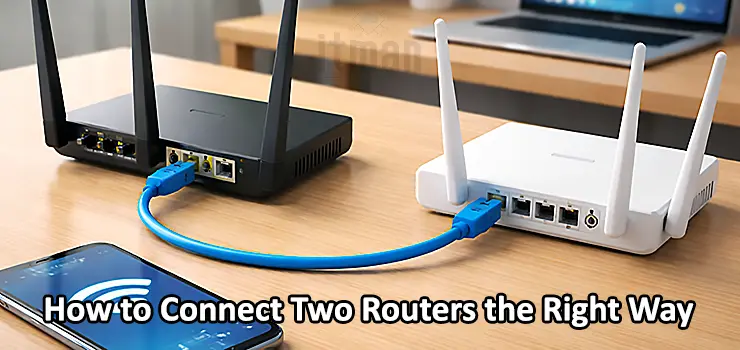
If you have a big home, a multi-floor apartment, a villa, or even a small office, one router is often not enough. You may get weak Wi-Fi in bedrooms, dead zones in corners, or lag during video calls and gaming. This is where adding a second router sounds like the perfect solution. But the real challenge is doing it the right way.
Many people try random setups like plugging cable into the wrong port or enabling DHCP on both routers. Then suddenly the internet becomes unstable, devices disconnect, pages load slowly, or the Wi-Fi feels delayed. You might also experience IP conflicts, double NAT issues, and serious lag while gaming.
In this full guide, you’ll learn how to connect two routers correctly with no lag and no conflicts. We’ll cover the cleanest and most professional methods, explain common mistakes, and show you the exact steps to make everything stable. If your main goal is a smooth network and reliable Wi-Fi, this guide is designed for you.
Table of Contents
ToggleWhy You Might Need to Learn How to Connect Two Routers
Before you start connecting cables, it’s important to understand why people even add a second router. Usually, the goal is one or more of these:
- Expanding Wi-Fi coverage to eliminate dead zones
- Improving stability for multiple users and devices
- Creating a separate network for guests or smart devices
- Extending internet access to another floor or another building
- Adding more LAN ports for PCs, switches, cameras, or printers
When done correctly, connecting two routers can feel like you upgraded your network completely. When done incorrectly, it can create constant lag, random disconnects, and weird Wi-Fi conflicts that are hard to troubleshoot.
That’s why learning how to connect two routers the right way matters.
The 3 Correct Ways to Connect Two Routers (Choose One)
There are only a few proper ways to connect two routers. The best method depends on what you need: better coverage, stronger performance, or network separation.
Here are the main setups:
- Router to Router as Access Point (Best for most users)
- Router to Router with Separate Subnet (Advanced control, but can create double NAT)
- Wireless connection like Repeater or WDS (Works but usually more lag)
Let’s break each one down clearly.
Method 1: How to Connect Two Routers Using LAN to LAN (Best Method)
This is the recommended method for almost everyone. It gives you one clean network, one IP range, and no conflicts.
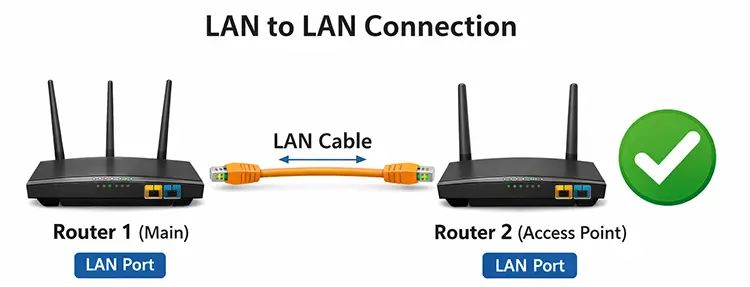
In this setup, Router 1 is your main router (connected to the internet). Router 2 becomes an access point that extends Wi-Fi coverage and provides extra LAN ports.
This method is also called:
- LAN to LAN router connection
- Router 2 as Access Point mode
- Secondary router as bridge (in some brands)
Why LAN to LAN Is the Best Way (No Lag, No Conflicts)
If you want to connect two routers without lag and without IP conflicts, LAN to LAN is the cleanest setup because:
- Only one router handles DHCP
- No double NAT
- Same network for all devices
- Fast roaming (depending on device and router brand)
- Works great for gaming, CCTV, and streaming
What You Need Before You Start
To connect two routers this way, you need:
- A working main router (Router 1)
- A second router (Router 2)
- One Ethernet cable (Cat6 is recommended)
- Access to router settings (web panel or app)
Step-by-Step: How to Connect Two Routers Using LAN to LAN
Follow these steps in order to avoid mistakes.
Step 1: Decide Which Router Is Main Router (Router 1)
Router 1 should be the router connected to:
- ISP modem
- Fiber ONT
- Internet source
This router will do the main job:
- DHCP server
- NAT
- Firewall
- Internet routing
Step 2: Log Into Router 2 and Change Its LAN IP
This step prevents IP conflict.
Example:
- Router 1 IP: 192.168.1.1
- Router 2 should be: 192.168.1.2
So Router 2 stays on the same subnet but with a different IP.
Important: Router 2 must be inside Router 1’s range, but not overlapping.
Step 3: Disable DHCP on Router 2
This is the most important step.
If you forget this, both routers will assign IP addresses, and your network will become unstable. This causes:
- Random disconnections
- Devices getting wrong gateway
- Slow Wi-Fi performance
- IP conflicts
So inside Router 2 settings:
- Find DHCP Server
- Turn it OFF
Step 4: Configure Wi-Fi Settings on Router 2 Correctly
Here’s the ideal setup:
Option A (Recommended): Same Wi-Fi name and password
- Same SSID as Router 1
- Same Wi-Fi password
This helps devices roam more smoothly.
Option B: Different Wi-Fi name
Use this if you want to manually choose which router you connect to.
For channels:
- Set Router 1 on Channel 1
- Set Router 2 on Channel 6 or 11 (for 2.4GHz)
This reduces Wi-Fi interference and improves performance.
Step 5: Connect the Ethernet Cable LAN to LAN
Now physically connect the routers like this:
Router 1 LAN port → Router 2 LAN port
Do NOT use Router 2 WAN port in this method.
Step 6: Test the Network
Now connect your phone or laptop to Router 2 Wi-Fi and check:
- You get internet access
- Your IP looks correct (example 192.168.1.X)
- Gateway is Router 1 (example 192.168.1.1)
- No lag during browsing
If everything is correct, you’ve successfully learned how to connect two routers with the best method.
Method 2: How to Connect Two Routers Using LAN to WAN (Separate Network)
This method is used when you want Router 2 to create a separate network. It is useful for:
- Guest network isolation
- Separate office departments
- Segmented smart home devices
- More control over firewall rules
But it can also cause issues like double NAT.
When LAN to WAN Is a Good Idea
Choose this method only if you intentionally want:
- Two different subnets
- Router 2 to control its own DHCP and firewall
- Isolation between devices
Example setup:
- Router 1 network: 192.168.1.X
- Router 2 network: 192.168.2.X
Step-by-Step: How to Connect Two Routers LAN to WAN
Step 1: Keep DHCP Enabled on Router 2
Router 2 must assign IP addresses to its clients, so DHCP stays ON.
Step 2: Set Router 2 LAN IP to a Different Range
Example:
Router 2 LAN IP: 192.168.2.1
Step 3: Connect Cable From Router 1 LAN to Router 2 WAN
Physical connection:
Router 1 LAN → Router 2 WAN
Now Router 2 is acting like a router behind another router.
Problems You Might Face With LAN to WAN
This setup works, but it may cause:
- Double NAT (bad for online gaming, port forwarding, and some VPNs)
- NAT type issues on consoles like PlayStation or Xbox
- More latency compared to LAN to LAN
- Complicated remote access for cameras and NVR
To reduce issues, you can use:
- DMZ from Router 1 to Router 2
- Port forwarding
- Bridge mode on modem (if possible)
Still, for most people, LAN to LAN remains the best answer for how to connect two routers without lag.
Method 3: How to Connect Two Routers Wirelessly (Repeater / WDS)
Many users try to connect two routers wirelessly to avoid running a cable. This can work, but you should expect performance loss.
Wireless router-to-router connection methods include:
- Repeater mode
- Range extender mode
- WDS bridge (depends on brand compatibility)
- Wireless bridge mode
Why Wireless Connection Often Causes Lag
When Router 2 receives Wi-Fi and then retransmits it, it creates:
- Higher latency
- Lower bandwidth
- More interference
- Reduced speed especially on 2.4GHz
If you want no lag and stable performance, wired connection is always better.
When Wireless Router Connection Is Acceptable
Use wireless connection only if:
- You cannot run an Ethernet cable
- The usage is light (browsing, basic streaming)
- You don’t care about gaming performance
For a smooth setup, try using 5GHz as the backhaul if supported.
Common Mistakes When Learning How to Connect Two Routers
A lot of people create problems by doing one simple wrong thing. Here are the most common mistakes and why they cause trouble.
- Mistake 1: Leaving DHCP Enabled on Both Routers: This creates IP conflicts and unstable connections. Devices might connect but have no internet, or random lag appears.
- Mistake 2: Plugging Into the Wrong Port: If you want LAN to LAN but you plug into WAN, you get double NAT without realizing it. Always confirm which method you want, then connect cables correctly.
- Mistake 3: Using the Same LAN IP on Both Routers: If both routers are 192.168.1.1, your network will become confusing. You might not even access the admin panel of Router 2. Always assign Router 2 a unique LAN IP.
- Mistake 4: Using Auto Channel and Causing Interference: If both routers broadcast on the same channel, Wi-Fi becomes crowded, and you will feel lag. You should choose different channels manually.
- Mistake 5: Bad Cable or Wrong Cable Type: Old or damaged Ethernet cables can cause slow speeds and packet loss. Use Cat5e or Cat6 for stable performance.
Best Settings for a Smooth Two-Router Network (No Conflicts)
To make your network stable, you should apply these best practices.
Use Router 2 as Access Point Mode If Available
Many modern routers have an option called:
- Access Point Mode
- Bridge Mode
If you enable it, it automatically:
- Disables DHCP
- Adjusts NAT settings
- Turns WAN port into LAN (in some models)
This is the easiest way for beginners learning how to connect two routers.
Use a Simple IP Plan
Example plan:
- Router 1: 192.168.1.1
- Router 2: 192.168.1.2
- DHCP range on Router 1: 192.168.1.50 to 192.168.1.250
This avoids conflicts with static IP devices.
Keep One DNS Source
To avoid weird DNS delays, keep your DNS managed by Router 1. If you use custom DNS (like Cloudflare or Google DNS), set it on Router 1 only.
Place Router 2 Correctly
Router placement matters as much as configuration.
- Avoid placing it behind thick walls
- Keep it away from microwaves or metal objects
- Place it in a central area for best coverage
How to Test Your Setup After You Connect Two Routers
After configuration, always test your network to confirm no lag and no conflicts.
Here are quick tests:
Test 1: Check Your IP Address
On Windows:
- Open Command Prompt
- Type: ipconfig
On mobile, you can use network info apps.
You should see:
- IP address: 192.168.1.X (LAN to LAN method)
- Gateway: 192.168.1.1
Test 2: Ping Test for Lag
Ping Router 1:
ping 192.168.1.1
You should get:
- Stable latency (1ms to 5ms on Wi-Fi)
- No timeouts
Test 3: Speed Test Near Router 2
Run a speed test while connected to Router 2 Wi-Fi. Compare it with Router 1’s speed.
If it’s much slower, check:
- Wi-Fi channel interference
- Router 2 placement
- Cable quality
Test 4: Roaming Test
Walk from Router 1 area to Router 2 area while on a video call.
If you used the same SSID and password, your device should roam more smoothly.

On-Site Router Installation and Configuration in Dubai
If you want a professional setup and a stable network from day one, our team in Dubai can help you connect two routers the right way with zero lag and no IP conflicts. We provide on-site technician support across Dubai for router-to-router configuration, including proper LAN-to-LAN setup, DHCP optimization, IP planning, Wi-Fi channel tuning, and full performance testing. Whether you need better coverage in a villa, apartment, or office, we can handle the complete installation and make sure your Wi-Fi stays fast, stable, and consistent across every room
FAQs About How to Connect Two Routers
Should I connect two routers with LAN to LAN or LAN to WAN?
If you want one stable network and no lag, LAN to LAN is the best option. LAN to WAN is only for separate networks and can create double NAT.
Can I use the second router to boost Wi-Fi range?
Yes, Router 2 can extend Wi-Fi coverage very effectively when configured as an access point.
Will connecting two routers reduce internet speed?
Not if you do LAN to LAN properly with a good cable. Wireless repeating can reduce speed.
Do I need to change the Wi-Fi name on Router 2?
Not required. You can keep the same name for better roaming or use a different name for manual control.
What is double NAT and why is it bad?
Double NAT happens when two routers both perform NAT. It can cause problems in online games, port forwarding, and remote access systems like CCTV.
Can I connect two routers without using an Ethernet cable?
Yes, but wireless methods usually add lag and reduce speed. Ethernet is always better.
Why do I get IP conflicts after connecting routers?
Most often because DHCP is enabled on both routers or both routers have the same LAN IP address.
Final Thoughts: How to Connect Two Routers Without Lag or Conflicts
If you want the best real-world solution, the correct answer is simple: use the LAN to LAN method and configure Router 2 as an access point. This is the most stable way to connect two routers, and it avoids the biggest problems like lag, IP conflicts, and double NAT.
To summarize the best practice for how to connect two routers:
- Router 1 stays as the main router
- Router 2 becomes an access point
- Disable DHCP on Router 2
- Change Router 2 LAN IP to a unique address
- Connect LAN to LAN
- Set Wi-Fi channels properly
Once you follow these steps, your network will feel smoother, faster, and much more reliable. Whether your goal is stable gaming, strong Wi-Fi across your home, or a clean office network, this setup is the right way to do it.