







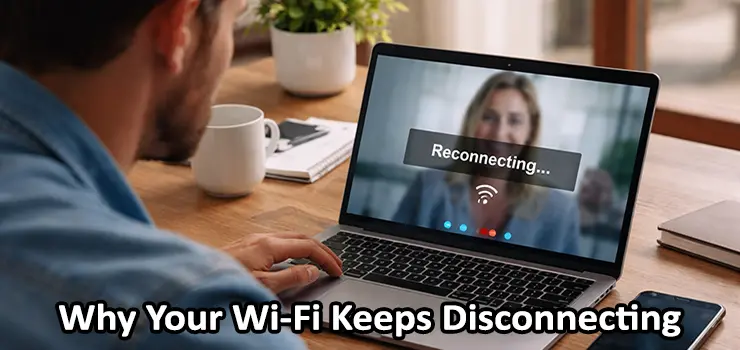
If you’ve ever been in the middle of a Zoom call, watching YouTube, uploading a file, or even just scrolling Instagram, and suddenly your internet drops, you’re not alone. One of the most frustrating home and office problems is when your Wi-Fi keeps disconnecting again and again for no obvious reason. Sometimes it happens every few minutes, sometimes only at night, and sometimes it only affects one device while everything else stays connected.
The good news is that in most cases, Wi-Fi Keeps Disconnecting issues are fixable without changing your entire network. The key is figuring out the real cause: is it your router, your internet provider, your phone or laptop, the signal coverage, or even interference from other devices?
In this guide, you’ll learn the most common reasons why Wi-Fi Keeps Disconnecting, how to identify the cause, and the most effective fixes you can apply right now. This is a practical, step-by-step article designed for real users who want stable Wi-Fi without guessing.
Wi-Fi Keeps Disconnecting: What It Usually Means
When Wi-Fi Keeps Disconnecting, it can mean different things depending on what exactly drops:
- Your device disconnects from the Wi-Fi network completely and switches to mobile data or shows “Not connected”.
- Your device stays connected to Wi-Fi but there is no internet (you’ll see messages like “Connected, no internet”).
- The connection stays on, but it becomes so unstable that apps load slowly, then fail, then reconnect again.
- Only specific devices disconnect while others keep working normally.
Each situation points to a different problem. Many people assume it’s the internet provider, but in reality the issue is often inside your home or office network.
Common Signs You’re Dealing With a Wi-Fi Disconnecting Problem
Here are clear signs that your Wi-Fi Keeps Disconnecting instead of being a simple “slow internet” problem:
- Your connection drops for a few seconds or minutes, then comes back
- You need to turn Wi-Fi off and on again to reconnect
- Your smart TV or gaming console disconnects randomly
- Only one room has unstable Wi-Fi and the rest of the house is fine
- It happens mostly during peak hours (evening time)
- It happens mostly when you move around in the house
- It happens when you start heavy downloads, gaming, or video calls
Understanding the pattern makes troubleshooting much easier.
Cause 1: Weak Signal and Poor Coverage
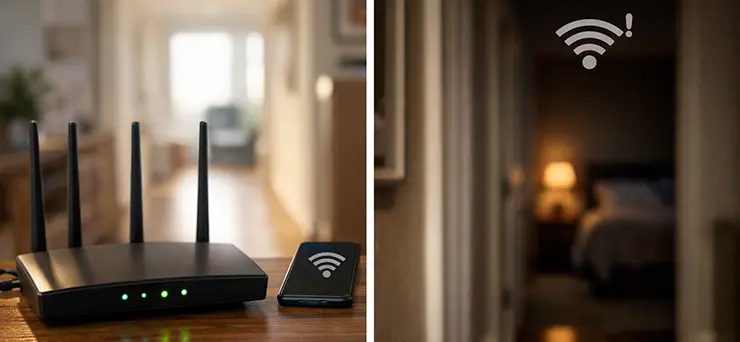
One of the biggest reasons Wi-Fi Keeps Disconnecting is simply weak signal strength. Many users don’t realize that your Wi-Fi coverage is not equal everywhere. Walls, furniture, mirrors, and even the building structure can kill the signal.
How to confirm it’s weak signal
- In some rooms your Wi-Fi shows 1–2 bars
- The disconnection happens when you move farther away from the router
- If you stand near the router, the Wi-Fi becomes stable again
Fixes for weak signal
- Move your router to a more central location
- Avoid placing the router inside cabinets or behind TVs
- Raise it higher (on a shelf instead of on the floor)
- Keep the router away from thick walls and metal objects
- Add a mesh Wi-Fi system for better coverage
- Use a wired access point if you have Ethernet cabling
If the disconnecting issue happens mostly in one corner of the house, coverage is almost always the first thing to fix.
Cause 2: Router Overheating or Hardware Problems
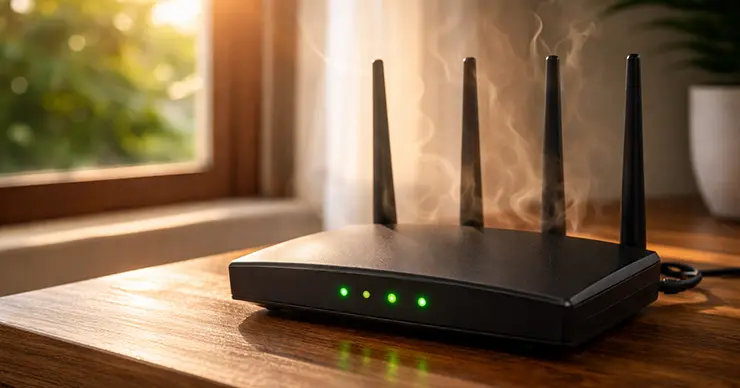
Routers are small computers. When they overheat or become unstable, Wi-Fi Keeps Disconnecting happens randomly, especially under load.
Signs your router may be overheating
- The router feels hot to the touch
- Disconnects increase when many devices are connected
- Wi-Fi drops more often in summer or during the day
- Restarting the router temporarily fixes the issue
Fixes for router overheating
- Place the router in an open area with airflow
- Don’t stack other electronics on top of it
- Clean dust and keep vents open
- Reduce high load features like heavy traffic monitoring if the router is weak
- If it’s an old router (5+ years), upgrading may be the best option
If Wi-Fi Keeps Disconnecting happens even at close range and with only one device connected, hardware instability is a strong possibility.
Cause 3: Too Many Devices Connected
Modern homes and offices have phones, laptops, tablets, smart TVs, cameras, printers, and smart home systems. Even if you don’t notice it, your router could be handling 20–60 devices at once.
When your Wi-Fi Keeps Disconnecting in a busy network, your router may be hitting its limit.
Why too many devices causes disconnects
- The router CPU/RAM gets overloaded
- Too many wireless clients compete for airtime
- Cheap routers can’t handle many simultaneous connections
- Some devices repeatedly reconnect and create extra load
Fixes when too many devices are connected
- Restart the router and see if stability improves for a short time
- Disconnect unused devices and test again
- Upgrade your router to a stronger Wi-Fi 6 or Wi-Fi 6E model
- Use multiple access points in offices
- Separate your devices using 2.4GHz for smart devices and 5GHz for phones/laptops
- Put heavy devices like PCs and consoles on Ethernet cable
This is one of the most common real-world reasons Wi-Fi Keeps Disconnecting in busy homes.

Cause 4: Interference From Other Wi-Fi Networks and Electronics
If you live in an apartment building or a crowded neighborhood, there may be dozens of nearby Wi-Fi networks overlapping with yours.
Even if your signal looks strong, interference can still cause instability.
Common interference sources
- Neighbor Wi-Fi networks on the same channel
- Bluetooth devices (sometimes)
- Microwave ovens
- Baby monitors
- Wireless security cameras
- Cordless phones (older models)
- Thick glass and metal windows reflecting signals
Fixes for interference problems
- Change your Wi-Fi channel in router settings
- Use 5GHz instead of 2.4GHz when possible
- Move the router away from microwaves and large electronics
- In crowded areas, a mesh system can help by providing better signal strength across rooms
- Upgrade to Wi-Fi 6/6E for more efficient network handling
If Wi-Fi Keeps Disconnecting mostly happens at night in crowded areas, interference is a likely reason because neighbors are also using their internet heavily.
Cause 5: Your Router Firmware Is Outdated
Router manufacturers release firmware updates to fix bugs, improve stability, and patch security problems. If you’re using an old firmware version, random disconnections can happen.
Signs firmware could be the problem
- Your router is stable sometimes but randomly crashes
- You haven’t updated firmware in months or years
- Wi-Fi Keeps Disconnecting started after a power cut or reset
- You see “reboot” events in router logs
Fixes for firmware issues
- Check your router model and firmware version
- Update the firmware from official settings page
- Restart after updating
- If the router supports auto-update, enable it
- Avoid installing unofficial firmware unless you know what you’re doing
Firmware problems can cause Wi-Fi Keeps Disconnecting with no clear pattern, so it’s worth checking.
Cause 6: ISP Connection Drops (Not Just Wi-Fi)
Sometimes your Wi-Fi network is fine, but your internet provider connection drops. In this case, your phone might stay connected to Wi-Fi but the internet stops working.
How to confirm it’s ISP-related
- You see Wi-Fi connected but apps say “No Internet”
- Multiple devices lose internet at the same time
- Router internet light turns red or blinks abnormally
- Your modem connection drops, not only Wi-Fi
Fixes if ISP is causing disconnections
- Restart both modem and router (power off for 30 seconds)
- Check if your ISP is having outages in your area
- Replace damaged DSL/fiber cables if needed
- If you use coaxial internet, check the splitter and connectors
- Contact ISP support and ask for a line stability test
If Wi-Fi Keeps Disconnecting happens on all devices at exactly the same time, ISP drops become much more likely.
Cause 7: DHCP Issues and IP Conflicts
DHCP is the system that automatically gives IP addresses to devices. If something goes wrong, devices can disconnect or lose internet access.
Signs of DHCP problems
- Wi-Fi disconnects, reconnects, disconnects again
- “Obtaining IP address” message keeps appearing
- Some devices work, others constantly fail
- Your phone connects but has no internet until reconnecting
Fixes for DHCP issues
- Restart router (clears temporary DHCP problems)
- Increase DHCP pool size in router settings
- Avoid using the same static IP on multiple devices
- Reserve IP addresses for important devices
- If you have a second router, make sure only one device is running DHCP
A bad DHCP setup is common when users connect two routers incorrectly, and then Wi-Fi Keeps Disconnecting becomes a daily issue.
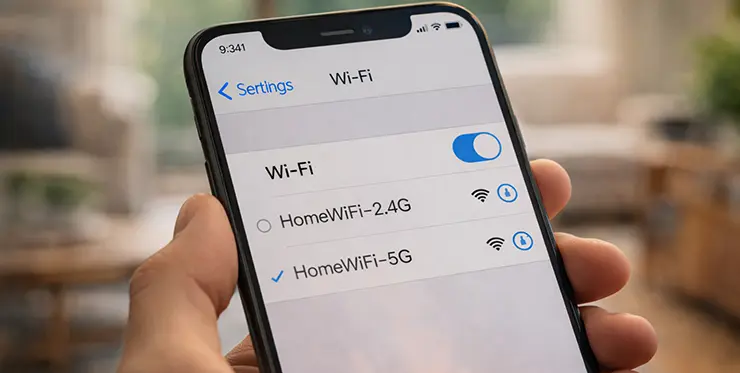
Cause 8: 2.4GHz vs 5GHz Band Switching
Many modern routers use “Smart Connect” which combines 2.4GHz and 5GHz under one Wi-Fi name. In theory, devices switch automatically to the best band. In reality, this switching can sometimes cause random drops.
Signs band switching is causing problems
- Your Wi-Fi disconnects when moving around the house
- Your device jumps between 2.4GHz and 5GHz frequently
- Some devices cannot handle smart switching properly
Fixes for band switching instability
- Separate the SSIDs: create one for 2.4GHz and one for 5GHz
- Connect fixed devices to the most stable band
- Use 2.4GHz for longer range, 5GHz for speed
- Disable “Band Steering” if your router has it
If Wi-Fi Keeps Disconnecting happens when you walk from room to room, smart switching is a very strong suspect.
Cause 9: Power-Saving Mode on Phones and Laptops
Sometimes the network is stable, but your device is the one dropping the connection to save battery. This is common on laptops and Android devices.
Signs device power settings are causing disconnections
- Wi-Fi drops when the device screen is off
- It happens only on one phone or laptop
- It happens when the laptop is on battery power
- It works better when plugged into charging
Fixes for device power-saving issues
On Windows laptop:
- Go to Device Manager → Network adapters
- Open your Wi-Fi adapter properties
- Disable “Allow the computer to turn off this device to save power”
On Android:
- Disable aggressive battery optimization for Wi-Fi
- Turn off “Adaptive connectivity” if causing issues
On iPhone:
- Forget the network and reconnect
- Update iOS if you’re on an older version
Device-side settings can make it look like Wi-Fi Keeps Disconnecting when it’s actually the device going into sleep mode.
Cause 10: Router Placement Mistakes
Even a strong router can fail if placed poorly. Many people put routers in the worst possible locations without realizing it.
Router placement mistakes that cause Wi-Fi disconnects
- Router inside a closed TV cabinet
- Router placed on the floor behind furniture
- Router placed in a corner of the house
- Router next to mirrors or metal shelves
- Router placed too close to other electronics
Quick placement improvements
- Put it in the center of your space
- Place it higher (1–1.5 meters)
- Keep it away from thick walls
- Avoid placing it near large metal objects
Bad placement often creates dead zones, and in dead zones your Wi-Fi Keeps Disconnecting becomes unavoidable.
Cause 11: Wi-Fi Security Mode Compatibility Issues
Some devices do not work well with certain security modes, especially older smart devices. For example, mixing WPA2/WPA3 on one network can cause issues.
Signs security settings are causing disconnects
- Smart devices keep dropping
- Some devices connect fine, others fail
- The network works after restarting but becomes unstable later
Fixes
- Set security mode to WPA2-PSK (AES) for maximum compatibility
- Avoid WPA/WEP legacy modes for security reasons
- If WPA3 causes issues, try WPA2-only mode
Security settings are not the first cause people check, but they can absolutely lead to Wi-Fi Keeps Disconnecting.
Cause 12: Router Is Using a Bad Channel Width
Modern Wi-Fi settings include channel width options like 20MHz, 40MHz, 80MHz, and even 160MHz.
Wider channels are faster, but they can be less stable in crowded areas, which can cause Wi-Fi Keeps Disconnecting.
Fixes
- For 2.4GHz: use 20MHz width
- For 5GHz: use 80MHz (or 40MHz if unstable)
- Avoid 160MHz unless you know your environment supports it
In crowded Wi-Fi environments, stability is usually better than maximum speed.
Step-by-Step Troubleshooting Checklist (Fast and Practical)
If you want to fix Wi-Fi Keeps Disconnecting without wasting time, use this exact order:
Step 1: Restart the modem and router
Turn off both for 30 seconds, turn them on again.
Step 2: Test near the router
Stay close and check if disconnections stop.
If yes, your issue is coverage or interference.
Step 3: Test with only one device connected
Disconnect others temporarily.
If Wi-Fi becomes stable, your router may be overloaded.
Step 4: Switch to 5GHz
If available, connect to 5GHz and test.
Step 5: Update router firmware
Update to the latest stable version.
Step 6: Change Wi-Fi channel
Use channels 1, 6, or 11 on 2.4GHz (test which works best).
Step 7: Separate 2.4GHz and 5GHz SSIDs
This fixes many “random” disconnecting issues.
Step 8: Check device power saving settings
Especially on Windows laptops and Android phones.
Step 9: Check ISP connection stability
If everything disconnects at once, call your provider.
Step 10: Upgrade your router if needed
If your router is outdated, replacing it may solve everything instantly.
Best Long-Term Solutions If Wi-Fi Keeps Disconnecting Often
If this problem keeps coming back, these are the most reliable long-term upgrades:
- Use a mesh Wi-Fi system
Perfect for villas, large apartments, and multi-floor homes. - Add access points with Ethernet backhaul
Best option for offices, stable roaming, and maximum speed. - Use wired Ethernet for critical devices
For gaming PCs, office desktops, and smart TVs, Ethernet is always superior. - Upgrade to Wi-Fi 6 or Wi-Fi 6E router
Modern routers handle more devices and reduce congestion. - Improve network design:
Instead of one router doing everything, build a small system: modem, main router, access points.
This is the professional way to prevent Wi-Fi Keeps Disconnecting in real networks.

Mistakes to Avoid When Fixing Wi-Fi Disconnecting Issues
Many users accidentally make things worse while trying to fix the problem. Avoid these mistakes:
- Resetting router repeatedly without understanding the cause
- Using cheap repeaters that reduce stability
- Placing extenders too far from the router
- Mixing two routers with DHCP enabled on both
- Using the same Wi-Fi name/password on different routers without proper roaming setup
- Ignoring firmware updates
If Wi-Fi Keeps Disconnecting is affecting your work or business, it’s better to troubleshoot properly than keep trying random changes.
On-Site Wi-Fi Troubleshooting in Dubai
If your Wi-Fi Keeps Disconnecting at home or in your office, you don’t have to waste time with trial and error. Our Dubai-based technicians can visit your location, fully inspect your router and network setup, identify weak signal areas, interference, or configuration issues, and apply the right fixes on-site. From optimizing Wi-Fi channels and separating 2.4GHz/5GHz bands to installing mesh systems or access points for stronger coverage, we’ll make sure your connection becomes stable, fast, and reliable.
FAQ: Wi-Fi Keeps Disconnecting (Quick Answers)
1) Why does Wi-Fi Keeps Disconnecting only on my phone?
Your phone may have power saving enabled, software bugs, or a weak Wi-Fi antenna compared to other devices.
2) Why does Wi-Fi Keeps Disconnecting at night?
It can be ISP congestion, interference from neighbor networks, or automatic router features like scheduled reboots or updates.
3) Can a bad router cause Wi-Fi Keeps Disconnecting even with strong signal?
Yes. A router can show full signal but still be unstable due to overheating, weak hardware, or firmware issues.
4) Why does Wi-Fi Keeps Disconnecting when I move to another room?
Your device may be switching bands, or you’re entering a weak coverage area.
5) Is it better to use 2.4GHz or 5GHz to stop disconnecting?
2.4GHz is more stable at long distance, but slower. 5GHz is faster but weaker through walls. Stability depends on your layout.
6) Does changing Wi-Fi password fix disconnecting problems?
Sometimes, yes. It forces devices to reconnect cleanly and removes corrupted saved profiles.
7) Why does Wi-Fi Keeps Disconnecting after I installed a new router?
It may be wrong setup (double NAT, two DHCP servers) or channel interference.
8) Will a Wi-Fi extender fix Wi-Fi Keeps Disconnecting?
Not always. Many extenders increase coverage but reduce stability. Mesh or wired access points are better solutions.
9) Can interference from microwaves cause disconnecting?
Yes, especially on 2.4GHz. If disconnecting happens when using a microwave, switch to 5GHz.
10) How do I know if the problem is the ISP or my Wi-Fi?
If devices stay connected to Wi-Fi but internet disappears, ISP is likely. If the Wi-Fi network itself disappears or drops, router/coverage is likely.
Final Thoughts: How to Stop Wi-Fi Keeps Disconnecting for Good
When Wi-Fi Keeps Disconnecting, it’s usually caused by one of these categories: weak coverage, router instability, interference, too many devices, or ISP connection drops. The best way to fix it is not guessing, but testing step by step.
Start with simple fixes like restarting, checking signal strength, and updating firmware. If the problem continues, separate Wi-Fi bands, change channels, and consider upgrading to a stronger router or mesh system. Once your network is set up properly, your internet becomes stable, consistent, and you stop dealing with random disconnects during work and daily life.
A stable Wi-Fi connection is not a luxury anymore. It’s a basic need, and with the right troubleshooting method, you can fix Wi-Fi Keeps Disconnecting and finally enjoy reliable internet again.