








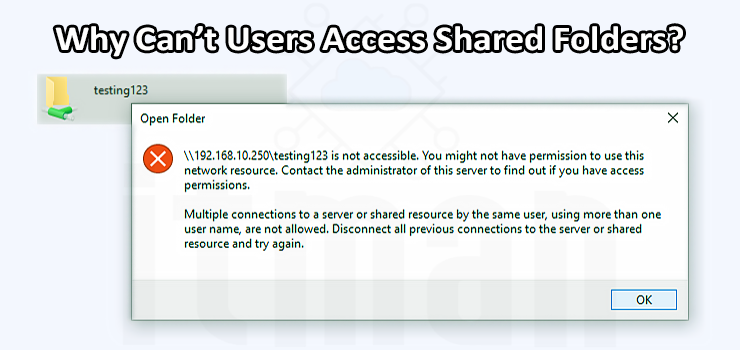
Shared folders are a fundamental part of many business networks. Employees use them to access documents, projects, accounting files, applications, backups, and other resources stored on a server or another computer. When a shared folder suddenly becomes inaccessible, the problem can quickly affect an entire department and interrupt normal business operations.
The frustrating part is that “I can’t access the shared folder” does not always mean the same thing. One user may receive an Access Denied message because of incorrect permissions, while another may be unable to find the server because of a DNS or network problem. In other cases, Windows may be using old credentials, the file server may be unavailable, or the shared folder itself may have been moved or renamed.
Understanding where the failure occurs makes troubleshooting much faster. This guide explains the most common causes of shared folder access problems and provides practical solutions that users, administrators, and IT Support teams can apply without randomly changing network settings or permissions.
Start by Identifying What Actually Fails
Before changing anything, determine exactly what the user is experiencing. For example, there is a major difference between these situations:
“The shared folder is visible, but I get Access Denied.”
and:
“I cannot connect to the server at all.”
If the user can reach the server but cannot open a particular folder, the problem is more likely to involve permissions, authentication, or the share configuration. If Windows cannot find the server, the investigation should start with network connectivity, DNS, name resolution, or the server itself. Try accessing the server directly using its IP address. For example:
\\192.168.1.20
If this works but:
\\FileServer
does not, the network connection may be working correctly while name resolution is failing. This is an important clue because there is no reason to start changing folder permissions when the actual problem is DNS. You can also test whether the server responds by opening Command Prompt and running:
ping FileServer
A successful ping does not prove that file sharing is working, but it can help determine whether the computer can resolve and reach the server.
Check Whether the Problem Affects One User or Everyone
This is one of the most useful troubleshooting steps, and it is often overlooked. If only one employee cannot access the shared folder while everyone else can, the problem is probably local to that user’s computer, account, credentials, or permissions.
If an entire department suddenly loses access, the cause is more likely to be related to the file server, network, Active Directory, firewall, storage, or the shared-folder configuration. For example, imagine that ten employees use:
\\Server01\Finance
If nine users can open it and one user receives an error, there is little reason to immediately investigate the server. Start with the affected user’s account and workstation. On the other hand, if nobody can access \\Server01\Finance, checking individual Windows settings on every workstation is unlikely to solve the problem. The server and network infrastructure should be investigated first. This simple distinction can save an IT Support technician considerable troubleshooting time.
Verify That the Computer Is Connected to the Correct Network
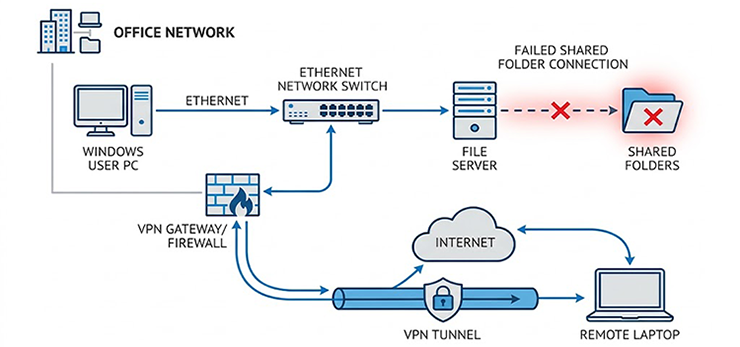
A shared folder hosted inside an office network is normally accessible only when the user’s computer has connectivity to that network. This becomes particularly important for employees working remotely. A laptop may have internet access and still be unable to access an internal file server. For example, a user might be able to browse websites, use Microsoft 365, and send emails but still receive:
Windows cannot access \\FileServer\Shared
because the computer is not connected to the company’s VPN. If the file server is located inside the office, confirm that the user is connected to the corporate VPN when working remotely. If the VPN is connected but the shared folder is still unavailable, test the server by IP address.
If the IP address works but the hostname does not, investigate DNS or VPN DNS configuration rather than the folder permissions. IT Support can also check whether the VPN is routing traffic to the internal network correctly. A VPN connection showing “Connected” does not necessarily mean every internal subnet is reachable.
Check the Shared Folder Path
A surprisingly common cause is simply an incorrect path.
A shared folder may have originally been mapped as:
\\Server01\Projects
but later the folder could have been renamed, moved, or shared under another name.
Try opening the server itself:
\\Server01
If the server opens and displays its available shares, but the required folder does not appear, the issue may be with the share name or configuration.
If the user has a mapped drive such as S:, disconnecting and reconnecting it can also help determine whether the mapped path is still valid.
However, repeatedly remapping drives without identifying the underlying problem is not a real solution. If the server name, permissions, or authentication are incorrect, the same problem will eventually return.
Understand the Difference Between Share Permissions and NTFS Permissions
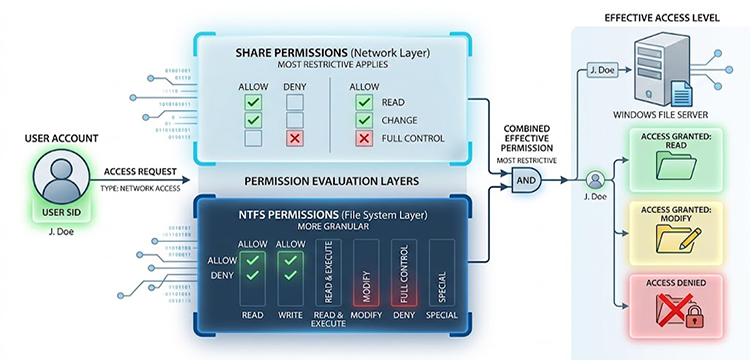
One of the most important concepts in Windows file sharing is that access can be controlled at two levels: share permissions and NTFS permissions. Share permissions apply when a folder is accessed over the network. NTFS permissions control access to the folder and files on the Windows file system. A user may therefore have permission at one level but still be blocked by the other.
For example, suppose an employee belongs to the Finance security group. The NTFS permissions might allow that group to read and modify files, but the network share permissions may restrict access. The effective permission is determined by the combination of these controls.
This is why simply adding a user to a folder’s permissions does not always resolve an Access Denied error. A good IT Support process is to check which security groups the user belongs to, whether those groups have access to the shared folder, and whether there are any explicit Deny permissions. Deny entries require particular attention because they can override otherwise permitted access.
Permission changes should be made carefully. Giving users Full Control just to make the error disappear can create a security problem and is not considered proper troubleshooting.
Check Whether the User’s Windows Credentials Are Wrong
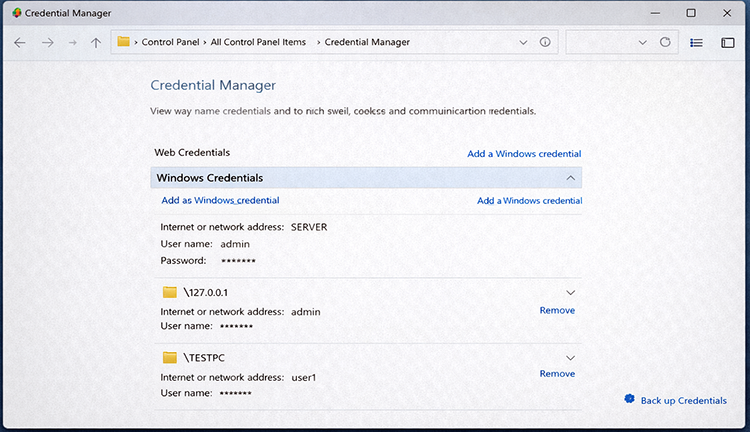
Windows can remember credentials used to access network resources. If a user’s password has recently changed, Windows may continue trying to authenticate using an older credential. This can create confusing situations where the user knows the password is correct but still cannot access the shared folder.
One useful place to investigate is Credential Manager in Windows. Stored Windows credentials associated with the file server can sometimes be removed so that Windows can request authentication again. Mapped network drives can also retain existing sessions.
From Command Prompt, an administrator or IT Support technician can inspect current network connections with:
net use
If there is an existing connection to the problematic server, it may be necessary to disconnect that session and reconnect using the correct account.
For example:
net use \\Server01\Share /delete
The exact command should be used carefully, especially on a computer with multiple active network connections.
In a business environment using Active Directory, IT Support should also verify that the user’s domain account is active, not locked, and properly synchronized with the organization’s authentication system.
Check Active Directory Group Membership
In many Windows business environments, users are not granted access to every folder individually. Instead, permissions are assigned to security groups. For example:
Finance Users → Finance Security Group → Finance Shared Folder
If a new employee joins the finance department but cannot access the Finance share, the problem may simply be that their domain account has not been added to the correct security group. The same issue can occur after an employee changes departments. Their account may have been removed from one group but not added to another.
There is another complication: group membership changes may not immediately appear on a user’s existing Windows session. Logging out and signing back in can refresh the user’s security token. IT Support should therefore verify the user’s group membership and, when appropriate, have the user sign out and sign back in after permissions are changed.
Check Whether the File Server Is Available
If multiple users cannot access multiple shared folders on the same server, investigate the server itself. The server may be offline, restarting, disconnected from the network, experiencing storage problems, or having a Windows file-sharing service issue. Start by checking whether the server can be reached:
ping Server01
Then try:
\\Server01
If the server cannot be reached at all, the problem may be network-related or the server may be unavailable. If the server responds but the shares cannot be opened, investigate Windows file-sharing services, SMB configuration, firewall rules, storage availability, and the server’s event logs.
A server can also remain online while having a full disk or storage failure. In that situation, users may experience strange behavior ranging from slow folder access to complete inability to open files. This is where professional IT Support becomes especially valuable. Troubleshooting a shared-folder outage is not simply a matter of changing permissions. The technician needs to determine whether the failure originates from the workstation, authentication system, network, server, or storage layer.
Check SMB and Windows Firewall Configuration
Windows shared folders typically rely on SMB (Server Message Block) for file and printer sharing. If SMB traffic is blocked between the user’s computer and the server, the user may have internet connectivity but still be unable to access network shares.
This can happen after a firewall configuration change, security policy update, Windows update, or network redesign. On a properly managed business network, firewall rules should allow the required file-sharing traffic between trusted systems while avoiding unnecessary exposure.
IT Support should also verify that the Windows network profile is appropriate. A computer incorrectly configured as a public network may apply firewall policies that prevent expected file-sharing behavior. Do not solve the problem by simply disabling the Windows Firewall. That may temporarily change the symptom while creating a much larger security risk.
Instead, identify which rule or network policy is blocking the required traffic.
When the Shared Folder Opens but Files Cannot Be Modified
Sometimes users can open the shared folder but cannot create, edit, rename, or delete files. This is another strong indication that permissions need to be examined. For example, a user may have Read access but not Modify access.
This distinction matters because the ability to see a folder does not automatically mean the user has permission to change its contents. The correct permission should be based on the user’s actual job requirements. An employee who only needs to read reports should not automatically receive modification rights.
There may also be file-level permissions that are more restrictive than the folder itself. NTFS inheritance, explicit permissions, and group memberships should all be considered when investigating this type of problem.
Check for Offline Files and Cached Network Data
Windows can cache network files through features such as Offline Files. While useful in some environments, cached data can occasionally cause confusion when the server copy and local cached copy are not synchronized correctly. A user may believe they are working with the current version of a document while Windows is actually presenting cached data.
If a shared folder behaves differently when accessed from different computers, IT Support should determine whether Offline Files or another synchronization mechanism is involved. This is especially important for organizations where employees frequently work remotely and reconnect to internal file servers through VPN.
Consider DNS When the Server Name Does Not Work
One of the most useful troubleshooting clues is this:
The server works by IP address but not by hostname.
For example:
\\192.168.1.20\Documents works.
But:
\\FileServer\Documents does not.
This strongly suggests a name-resolution problem.
Windows may be unable to resolve the server’s hostname through DNS, NetBIOS, or another configured name-resolution mechanism.
You can test DNS resolution using:
nslookup FileServer
If the expected IP address is not returned, the issue should be investigated at the DNS level. In a domain environment, incorrect DNS configuration on the workstation can cause multiple internal services to fail, not just shared folders. A computer pointing to the wrong DNS server may have internet access while still being unable to properly locate internal resources. This is one reason IT Support should avoid applying random DNS changes without understanding the network architecture.
Why Restarting the Computer Sometimes Works
“Have you tried restarting it?” sounds like a generic IT Support question, but in this situation it can occasionally be legitimate. Windows maintains authentication sessions, network connections, cached credentials, mapped drives, and security tokens. After a password change, VPN reconnection, group membership update, or network configuration change, the current session may not reflect the latest configuration.
Logging out and back in is often more relevant than a full reboot because it refreshes the user’s authentication token. A reboot can help when the network adapter, Windows services, or cached state is behaving incorrectly, but it should not be treated as the primary solution.
If restarting fixes the problem temporarily and it repeatedly returns, there is almost certainly an underlying issue that needs investigation.
When Should You Contact IT Support?
Users can perform some basic checks themselves, such as confirming VPN connectivity, testing the server path, or checking whether other colleagues are affected. However, permission and server-side changes should generally be handled by IT Support, particularly in a business environment. Contact IT Support when the problem involves:
- Multiple users losing access to the same server.
- Active Directory permissions or security groups.
- Server availability or storage problems.
- SMB or firewall configuration.
- DNS or domain-controller issues.
- Repeated authentication failures.
- Permission changes that could affect sensitive company data.
A good IT Support team should not simply reconnect the drive and consider the ticket closed. The objective is to identify the root cause and prevent the same failure from happening again.
For example, if users repeatedly lose access after password changes, the organization may need to review credential management. If shared folders become unavailable whenever the VPN is used, the VPN routing or DNS configuration should be investigated. If permissions are constantly being changed manually for individual users, the company’s access-control model may need to be redesigned around security groups.
Preventing Shared Folder Access Problems
The best solution is not fixing the same shared-folder problem every week. A well-managed IT environment should make access predictable and secure. Shared folders should have clearly defined ownership, structured security groups, documented permissions, reliable backups, and monitored file servers. Network infrastructure should provide stable connectivity between workstations and servers, while VPN users should receive the same level of controlled access required for their role.
Regular monitoring can also help identify problems before users report them. Server storage capacity, network connectivity, authentication failures, and critical Windows events are all worth monitoring in an environment that depends heavily on shared files.
Most importantly, permissions should follow the principle of least privilege. Users should receive the access they actually need rather than broad permissions simply because they are easier to configure.
Final Thoughts
When users cannot access shared folders, the problem is rarely solved effectively by repeatedly reconnecting a mapped drive. The correct approach is to identify where the connection fails.
If the server cannot be reached, investigate the network or server. If the server is reachable but the share cannot be opened, check SMB and share configuration. If the share opens but access is denied, investigate authentication and permissions. If the server works by IP address but not by hostname, look closely at DNS. And if only one user is affected, start with that user’s workstation, account, credentials, and group membership.
This structured approach allows IT Support teams to resolve shared-folder problems faster while avoiding unnecessary permission changes that can create security risks.
For businesses that rely on network storage, file servers, Active Directory, VPN connectivity, and shared resources every day, professional IT Support can make a significant difference. Instead of treating every “shared folder not working” complaint as an isolated problem, IT Support can identify the root cause, restore access safely, and improve the underlying network environment so the same issue is less likely to happen again.