






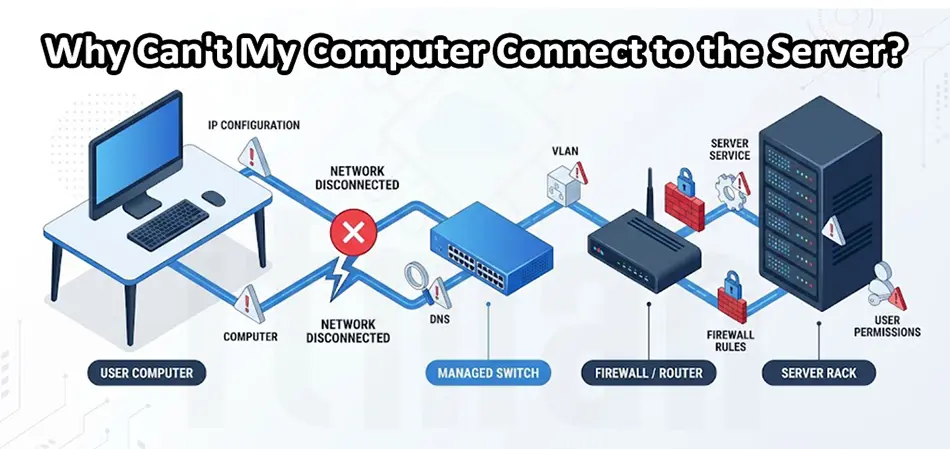
When your computer suddenly cannot connect to a server, it can stop you from accessing shared folders, business applications, databases, printers, or other resources you need to do your job. The frustrating part is that the error message is often vague: “Network path not found,” “Access denied,” “The specified network name is no longer available,” or simply “Unable to connect.”
The good news is that a server connection problem is usually possible to diagnose without randomly changing settings. With a structured IT Support troubleshooting process, you can identify whether the problem is your computer, the network, DNS, firewall, server, or user permissions. This guide walks through the most common causes and explains what you can actually do to fix them.
First, Identify What “Cannot Connect” Means
Before changing anything, determine exactly what is failing. Are you unable to open a shared folder such as:
\\Server01\SharedOr are you trying to connect to a server application, database, Remote Desktop, or another service? This distinction matters because a computer can successfully communicate with a server while still being unable to access a particular service. For example, if you can ping the server but cannot open a shared folder, the problem may involve SMB, Windows Firewall, permissions, or the file-sharing service rather than the basic network connection. Good IT Support starts by identifying the exact failure instead of treating every server connection problem as the same issue.
1. Check Your Network Connection
Start with the simplest possibility: your computer may not actually have a working connection to the business network. If you’re using Ethernet, check the network cable and make sure the switch port is active. If you’re using Wi-Fi, verify that you’re connected to the correct corporate wireless network. Open Command Prompt and run:
ipconfigLook for the IPv4 address. A normal internal address could look like:
192.168.1.25or:
10.10.20.35If Windows gives your computer an address beginning with 169.254, it usually means the computer failed to obtain an IP address from DHCP. Try reconnecting the network adapter and checking the cable or Wi-Fi connection. If several users have the same problem, IT Support should investigate the DHCP server, switch, access point, or network infrastructure.
2. Check Whether the Server Is Actually Online
Don’t assume that your computer is the problem. If other employees also cannot access the server, the server itself may be offline, restarting, disconnected from the network, or experiencing a hardware or operating-system problem. If you have access to the server, check its:
- Power status
- Network connection
- Network adapter
- CPU and memory usage
- Disk health
- Windows services
- Recent system errors
For physical servers, an IT Support technician can also check the server’s management interface and hardware alerts. A useful rule is:
One user affected = investigate the workstation first.
Multiple users affected = investigate the server or network first.
This simple distinction can save a lot of troubleshooting time.
3. Try Connecting to the Server by IP Address
One of the most useful IT Support troubleshooting techniques is testing the server’s IP address instead of its hostname. For example, instead of:
\\FileServer01\Sharedtry:
\\192.168.10.10\SharedIf the IP address works but the server name doesn’t, your network connection may be fine. The problem is likely related to DNS or name resolution. You can also test the server with:
ping 192.168.10.10Keep in mind that some servers intentionally block ICMP traffic. Therefore, a failed ping doesn’t automatically mean that the server is offline. IT Support should use ping as one diagnostic step rather than treating it as a definitive server availability test.
4. Check DNS When the Server Name Doesn’t Work
DNS translates names such as FileServer01 into IP addresses. If DNS is not working correctly, your computer might have Internet access but still be unable to find internal servers. Run:
nslookup FileServer01Check whether the correct IP address is returned. You can also try:
ping FileServer01If:
ping 192.168.10.10works but:
ping FileServer01fails or resolves incorrectly, DNS is an important suspect. In a Windows domain environment, internal DNS is especially important because many business services depend on correct DNS records. An IT Support technician can check the workstation’s configured DNS servers, DNS records, DHCP options, and domain configuration.
5. Check Your IP Address, Subnet, and Gateway
Incorrect network configuration can prevent your computer from reaching the server. Run:
ipconfig /allCheck the:
- IPv4 address
- Subnet mask
- Default gateway
- DNS servers
- DHCP status
For example, if your computer is:
192.168.10.25and the server is:
192.168.10.10with a /24 network, they are normally on the same subnet. But if your computer is:
192.168.20.25while the server is:
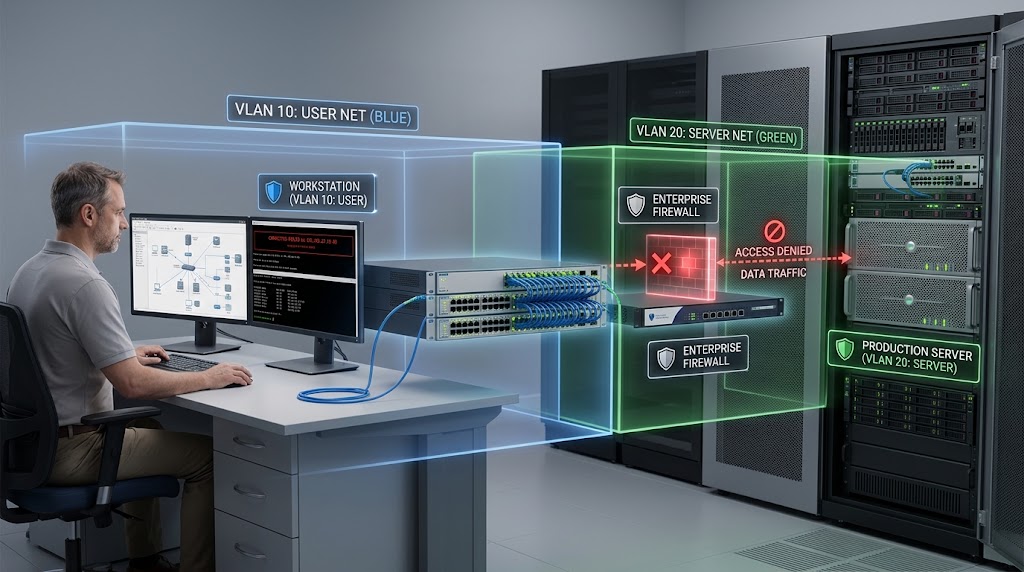
192.168.10.10communication may require routing between the two networks. In a business environment, this can also indicate a VLAN configuration issue.
6. Check VLANs and Network Segmentation
Modern business networks often separate users, servers, guests, VoIP devices, cameras, and other systems into different VLANs. For example:
- VLAN 10 – Office computers
- VLAN 20 – Servers
- VLAN 30 – Guest Wi-Fi
- VLAN 40 – Voice
- VLAN 50 – CCTV
A computer connected to a guest VLAN may have full Internet access but no access to internal servers. That’s not necessarily a fault; it may be an intentional security policy. If the server connection stopped after a switch configuration change, network upgrade, new VLAN deployment, or firewall change, IT Support should check VLAN assignment, trunk configuration, inter-VLAN routing, and access-control rules. Changing random network settings on the workstation won’t fix a blocked network path.
7. Check Windows Firewall and Network Security
A firewall can block communication even when the computer and server are both online. For Windows file sharing, SMB traffic must be permitted between the client and server. If the server’s firewall blocks the required traffic, shared folders will not open.
Windows Firewall should be configured according to the organization’s security policy. Avoid permanently disabling the firewall just to test the connection. Instead, IT Support should identify which service or port is being blocked and create the appropriate rule if necessary. This is particularly important in business environments where firewalls may exist on the workstation, server, network firewall, or multiple layers at once.
8. Test the Required Port
Ping only tells you whether the device responds to ICMP. It doesn’t tell you whether the specific service you need is reachable. For example, Windows SMB file sharing commonly uses TCP port 445. You can test it with PowerShell:
Test-NetConnection 192.168.10.10 -Port 445If the result shows:
TcpTestSucceeded : Truethe TCP connection to that port was successful.
If it returns False, something may be blocking the connection, the service may not be listening, or the server may be unavailable. For other applications, IT Support should test the specific TCP or UDP port required by that application. This is often much more useful than repeatedly running ping.
9. Check Server Services
A server can be online while the service you need is stopped. For example, you might be able to reach the server’s IP address but still be unable to access a shared folder because the relevant Windows file-sharing components are not operating correctly. The same principle applies to:
- Database servers
- Web applications
- ERP systems
- Mail servers
- Backup servers
- Remote Desktop services
- Custom business applications
IT Support should verify that the required service is running and check Windows Event Viewer or application logs for errors. This explains why basic network tests can succeed while the application itself remains unavailable.
10. Check Permissions and Credentials
If you receive “Access Denied,” the network connection may already be working. The problem could instead be authentication or authorization. For Windows shared folders, access can depend on both share permissions and NTFS permissions. A user may be able to see a shared resource but still be denied access to a specific folder. Check whether:
- You’re logged into the correct Windows account
- Your account belongs to the required security group
- Your password has changed recently
- Your account is locked or disabled
- Saved credentials are incorrect
- The share and NTFS permissions are configured correctly
If necessary, IT Support can review Windows permissions and Active Directory group membership. Don’t simply give the user administrator access to “make it work.” That may solve the immediate problem while creating a much larger security risk.
What If the Problem Started Suddenly?
Think about what changed immediately before the connection stopped working. For example:
Windows update → possible driver, firewall, or network profile change.
New switch configuration → possible VLAN, trunk, or port issue.
New firewall rule → possible blocked port or service.
Password change → possible cached credentials.
New VPN connection → possible routing or DNS conflict.
Server migration → possible DNS, permissions, or IP changes.
This type of timeline is extremely valuable for IT Support because the most useful clue is often the change that occurred immediately before the failure.
A Simple IT Support Troubleshooting Workflow
Instead of trying random fixes, follow the connection path logically:
Computer → Network → IP → Server → DNS → Port → Service → Authentication → Application
Start by asking:
- Does the computer have a valid IP address?
- Can it reach the server’s IP?
- Can it resolve the server’s hostname?
- Is the required TCP/UDP port reachable?
- Is the server service running?
- Is a firewall blocking the connection?
- Does the user have the required permissions?
- Are other users experiencing the same problem?
This approach helps IT Support isolate the root cause much faster.
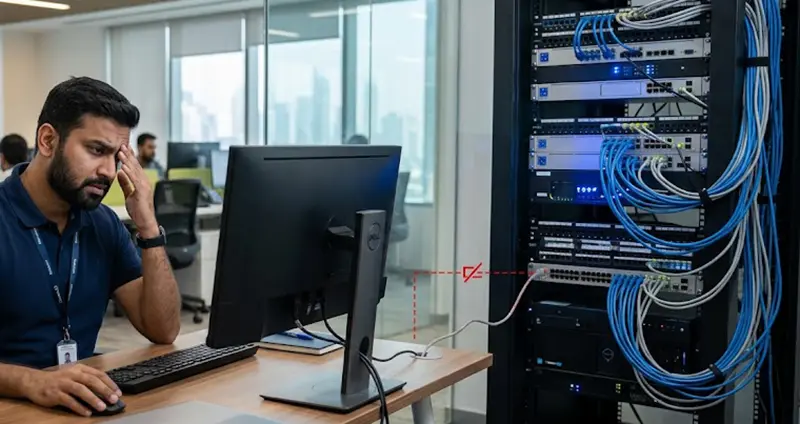
When You Should Contact IT Support
If you’ve confirmed that your computer has a valid network connection but still cannot reach the server, avoid making major network or server changes yourself. Contact IT Support if the issue involves:
- VLANs or routing
- Corporate firewalls
- Active Directory
- DNS or DHCP
- Server services
- File permissions
- Network switches
- VPN configuration
- Multiple affected users
- Critical business applications
A qualified IT Support technician can trace the connection from the workstation through the network infrastructure to the server and identify exactly where communication stops.
Final Thoughts
When your computer cannot connect to the server, the solution is rarely as simple as restarting the PC. The real cause could be DNS, IP configuration, VLANs, firewall rules, server services, network ports, authentication, or permissions. The most effective approach is to troubleshoot systematically. First determine whether the problem affects one computer or multiple users. Then test network connectivity, IP addressing, DNS, ports, server services, and permissions in that order.
For businesses, reliable IT Support is especially important because server connectivity problems can quickly turn into lost productivity and network downtime. A structured troubleshooting process not only restores access faster but also helps identify the root cause so the same problem doesn’t keep coming back.