







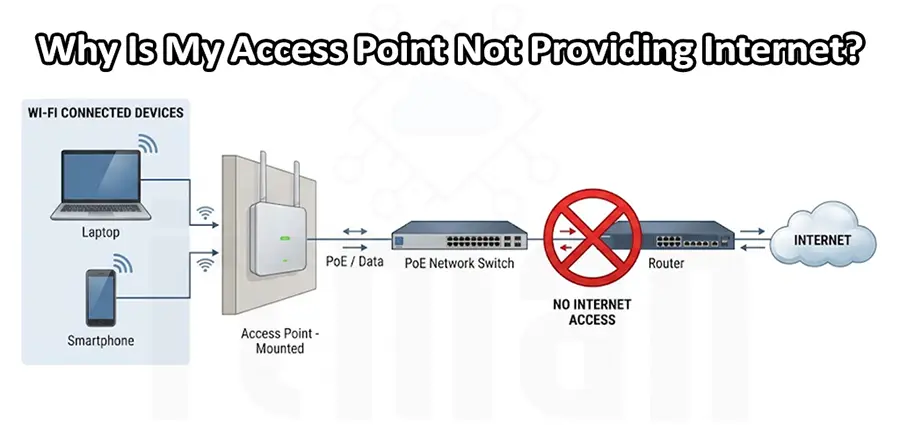
When an access point is connected to your network but your phone, laptop, or other wireless device has no internet access, the problem is usually not the Wi-Fi signal itself. An Access Point Not Providing Internet issue can be caused by an incorrect Ethernet connection, DHCP problems, VLAN configuration, DNS failure, router settings, or an access point that is not receiving a proper network connection.
The important thing is to identify where the connection stops. Your device may successfully connect to the access point and receive a strong Wi-Fi signal, while the access point itself cannot reach the router or internet. In this guide, we will explain the most common reasons for an Access Point Not Providing Internet problem and how to troubleshoot each one.
What Does “Access Point Not Providing Internet” Actually Mean?
An access point normally does not provide internet by itself. Its main job is to provide wireless access to an existing wired network. The AP connects to a switch or router through Ethernet, and wireless clients use that connection to reach the LAN and internet. This means you can have a perfectly working Wi-Fi connection but still have no internet.
For example:
Laptop → Wi-Fi → Access Point → Ethernet → Switch → Router → Internet
If the connection fails anywhere after the access point, your device may show “Connected” or “Connected without internet.” This distinction is important when troubleshooting an Access Point Not Providing Internet problem. First determine whether the problem is wireless connectivity, local network connectivity, or internet connectivity.
1. Check the Ethernet Connection to the Access Point
The first thing to check when your Access Point Not Providing Internet is whether the AP actually has a working wired network connection. Check the Ethernet cable between the access point and the switch, router, or PoE switch. A damaged cable, loose connector, faulty switch port, or incorrect patch panel connection can prevent the AP from reaching the network.
Look at the Ethernet port LEDs on the AP and switch. If there is no link light, try another cable and another switch port. If the access point receives power through PoE, remember that power does not necessarily mean network connectivity. An AP can turn on because PoE is working while the Ethernet data connection is still faulty.
2. Make Sure the Access Point Is Getting an IP Address
A very common reason for an Access Point Not Providing Internet problem is incorrect IP addressing. Normally, the AP receives an IP address from the network’s DHCP server. Log in to the access point’s management interface and check its current IP address.
If it has an address such as 169.254.x.x, it usually means the device could not obtain an address from DHCP. You should then investigate:
- Whether the DHCP server is running
- Whether the AP is connected to the correct VLAN
- Whether the switch port is configured correctly
- Whether the DHCP scope has available addresses
- Whether DHCP traffic is being blocked
If the AP has a valid IP address but wireless clients do not, the problem may be further downstream.
3. Check the DHCP Settings for Wireless Clients
The access point itself may have an IP address while connected clients fail to receive one. This is another common Access Point Not Providing Internet scenario. Connect a laptop or phone to the Wi-Fi network and check its network information. The client should normally receive:
- An IP address
- A subnet mask
- A default gateway
- DNS server information
For example, if your LAN uses 192.168.1.0/24, a client might receive an address such as 192.168.1.50, with 192.168.1.1 as the default gateway. If the client receives an APIPA address such as 169.254.x.x, DHCP is probably not reaching the wireless client. This can happen because of a VLAN configuration problem, DHCP scope issue, incorrect SSID-to-VLAN mapping, or a switch configuration error.
4. Check the Access Point’s VLAN Configuration
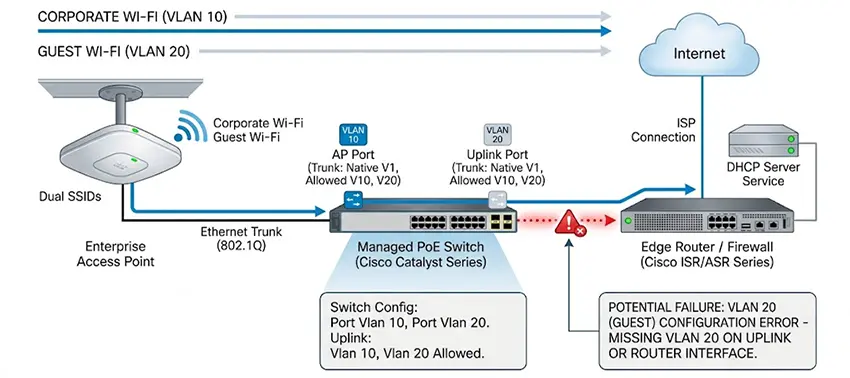
VLAN problems are particularly common in business networks. If your SSID is configured for a specific VLAN, the switch port connected to the AP must be configured appropriately. For example, an AP may carry multiple VLANs through an 802.1Q trunk:
SSID 1 → VLAN 10 → Corporate Network
SSID 2 → VLAN 20 → Guest Network
If the switch port is configured as an access port when the AP expects a trunk, or if the required VLAN is missing from the trunk, wireless clients may connect to the SSID but fail to reach the gateway.
This is one of the first things to investigate when an Access Point Not Providing Internet issue affects only one SSID. For Cisco switches, check the port configuration and verify that the required VLANs are allowed. Also confirm that the native VLAN and management VLAN match the AP’s configuration.
5. Test the Default Gateway
Once your wireless client receives an IP address, test the default gateway. Suppose your laptop receives:
IP: 192.168.10.25
Gateway: 192.168.10.1
Try to ping 192.168.10.1.
If the gateway responds, the connection between the wireless client and local network is probably working.
If the gateway does not respond, focus on the AP, VLAN, switch, wireless isolation, or routing configuration rather than the internet connection.
This simple test can save a lot of time because it tells you whether the problem is inside your LAN or beyond the router.
6. Check DNS When Websites Do Not Load
Sometimes an Access Point Not Providing Internet problem is actually a DNS problem. Your device may be able to reach the internet but fail to translate domain names such as google.com into IP addresses. Try accessing a website by IP address or use a DNS lookup test. You can also temporarily test a known public DNS server, provided that your network policy allows it.
If you can reach external IP addresses but domain names do not resolve, check:
- DNS server settings
- DHCP options
- Router DNS forwarding
- Firewall rules
- DNS filtering policies
Do not immediately replace the access point when the actual problem is DNS.
7. Check the Router and Firewall
The access point may be working correctly while the router or firewall is blocking internet access. This is especially common with guest Wi-Fi networks. A guest SSID may intentionally prevent access to internal resources, but it should still have a route to the internet. Check whether the wireless VLAN has:
- A valid default gateway
- A route toward the internet
- NAT configured on the router/firewall
- Firewall rules allowing outbound traffic
- DHCP and DNS access
If only guest users have an Access Point Not Providing Internet problem while corporate Wi-Fi works normally, firewall, VLAN, or guest-network policies are strong suspects.
8. Verify the SSID Is Mapped to the Correct Network
An incorrect SSID configuration can also create an Access Point Not Providing Internet situation. For example, an SSID called Office-WiFi may accidentally be mapped to a management VLAN instead of the employee VLAN. Users can connect successfully, but they may receive the wrong IP range or have no route to the internet.
Review the wireless controller or AP configuration and verify the relationship between:
SSID → VLAN → DHCP Scope → Gateway → Internet Route
Every part of this chain needs to be correct.
9. Check for Client Isolation or Access Control
Wireless security features can prevent clients from reaching certain network resources. Client isolation, AP isolation, MAC filtering, captive portal settings, ACLs, and authentication policies can all affect connectivity. If the AP provides internet to some devices but not others, compare the affected device with a working device.
For example, if your laptop works but a particular phone does not, the issue may be related to the phone’s saved Wi-Fi configuration, authentication, DNS settings, or IP assignment rather than the access point itself.
10. Restart the Network in the Correct Order
Restarting equipment can sometimes resolve temporary DHCP, routing, or software issues, but simply rebooting everything at random is not the best troubleshooting method. If the AP appears healthy but has lost connectivity, restart the relevant network equipment systematically. Check the router and switch first, then allow them to fully initialize before restarting the access point.
After the AP comes back online, reconnect a client and check whether it receives a new IP address and can reach the gateway. Avoid factory-resetting the AP as an initial troubleshooting step. A reset can erase VLAN, SSID, security, controller, and management settings and create a much larger problem.
11. Update or Check the Access Point Firmware
If the network configuration is correct but the Access Point Not Providing Internet problem keeps returning, check the AP’s firmware. Firmware bugs can cause issues involving DHCP, VLAN tagging, roaming, authentication, or network stability. Before upgrading firmware on a production access point, verify the correct firmware version for the exact hardware model and keep a backup of the current configuration.
If several identical APs have the same problem after a firmware update, investigate the firmware release and configuration template rather than troubleshooting each AP independently.
A Simple Way to Find the Problem
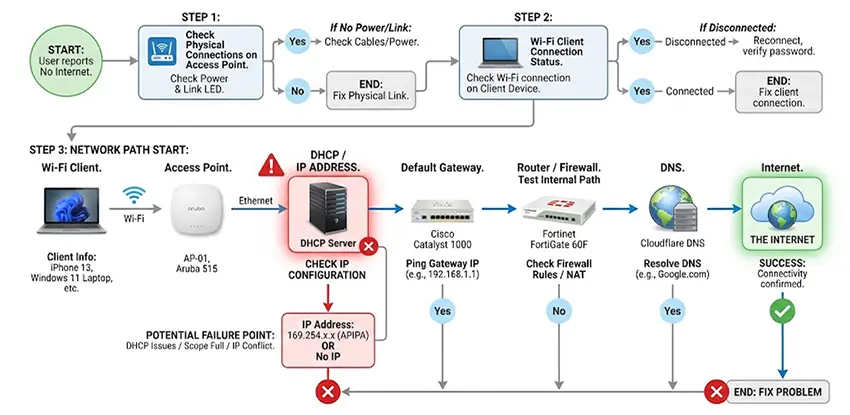
The fastest approach is to test the connection layer by layer:
1. Can the device connect to the SSID?
If no, investigate Wi-Fi configuration, authentication, signal, or radio settings.
2. Does the device receive an IP address?
If no, investigate DHCP and VLAN configuration.
3. Can the device ping its gateway?
If no, investigate the AP-to-switch connection, VLANs, and local network.
4. Can the device reach an external IP address?
If no, investigate routing, NAT, and firewall rules.
5. Can the device resolve domain names?
If no, investigate DNS.
This method is much more effective than immediately replacing the access point.
Why Is My Access Point Not Providing Internet?
The most common causes of an Access Point Not Providing Internet problem are a failed Ethernet connection, incorrect VLAN configuration, DHCP failure, wrong gateway settings, DNS problems, firewall restrictions, incorrect SSID mapping, or a router that is not providing internet connectivity.
The key is to remember that an access point is usually only one component of the network. A strong Wi-Fi signal does not guarantee internet access. Your device can communicate perfectly with the AP while the AP’s wired connection, VLAN, DHCP service, router, or firewall is preventing access to the internet.
If you troubleshoot the connection from the wireless client toward the gateway and then toward the internet, you can usually identify exactly where the failure occurs without unnecessarily replacing working hardware.