








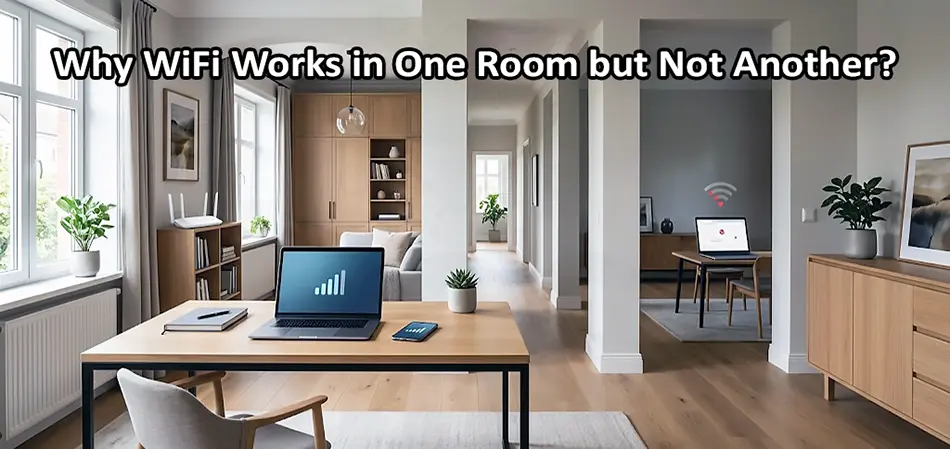
If your WiFi works in one room but not another, the problem is usually not your internet connection. In many cases, your router is working normally, but the wireless signal is not reaching the other room with enough strength or stability. Walls, floors, furniture, interference, router placement, and even the construction materials used in a building can significantly affect WiFi performance.
This problem is especially common in homes, offices, villas, and apartments where the router is installed in one corner of the building while users need a reliable connection in rooms farther away. The good news is that you can usually identify the cause without immediately replacing your internet service or buying a new router.
Why Does WiFi Work in One Room but Not Another?
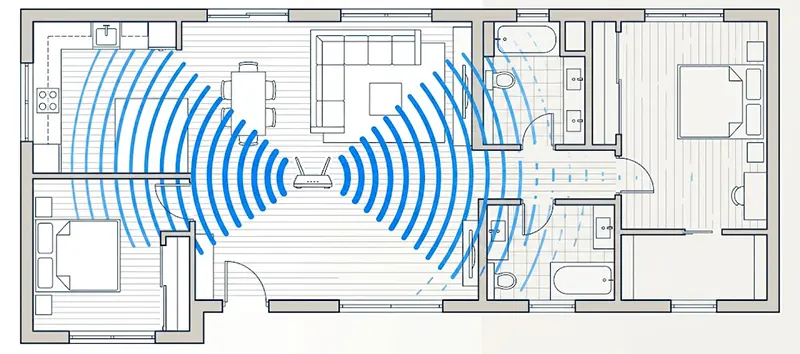
When WiFi works in one room but not another, distance is one of the most obvious reasons. WiFi signals become weaker as they travel farther from the access point. However, distance is not the only factor. A room that is physically close to the router can still have poor WiFi if there is a thick concrete wall between the router and the device. On the other hand, a slightly farther room may have a better connection if there are fewer obstacles.
The most common causes include:
- Weak WiFi signal
- Thick walls or floors
- Poor router placement
- Wireless interference
- Congested WiFi channels
- Router or access point limitations
- Incorrect WiFi configuration
- Device-specific problems
- Large spaces requiring additional access points
1. The WiFi Signal Is Too Weak
The most common reason WiFi works in one room but not another is weak signal strength. Your router sends wireless signals in all directions, but the signal does not remain equally strong throughout your home. As the distance increases, signal strength decreases. If the second room is at the other end of the house, upstairs, or behind several walls, your phone or laptop may still detect the WiFi network but struggle to maintain a reliable connection.
This creates an important distinction: seeing the WiFi network does not necessarily mean you have a good WiFi connection. A device might show two bars of WiFi and connect successfully, but websites may load slowly, video calls may freeze, or the connection may repeatedly disconnect.
2. Walls Can Block WiFi Signals
Walls are one of the biggest reasons WiFi performance changes from room to room. WiFi signals can pass through walls, but every wall reduces signal strength. The amount of attenuation depends heavily on the material. For example, drywall usually has a relatively small effect, while reinforced concrete, brick, metal, and certain types of insulation can significantly weaken wireless signals.
This is particularly important in villas and buildings with reinforced concrete structures. A router may provide excellent coverage in the living room but perform poorly in a bedroom separated by multiple concrete walls. If WiFi works in one room but not another, check how many walls are between the device and the router, not just the physical distance.
3. Your Router Is in the Wrong Location
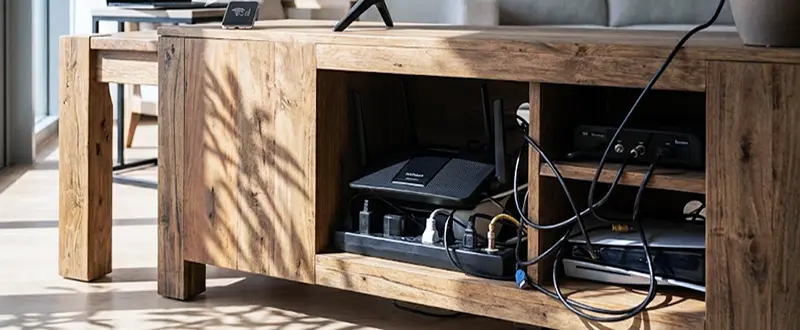
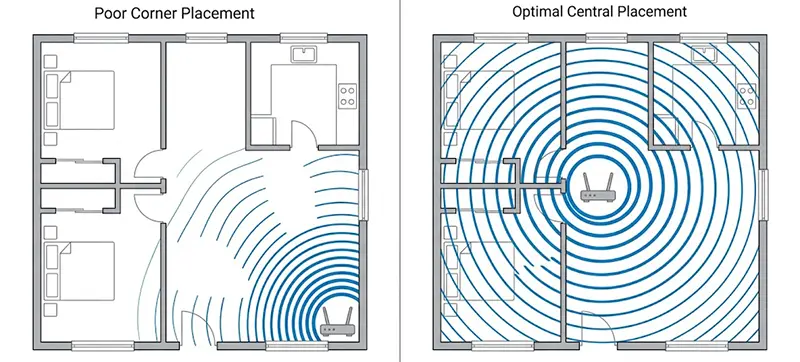
Router placement can have a surprisingly large impact on WiFi coverage. Putting the router inside a cabinet, behind a television, on the floor, or in a corner can reduce its effective coverage. If the router is located at one end of the house, most of its useful wireless coverage may also be concentrated around that area. For better coverage, place the router or primary access point:
- In a relatively central location
- At an elevated position
- Away from large metal objects
- Away from electrical equipment that can cause interference
- In an open area rather than inside a cabinet
If possible, avoid placing the router in a closed room and expecting it to provide strong coverage throughout the entire property.
4. 2.4 GHz and 5 GHz WiFi Behave Differently
Another reason WiFi works in one room but not another is the difference between the 2.4 GHz and 5 GHz frequency bands. 2.4 GHz generally provides better range and can penetrate obstacles more effectively, but it is slower and often more congested. 5 GHz can provide higher speeds and more available channels, but its range is shorter and its signal is more easily weakened by walls and other obstacles.
For example, your phone might get excellent performance on 5 GHz in the room where the router is located but experience a major speed drop in a distant bedroom. Modern routers may automatically select between bands, but band steering does not eliminate the physical limitations of wireless signals.
5. Wireless Interference Can Reduce Performance
Sometimes the problem is not weak coverage but interference. Many devices operate around the same wireless frequencies, including Bluetooth devices, wireless peripherals, some smart home equipment, and neighboring WiFi networks. In apartment buildings and offices, dozens of nearby networks may be operating simultaneously. If many networks use overlapping channels, wireless performance can suffer.
You may notice that WiFi works reasonably well during some periods but becomes slower or less stable at busy times. Changing the WiFi channel or improving the access point configuration can sometimes help.
6. The Problem May Be Your Device
Before replacing your router, test several devices in the problem room. Try a smartphone, laptop, tablet, or another wireless device. If every device has poor WiFi in that room, the problem is probably related to coverage, interference, or the access point.
If only one device has a problem, the device itself could be responsible. Possible causes include an outdated wireless driver, poor WiFi hardware, power-saving settings, or a device-specific configuration issue. This simple test can save you from replacing perfectly good network equipment.
7. Your Router May Not Be Powerful Enough for the Space
Not every router is designed to provide reliable coverage across a large house or office. A basic consumer router may work perfectly in a small apartment but struggle in a large villa with multiple floors and thick walls. The solution is not necessarily a router with a larger advertised WiFi number. In larger environments, proper access point placement is usually more important than simply buying a more powerful router.
For example, a network with two or three properly positioned access points can provide much better coverage than one high-end router located in a corner.
8. Mesh WiFi Can Help, but It Is Not Always the Best Solution
If WiFi works in one room but not another, a mesh WiFi system can be an effective solution for homes where running Ethernet cables is difficult. A mesh system uses multiple wireless nodes to extend coverage across the property. Devices can move between coverage areas while remaining connected to the same network.
However, wireless mesh nodes still communicate wirelessly with each other. If the satellite node is installed in an area where the original signal is already extremely weak, performance may still be poor. Whenever possible, wired access points with Ethernet backhaul are preferable for larger homes, offices, and demanding applications.
9. Check the Access Point Placement
For larger properties, adding an access point can solve the problem more effectively than replacing the existing router. The important part is where you install it. Do not place an additional access point in the room where WiFi is already almost unusable. Instead, install it somewhere between the main router and the weak-coverage area, preferably with an Ethernet connection back to the network.
This gives the access point a strong wired connection and allows it to provide strong WiFi to the nearby rooms.
How to Fix WiFi That Works in One Room but Not Another
If WiFi works in one room but not another, follow these troubleshooting steps:
Step 1: Test Signal Strength
Stand in the room with good WiFi and then move to the problem room. Compare signal strength and connection speed. Do not rely only on the WiFi icon. Run an actual speed test and check whether latency or packet loss changes significantly.
Step 2: Test Different Devices
Connect multiple phones or laptops in the problem room. If all devices experience the same problem, focus on the network infrastructure rather than one device.
Step 3: Test 2.4 GHz and 5 GHz
If your router provides separate networks for 2.4 GHz and 5 GHz, test both. If 2.4 GHz works reliably but 5 GHz performs poorly, the problem is probably related to range or signal attenuation.
Step 4: Move the Router
Temporarily move the router to a more central and elevated position. If coverage improves significantly, the original router location was part of the problem.
Step 5: Check for Interference
Look for nearby WiFi networks and other wireless equipment. In crowded environments, channel selection can make a noticeable difference.
Step 6: Consider an Additional Access Point
If the property is large or contains thick walls, installing an additional access point may be the most reliable long-term solution. For offices, villas, and multi-floor buildings, multiple properly positioned access points are often a better approach than trying to make one router cover everything.
Should You Buy a New Router?
Not necessarily. If WiFi works in one room but not another, buying a new router may not solve the underlying problem. If the issue is caused by concrete walls, poor placement, interference, or the size of the building, the same problem can occur with a more expensive router.
First determine whether you have a coverage problem, interference problem, configuration problem, or device problem. If the current router is outdated, replacing it can certainly help. But for larger properties, a properly designed WiFi network with multiple access points is usually a more reliable solution.
When Should You Use Professional WiFi Installation?
If you have tried repositioning the router and changing basic settings but still have dead zones, the problem may require a proper wireless survey. A professional WiFi installation can identify signal-strength problems, interference, channel utilization, access point locations, and areas where additional coverage is required. For larger homes and businesses, technicians can also design the network around wired access points, VLANs, PoE switches, and centralized wireless management rather than relying on a single consumer router.
Final Thoughts
When WiFi works in one room but not another, the problem is usually related to wireless coverage rather than your internet service itself. Distance, concrete walls, router placement, interference, frequency bands, and unsuitable network design can all create WiFi dead zones. Start with simple tests: compare different devices, check 2.4 GHz and 5 GHz, move the router, and test signal strength in different areas.
If the problem affects a large property, adding properly positioned access points—preferably using Ethernet backhaul—can provide a much more stable solution. The key is to diagnose the actual cause before buying new equipment. A well-designed WiFi network is not simply about having the most expensive router; proper access point placement, coverage, and network configuration are what make WiFi reliable throughout the entire building.