





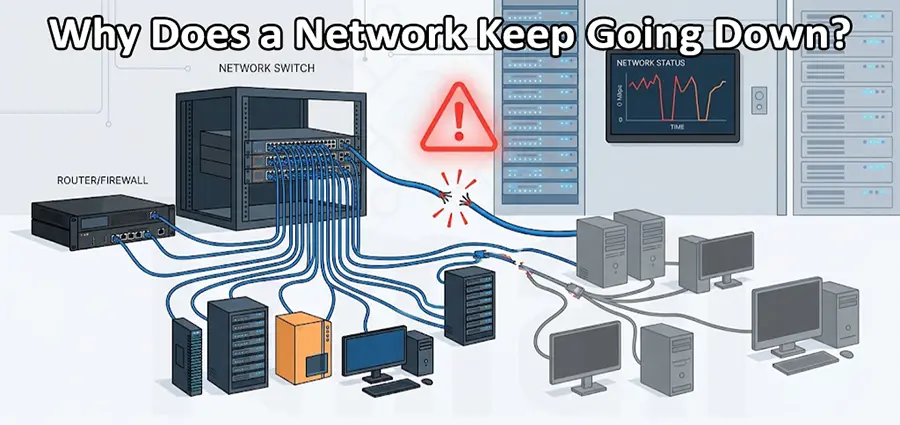
A network that keeps going down can quickly become one of the most frustrating problems for a business. Internet access may stop for a few minutes, computers may lose connection to shared resources, VoIP calls may drop, or users may suddenly be unable to access servers, printers, or cloud applications. In some cases, the network comes back by itself, making the problem even harder to identify. When a Network Keep Going Down problem happens repeatedly, simply restarting the router or switch is rarely a permanent solution. The real cause needs to be identified before the problem becomes more serious.
For businesses, network stability is essential. A small network interruption can affect employees, customer communication, online services, security systems, and access to important business applications. Understanding why a network keeps disconnecting is therefore an important part of maintaining a reliable IT environment.
What Does It Mean When a Network Keeps Going Down?
When someone says their Network Keep Going Down, the problem can actually refer to several different situations. The entire network might lose connectivity, only the internet connection might stop working, or specific computers and devices might disconnect while others continue working normally.
This distinction is important because the troubleshooting process depends on where the failure occurs. For example, if every device in an office loses internet access at exactly the same time, the problem could be related to the ISP connection, firewall, router, WAN interface, or upstream network equipment. If only computers connected through one particular switch lose connectivity, the switch, its uplink, power supply, or cabling may be responsible.
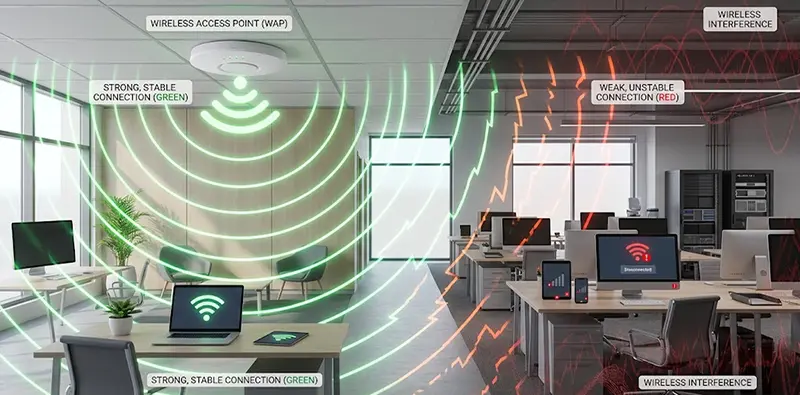
Similarly, if Wi-Fi users disconnect while wired computers continue working normally, the problem may be related to wireless access points, wireless interference, controller configuration, or PoE delivery rather than the main network itself.
Unstable Internet Connection
One of the most common reasons a network keeps going down is an unstable internet connection. The local network may actually be functioning correctly while the connection between the office and the ISP repeatedly drops.
This can happen because of problems with the fiber or copper line, an unstable ONT, modem issues, incorrect WAN configuration, signal problems, or an ISP-side outage. In some cases, the router loses its WAN session and automatically reconnects after several seconds or minutes.
This type of problem can be confusing because users may describe it as a complete network failure even though internal devices can still communicate with each other. A useful way to determine whether the ISP connection is responsible is to check whether local resources remain accessible during an outage. If employees can still access a local server or another computer but cannot browse websites, the LAN may still be working and the problem could be somewhere on the WAN side.
Faulty Network Switch
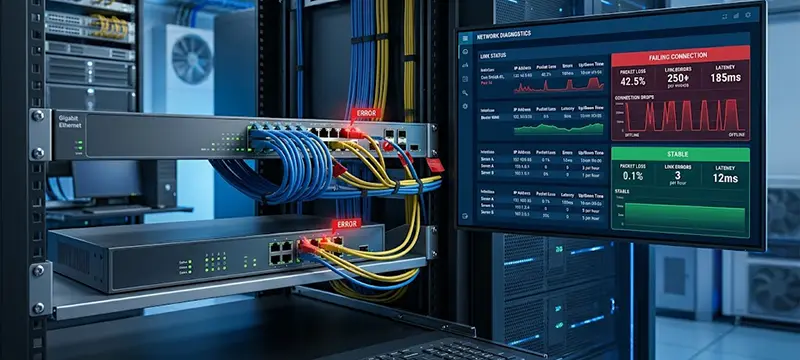
A defective or overloaded network switch can also cause repeated connectivity problems. Switches are responsible for connecting computers, access points, servers, printers, IP phones, cameras, and other devices to the local network. When a switch begins to fail, users may experience intermittent connectivity rather than a complete and permanent outage. Ports may stop responding, devices may repeatedly disconnect and reconnect, or communication through an uplink may become unstable.
Hardware faults are not always obvious. A switch can remain powered on while experiencing internal problems, overheating, memory issues, failing ports, or power-related instability. The switch configuration should also be examined. Incorrect VLAN configuration, spanning-tree problems, unstable uplinks, port-security events, broadcast storms, or excessive traffic can create symptoms that look like a hardware failure.
Network Cable Problems
Network cabling is another frequently overlooked cause of an unstable network. A damaged Ethernet cable, poorly terminated RJ45 connector, loose connection, or low-quality cable can cause packet errors and intermittent connectivity. The problem may become more noticeable when the network is under load. A cable may appear to work normally for basic browsing but begin producing errors when a computer transfers large files or when a server communicates heavily with other devices.
Physical cabling should therefore be inspected whenever a Network Keep Going Down issue occurs. Patch panels, wall outlets, switch ports, patch cables, and uplinks should all be checked rather than assuming the problem is caused by the router. For critical network links, cable testing and checking interface statistics can help identify physical-layer problems.
Router or Firewall Problems
The router or firewall is another major point of failure. If the device is unstable, incorrectly configured, overloaded, or running outdated firmware, it can cause repeated network interruptions. A firewall may also experience high CPU or memory usage when handling a large number of connections, VPN tunnels, security inspection processes, or heavy traffic. In some environments, an incorrectly configured rule, NAT policy, DHCP service, or WAN failover configuration can produce intermittent connectivity.
Checking system logs is particularly important. Instead of simply rebooting the firewall whenever the network stops, an administrator should look for events occurring immediately before the outage. The objective is to determine whether the device itself is crashing, losing its WAN connection, restarting a service, changing routes, or experiencing resource exhaustion.
DHCP Problems Can Make Devices Appear Offline
Sometimes the network is technically running, but individual devices lose their IP configuration. DHCP problems can create this situation. A DHCP server provides devices with essential network information such as an IP address, subnet mask, default gateway, and DNS servers. If the DHCP service becomes unavailable, the DHCP scope becomes exhausted, or there is a communication problem between clients and the DHCP server, new devices may fail to obtain valid network settings.
Duplicate IP addresses can create another serious problem. If two devices accidentally use the same IP address, communication may become unpredictable. One device may appear to work while the other suddenly loses connectivity. Checking DHCP leases, IP address conflicts, gateway configuration, and client network settings can help determine whether DHCP is involved.
Wi-Fi Keeps Disconnecting
If the Network Keep Going Down problem mainly affects wireless users, the root cause may have nothing to do with the wired network. Wi-Fi performance can be affected by interference, poor access-point placement, excessive client density, weak signal levels, overlapping channels, incorrect channel width, roaming problems, or insufficient access-point capacity.
In an office with multiple access points, incorrect configuration can make devices repeatedly roam between access points. Users may experience short interruptions even though the wireless network appears to be available. Wireless troubleshooting should therefore include checking signal strength, channel utilization, client behavior, access-point logs, and the relationship between wired and wireless connectivity.
If wired users remain connected while Wi-Fi users repeatedly disconnect, troubleshooting should start with the wireless infrastructure rather than replacing the main router or switch without evidence.
Power Problems and Overheating
Network equipment requires stable power and appropriate operating temperatures. A router, switch, firewall, access point, or server that overheats may become unstable or restart unexpectedly. This is especially relevant in equipment rooms where ventilation is poor or network equipment is installed inside a crowded rack.
Power supplies can also deteriorate over time. A failing power supply may cause intermittent resets that are difficult to reproduce during a short inspection. If a switch or router repeatedly restarts, checking its uptime and system logs can provide valuable evidence. If the uptime resets whenever users report an outage, the investigation should focus on power, hardware, overheating, firmware, or the device itself.
Spanning Tree and Network Loops
Network loops can cause some of the most disruptive network problems. A loop may occur when network cables are connected incorrectly between switches or when redundant connections are configured without the appropriate spanning-tree protection. A loop can generate excessive broadcast and multicast traffic, consuming switch resources and causing widespread connectivity problems.
Spanning Tree Protocol, including technologies such as RSTP, is designed to prevent Layer 2 loops by controlling redundant paths. However, incorrect configuration can create unexpected behavior. If the network becomes extremely slow before eventually going down, a broadcast storm or switching loop should be considered as a possible cause.
High Network Traffic and Congestion
A network can also become unstable because of excessive traffic. Large backups, file transfers, cloud synchronization, surveillance cameras, virtualization traffic, or poorly controlled applications can consume available bandwidth. Bandwidth saturation does not necessarily mean the network hardware is defective. Users may experience slow applications, dropped VoIP calls, delayed access to servers, or timeouts because the available capacity is being consumed.
Monitoring bandwidth utilization and interface statistics can help determine whether congestion is contributing to the problem. In larger environments, network monitoring can provide a much clearer picture by showing when traffic spikes occur and which devices are generating the traffic.
Outdated Firmware or Configuration Issues
Network equipment firmware can contain bugs that cause instability, memory leaks, crashes, or compatibility problems. If a device has been running for years without firmware maintenance, checking the vendor’s recommended firmware version may be appropriate. However, firmware should not be upgraded blindly during business hours. The current configuration should be backed up, compatibility should be verified, and the maintenance procedure should be planned carefully.
Configuration changes should also be reviewed. A network that worked reliably for months and suddenly became unstable after a configuration change should be investigated from that point forward.
How to Troubleshoot a Network That Keeps Going Down
The most effective troubleshooting approach is to identify exactly what disappears when the outage occurs. Start by determining whether the issue affects all users or only certain devices. Check whether wired and wireless users are affected at the same time. Determine whether local resources such as file servers remain reachable and whether only internet access is unavailable.
Network equipment logs should then be reviewed around the exact time of the outage. Switch interface errors, link flaps, spanning-tree events, DHCP failures, firewall events, WAN disconnections, and device restarts can provide important clues. It is also useful to monitor the network continuously rather than checking it only after a failure. A network monitoring system can reveal packet loss, latency, interface errors, device uptime, CPU usage, memory usage, and link status. This information can make an intermittent problem much easier to diagnose.
Testing should move from the physical layer toward the higher network layers. Cabling and power should be verified first, followed by switch ports, VLANs, IP addressing, DHCP, routing, firewall policies, WAN connectivity, and application-level services. The goal is not simply to restore connectivity. The goal is to determine why the network keeps going down and eliminate the underlying cause.
When Should You Call an IT Support Company?
If a network outage happens repeatedly and the cause cannot be identified quickly, continuing to restart equipment can make troubleshooting more difficult. Reboots may temporarily restore connectivity while hiding the actual problem. Professional IT Support in Dubai can help businesses investigate recurring network failures by checking the physical infrastructure, switches, routers, firewalls, wireless access points, cabling, configurations, logs, and connectivity between network devices.
A professional assessment is particularly useful when the outage is intermittent because these problems often require analyzing logs and network behavior rather than simply replacing equipment.
Need a Network Technician in Dubai?
If your business network keeps disconnecting, slowing down, or going offline unexpectedly, identifying the root cause is important before the issue affects productivity even further. We provide IT Support in Dubai and have technicians available in Dubai who can visit your location to check the network infrastructure. Our technician can inspect network equipment, cabling, switches, routers, Wi-Fi access points, and other relevant components to help identify the source of recurring connectivity problems.
Instead of repeatedly restarting your router or switch, a proper on-site network inspection can help determine whether the problem is related to hardware, cabling, configuration, Wi-Fi, the ISP connection, or another part of the network. If your Network Keep Going Down problem is affecting your business, our Dubai-based technicians can check the network at your location and help you find the actual cause.