





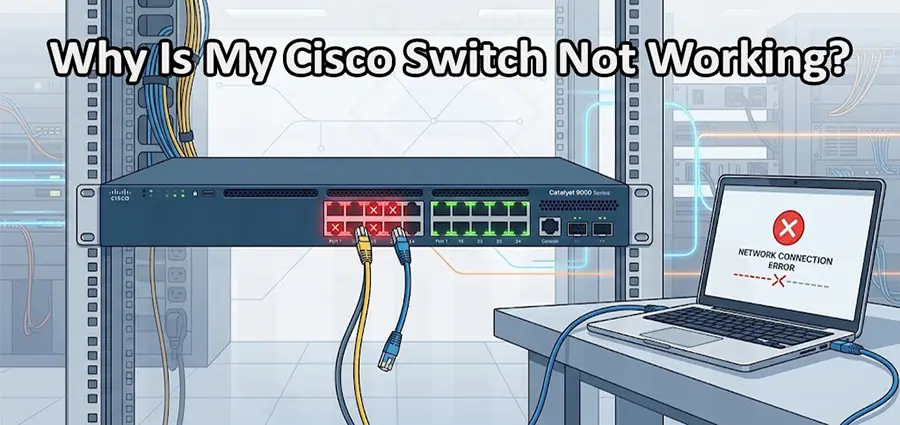
When a Cisco Switch Not Working situation occurs, the problem can affect an entire network within minutes. Users may lose access to shared resources, servers, printers, Wi-Fi access points, or the internet. The good news is that a Cisco switch failure does not always mean the hardware is damaged. In many cases, the issue is caused by power, cables, port configuration, VLANs, spanning-tree behavior, or an incorrect network setting.
This guide explains the most common reasons for a Cisco Switch Not Working problem and provides practical troubleshooting steps you can follow before replacing the switch or contacting an IT Support specialist.
Why Is My Cisco Switch Not Working?
There are several possible reasons why a Cisco switch may stop working. The first step is to determine whether the problem affects the entire switch, a single port, or only certain devices. Common causes include:
- Power or boot problems
- Faulty Ethernet or fiber cables
- Disabled switch ports
- Incorrect VLAN configuration
- Trunk or access port configuration issues
- Spanning Tree Protocol problems
- Faulty SFP modules
- High CPU or memory utilization
- Incorrect IP or management configuration
- Hardware failure
Identifying the scope of the problem can significantly reduce troubleshooting time.
1. Check the Power and Status LEDs
If your Cisco Switch Not Working problem affects the entire device, start with the basics. Check whether the switch is receiving power and whether the front-panel LEDs show normal operation. If there are no LEDs at all, check:
- Power cable
- Power supply
- Power outlet
- UPS or PDU
- Power switch, if applicable
For models with redundant power supplies, check whether one PSU has failed. If the switch powers on but does not appear to boot normally, connect to the console port and check the boot process. Console access can reveal whether the switch is stuck during POST, bootloader operation, or IOS loading.
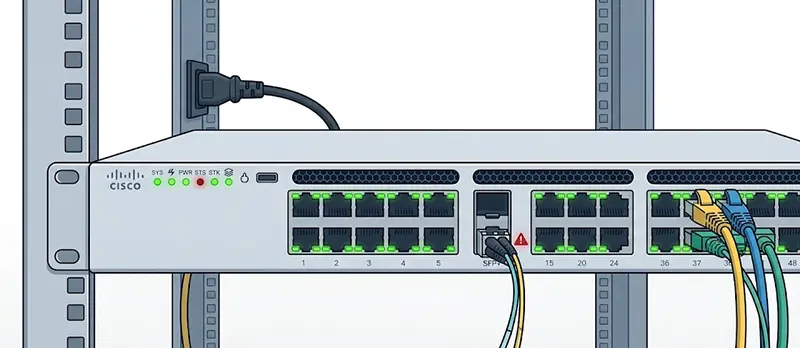
2. Check Whether the Switch Has Booted Correctly
A switch can appear to be powered on while still having a software or boot problem. Connect through the console and check the device status. Useful commands include:
show version
show boot
show running-config
The show version command provides information about the IOS version, uptime, hardware, memory, and boot status. If the switch repeatedly reboots, enters ROMMON, or fails to load IOS, the problem may involve corrupted software, incorrect boot variables, flash storage, or hardware.
3. Inspect the Ethernet or Fiber Cables
A surprisingly large number of Cisco Switch Not Working problems are actually cable problems. If only one device cannot connect, replace the Ethernet cable with a known-good cable. For fiber connections, check both the fiber patch cable and SFP modules. Also check whether the interface detects a physical connection:
show interfaces statusLook for ports showing states such as connected, notconnect, disabled, or err-disabled. For copper interfaces, Cisco switches can also provide cable diagnostics on supported models:
test cable-diagnostics tdr interface gigabitEthernet 1/0/1
show cable-diagnostics tdr interface gigabitEthernet 1/0/1
4. Check Whether the Port Is Disabled
If one particular device is offline while the rest of the network works normally, the switch port may be administratively disabled. Run:
show interfaces statusIf the port is listed as disabled, check its configuration:
show running-config interface gigabitEthernet 1/0/1If the port should be active, it may need:
interface gigabitEthernet 1/0/1
no shutdown
However, do not blindly enable a port. If it was intentionally disabled because of a security issue or network change, investigate the reason first.
5. Check for an Err-Disabled Port
Another common reason for a Cisco Switch Not Working issue is an err-disabled interface. You can identify these ports with:
show interfaces status err-disabledPossible causes include:
- Port security violations
- BPDU Guard
- Link flapping
- EtherChannel configuration problems
- UDLD
- Excessive network errors
Check the logs:
show loggingThe log messages can often tell you exactly why Cisco placed the interface into an error-disabled state.
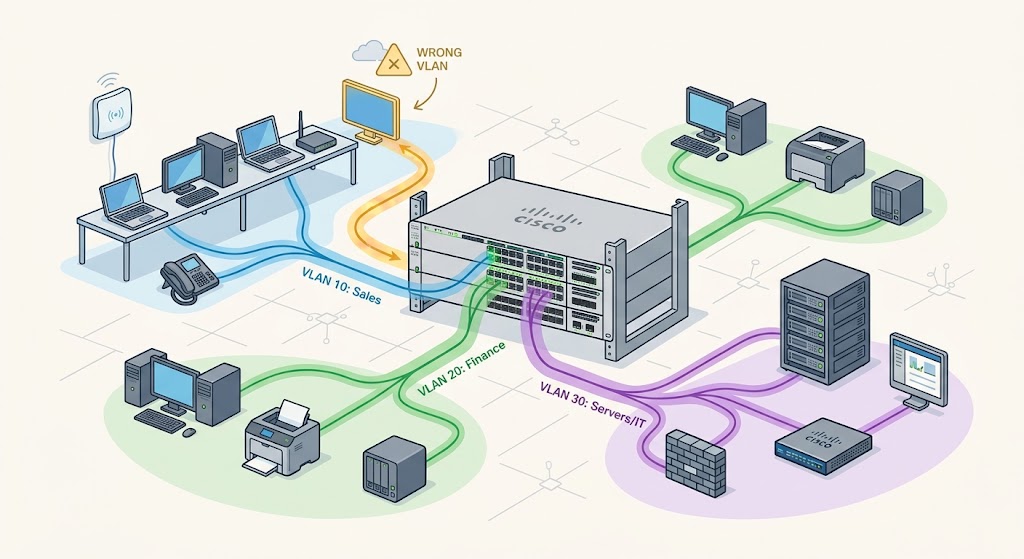
6. Verify the VLAN Configuration
If the physical connection is working but the device cannot communicate with other systems, check VLAN configuration. Use:
show vlan briefThen verify the interface:
show running-config interface gigabitEthernet 1/0/1A typical access port might contain:
switchport mode access
switchport access vlan 10
If the device is connected to the wrong VLAN, it may receive no DHCP address or be unable to reach required network resources. VLAN problems are particularly common after moving devices between switch ports or replacing a Cisco switch.
7. Check Trunk Ports
If the problem affects communication between switches, routers, firewalls, or access points, inspect trunk configuration. Run:
show interfaces trunkCheck:
- Whether the interface is actually trunking
- Allowed VLANs
- Native VLAN
- Encapsulation
- Trunk negotiation
- VLAN consistency between devices
For example, if VLAN 20 is missing from the allowed VLAN list, devices in that VLAN may work locally but fail to communicate across the uplink.
8. Look for Spanning Tree Problems
Spanning Tree Protocol (STP) protects networks from Layer 2 loops, but configuration problems can sometimes make a network appear completely broken. Useful commands include:
show spanning-tree
show spanning-tree vlan 10
Check whether the affected interface is in a forwarding or blocking state. A misconfigured redundant connection can cause unexpected STP behavior. BPDU Guard can also place an interface into an err-disabled state when it receives a BPDU where one is not expected. Do not disable STP simply because it appears to be blocking a port. STP is often preventing a much larger network outage.
9. Check SFPs and Uplink Interfaces
If users connected to the switch are working but the entire switch cannot reach another network segment, investigate the uplink. For fiber connections, check:
show interfaces transceiver
show interfaces status
show interfaces
Look for:
- Unsupported SFP
- Fiber polarity problems
- Dirty connectors
- Incorrect fiber type
- Low optical power
- Failed SFP
- Speed or duplex mismatch
Testing the same connection with a known-good SFP and fiber cable is often one of the fastest ways to isolate the problem.
10. Check CPU, Memory, and Interface Errors
Sometimes a Cisco switch is technically running but performing poorly. Check CPU utilization:
show processes cpu sortedCheck memory:
show processes memory sortedFor an individual interface:
show interfaces gigabitEthernet 1/0/1Pay attention to:
- Input errors
- CRC errors
- Output errors
- Packet drops
- Interface resets
- Late collisions
A high number of CRC errors can indicate a damaged cable, bad SFP, physical-layer problem, or other link issue.
Cisco Switch Not Working After a Configuration Change
If the switch stopped working immediately after a configuration change, the configuration itself should be one of the first suspects. Review:
show running-config
show startup-config
Compare recent changes with the current configuration. Common mistakes include:
- Assigning the wrong VLAN
- Removing an allowed VLAN from a trunk
- Changing an uplink to access mode
- Applying an incorrect ACL
- Changing STP settings
- Configuring the wrong IP address
- Changing EtherChannel settings
If remote management is unavailable, console access may be necessary.
What If Only Internet Access Is Not Working?
A Cisco switch can be operating normally while users still have no internet access. In this situation, test connectivity layer by layer:
- Check the client IP address.
- Test the default gateway.
- Test another device on the same VLAN.
- Test the router or firewall.
- Test an external IP address.
- Test DNS separately.
This helps determine whether the problem is actually the Cisco switch or another component such as the router, firewall, DHCP server, or ISP connection.
When Should You Contact IT Support?
If basic troubleshooting does not resolve the Cisco Switch Not Working problem, professional IT Support can help isolate the issue without making unnecessary configuration changes. An IT Support technician can analyze switch logs, VLANs, trunks, STP, interface errors, SFPs, routing, and connected network equipment. This is especially important in business environments where randomly rebooting or resetting a switch could create additional downtime.
Before contacting IT Support, collect useful information such as:
- Cisco switch model
- IOS version
- Affected ports
- Error messages
- Recent configuration changes
- LED status
show loggingoutputshow interfaces statusoutput
The more information available, the faster the root cause can usually be identified.
Final Thoughts
A Cisco Switch Not Working problem does not automatically mean the switch needs to be replaced. Start with physical checks, then move through the network layers: power, boot process, cabling, interfaces, VLANs, trunks, STP, SFPs, and finally system resources. For business networks, systematic troubleshooting is safer than making random configuration changes. If the problem involves multiple switches, critical servers, or production users, getting professional IT Support can help identify the root cause quickly and minimize network downtime.