








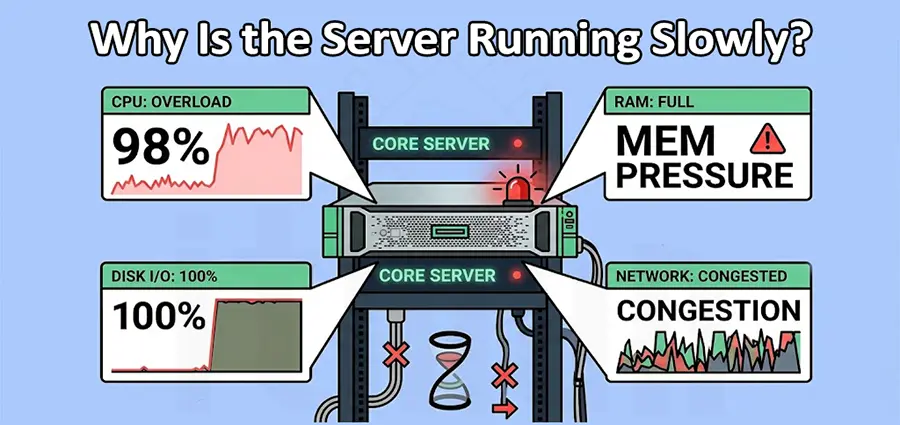
When a server running slow starts affecting a business, the problem usually becomes obvious very quickly. Employees may wait longer for shared files to open, business applications may take several seconds to respond, database operations may become frustratingly slow, and virtual machines may feel unresponsive. In some cases, the server appears to be working normally from the administrator’s perspective, while users continue to complain about poor performance.
So, why is the server running slowly? There is no single answer. A server running slow can be caused by high CPU usage, insufficient RAM, slow storage, a degraded RAID array, network problems, excessive virtual machines, application issues, overheating, or incorrect configuration. The important thing is to identify the actual bottleneck instead of immediately assuming that the server needs to be replaced.
This guide explains the most common reasons a server running slow can affect business performance and, more importantly, how to troubleshoot the problem properly.
Why Is My Server Running Slow?
The first question to ask when a server running slow is reported is whether the problem is actually caused by the server itself. A server is part of a larger environment. It communicates with switches, routers, storage systems, client computers, databases, applications, and virtual machines. A problem anywhere along this path can make users feel as though the server is slow. For example, if employees are accessing files through a faulty switch port, they may say that the file server is slow even when the server has plenty of CPU and RAM available.
Similarly, if only one application is responding slowly, the problem may be inside the application or database rather than the physical server. The most effective approach is therefore to determine when the server running slow problem occurs, who is affected, and which resources are under pressure.
1. High CPU Usage Can Make a Server Running Slow
One of the first things to investigate when a server running slow is high CPU utilization. The processor handles application processes, operating system tasks, database operations, virtualization workloads, and many other activities. When CPU resources are continuously consumed, applications have to compete for processing time, increasing response times.
However, high CPU usage does not automatically mean that the processor needs to be upgraded. A temporary spike can be completely normal. A scheduled backup, antivirus scan, software update, database maintenance task, or reporting process may briefly push CPU utilization very high.
The important question is whether CPU usage remains elevated while users are experiencing the server running slow problem. On Windows Server, Task Manager and Resource Monitor can help identify processes consuming excessive CPU. Linux administrators can use tools such as top and htop. If one application or process is responsible for most of the CPU consumption, investigate that process before buying a new server.
2. Insufficient RAM Is Another Common Cause of a Slow Server
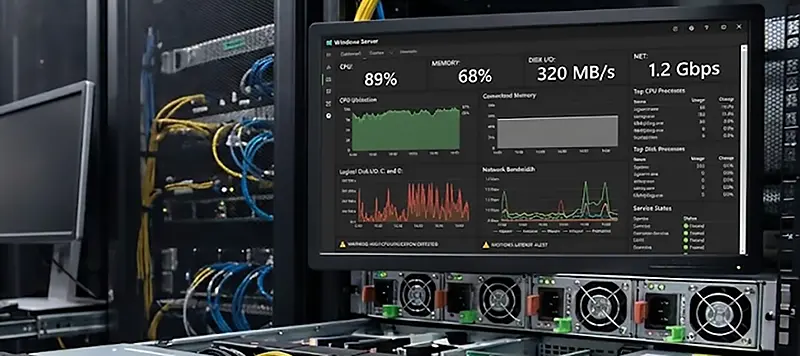
Memory problems are another major reason a server running slow can become noticeable. RAM provides fast temporary storage for active applications and processes. When the available memory is insufficient, the operating system may start moving data between RAM and storage using paging or swap. Because storage is considerably slower than physical memory, excessive paging can have a noticeable impact on overall performance.
This is particularly common on servers running VMware, Hyper-V, databases, ERP systems, file services, or multiple business applications. For example, a server with 32GB of RAM may have been perfectly adequate when it was installed. After the company adds several virtual machines and more applications, the same server may no longer have enough memory for the workload.
If you notice that the server is running slow while available RAM is consistently low, a memory upgrade may be more effective than replacing the CPU.
3. Slow or Failing Storage Can Cause a Server Running Slow
Storage is one of the most frequently overlooked causes of server performance problems. A server may have a powerful processor and plenty of RAM but still feel extremely slow if the storage subsystem cannot process requests quickly enough.
This is especially important for database servers, virtualization hosts, file servers, and applications that perform large numbers of read and write operations. Traditional HDDs generally have much higher latency and lower IOPS than enterprise SSDs. As a business grows and the workload increases, storage that was previously adequate may eventually become the main performance bottleneck.
A failing drive can make the situation even worse. If a server running slow also shows disk errors, unusually high disk latency, RAID warnings, or inconsistent application response times, storage health should be checked immediately. On enterprise platforms such as HPE ProLiant and Dell PowerEdge, hardware monitoring and RAID management tools can provide valuable information about drive health and storage performance.
4. RAID Problems Can Make a Server Running Slow
A RAID array is designed to provide redundancy and, depending on its configuration, improve storage performance. However, a failed drive can place the array into a degraded state and significantly affect performance. A RAID rebuild can also generate substantial disk activity. During a rebuild, the storage controller has to reconstruct data while the server continues handling its normal workload. If the server is already under heavy I/O, users may notice a considerable slowdown.
This is why a server running slow after a disk failure should not automatically be blamed on Windows, Linux, or the applications. Check the RAID controller, physical disks, logical drives, cache status, and array health. A degraded RAID array is not only a performance concern; it can also increase the risk of further data loss if another drive fails.
5. Too Many Virtual Machines Can Cause a Slow Server
Virtualization allows businesses to run multiple servers on one physical machine, but all virtual machines still share the resources of the physical host. A host with limited CPU, RAM, storage I/O, or network capacity can become overloaded when additional VMs are added.
This is a common reason for a server running slow in VMware and Hyper-V environments. For example, one virtual machine may be running a busy database while another handles file sharing and several others run business applications. Even if the physical server initially had sufficient resources, the combined workload may eventually exceed its comfortable operating capacity.
Resource monitoring should therefore be performed at both the host and virtual-machine levels. Look for VMs consuming unusually high CPU, memory, or disk resources. Sometimes adjusting VM resources solves the problem. In larger environments, workloads may need to be distributed across multiple physical hosts.
6. The Application or Database May Be the Real Problem
Not every server running slow problem is caused by server hardware. This distinction is extremely important. Suppose employees complain that an ERP system takes ten seconds to display a report. The server may have normal CPU usage, plenty of available RAM, and healthy storage. In this situation, the problem could be an inefficient database query, missing indexes, database locking, excessive connections, or poorly optimized application code.
If other services on the same server are working normally, investigate the specific application before upgrading the server. Database performance monitoring, application logs, query execution times, and service dependencies can help determine whether the problem originates from the application layer. This approach can prevent businesses from spending thousands of dirhams on new server hardware when a database configuration issue is actually responsible for the slowdown.
7. Network Problems Can Make a Healthy Server Look Slow
Another common reason users report a server running slow is a network problem. The server itself may be operating perfectly, but poor connectivity between the server and client devices can make applications and file services appear slow. A faulty Ethernet cable, damaged SFP, overloaded switch port, packet loss, incorrect link speed, duplex problems, congested uplinks, or VLAN configuration issue can all affect performance.
Imagine that a file server is connected to a Gigabit switch but its network path is experiencing packet loss. Employees will experience slow file transfers even though the server’s CPU and RAM utilization look completely normal. This is why professional IT Support should consider the entire network path when troubleshooting a slow server. Server performance should be checked alongside switch interfaces, uplinks, cabling, SFPs, VLANs, latency, and packet loss.
8. Backups and Background Tasks Can Make the Server Running Slow
Servers perform many background operations that users may never see. Backup software, antivirus scans, file indexing, database maintenance, synchronization services, updates, and automated scripts can consume significant CPU, memory, disk, and network resources.
If the server running slow problem appears at approximately the same time every day, scheduled tasks are worth investigating. For example, if employees complain that the server becomes slow every morning at 8:00 AM, check whether a backup or synchronization job starts around that time. The solution is not necessarily to disable the task. Backups and security scans are important. Instead, the task may need to be rescheduled or configured to reduce its impact on production workloads.
9. Overheating Can Reduce Server Performance
A physical server requires proper airflow and cooling. If the CPU becomes too hot, modern processors can reduce their operating frequency to protect the hardware. This is known as thermal throttling. The result can be a server running slow even though there has been no obvious software change.
Dust buildup, blocked airflow, failed fans, poor rack ventilation, or excessive room temperature can contribute to thermal problems. When investigating an unexpected performance drop, check hardware monitoring information for temperature warnings, fan failures, and other environmental alerts. This is especially important in server rooms where several systems operate continuously and generate substantial heat.
10. Operating System and Server Configuration Issues
Incorrect configuration can also cause a server to perform below its expected level. Outdated drivers, unnecessary services, inappropriate power settings, incorrect storage controller configuration, insufficient virtual memory, and poorly configured applications can all contribute to a slow server.
Operating system logs should also be reviewed. Repeated disk, network, hardware, or service errors may reveal an issue that is not obvious from CPU or RAM utilization. For this reason, proper server troubleshooting should combine performance monitoring with log analysis rather than relying on one metric.
11. Malware or Unusual Processes Can Make a Server Slow
A sudden and unexplained server running slow problem should also raise questions about unusual processes or unauthorized software. Malware or unwanted software can consume CPU, RAM, storage I/O, and network bandwidth. In some cases, the increase in resource usage may be obvious; in others, it may appear as unexplained network traffic or an unfamiliar process.
If the server suddenly becomes slow without any known workload or configuration change, investigate active processes, security alerts, login activity, and network connections according to your organization’s security procedures. Do not simply terminate unfamiliar processes without identifying them first, because legitimate server services can sometimes look unfamiliar.
How to Troubleshoot a Server Running Slow
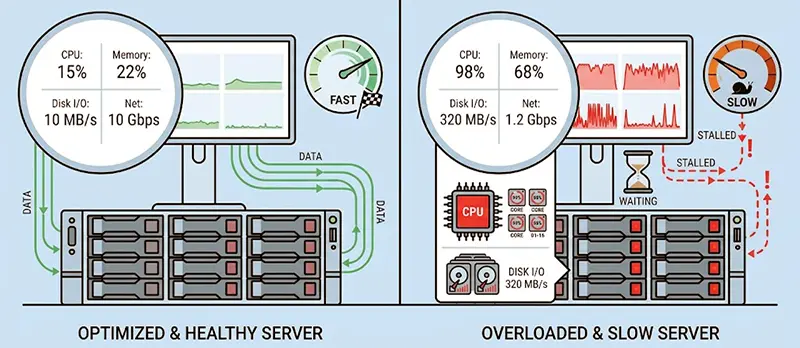
The best way to troubleshoot a server running slow is to avoid changing several things at the same time. Start by identifying when the slowdown happens. Is the server slow all day, or only during specific hours? Are all employees affected, or only certain users? Is every application slow, or only one application?
Next, compare current performance with the server’s normal baseline. CPU utilization, RAM usage, disk latency, storage I/O, network throughput, and application response times should be considered together. Looking at CPU usage alone can easily lead to the wrong conclusion.
For example, high CPU usage might be caused by a backup rather than insufficient processing power. High disk activity might be caused by a RAID rebuild rather than failing storage. Slow application access might be caused by packet loss rather than the server hardware. The objective is to find the root cause of the server running slow problem, not simply to change the most obvious component.
Should You Upgrade a Server Running Slow?
A hardware upgrade can be the right solution when monitoring shows that the existing server is consistently reaching its limits. If RAM is continuously exhausted, adding memory may solve the problem. If storage latency is high, replacing older HDDs with appropriate enterprise SSDs may provide a substantial improvement. If the CPU is genuinely saturated by normal workloads, a more powerful processor or new server may be justified.
But hardware should not be upgraded blindly. If the real problem is a degraded RAID array, faulty network connection, inefficient database query, overheating, or incorrect configuration, a new server may not solve the problem at all. Professional diagnosis should come first, followed by a hardware upgrade only when the data supports it.
When Should You Contact IT Support for a Slow Server?
If your server running slow problem continues after basic checks, professional IT Support can help identify the cause much faster. An experienced technician can investigate the complete infrastructure, including CPU and RAM utilization, storage performance, RAID health, server logs, network connectivity, switch ports, virtualization resources, operating system configuration, and application behavior.
This is particularly important when the server hosts critical business applications, databases, file services, or virtual machines. Repeatedly restarting the server may temporarily improve performance, but it does not address the underlying problem. Good IT Support focuses on finding the root cause and providing a stable solution rather than simply treating the symptom.
IT Support for a Server Running Slow in Dubai
If you have a server running slow in Dubai, our IT Support technicians can visit your office and investigate the problem on-site. We can inspect the server hardware, CPU and RAM usage, HDD or SSD performance, RAID configuration, operating system, virtualization environment, network connectivity, and other possible bottlenecks to determine why the server is running slowly. Whether you use an HPE, Dell, Lenovo, or another enterprise server, our technicians can troubleshoot the environment and recommend the right solution based on the actual cause. If the issue requires server maintenance, RAM or SSD upgrades, RAID troubleshooting, network troubleshooting, configuration changes, or hardware replacement, we can help you identify the most practical solution for your business.