





If you have a fast internet connection but Your Office WiFi Is Slow, the problem is not necessarily your ISP or internet bandwidth. It is very common for businesses to purchase a high-speed fiber connection and still experience slow browsing, unstable video calls, poor file transfers, or frequent WiFi disconnections. The reason is simple: internet speed and WiFi performance are two different things.
When Your Office WiFi Is Slow, the actual problem may be caused by weak wireless coverage, overloaded access points, interference, poor channel planning, outdated hardware, incorrect configuration, too many connected devices, or even a bottleneck somewhere inside the network. Understanding where the bottleneck is can save your business from unnecessarily upgrading an already-fast internet connection.
What Does It Mean When Your Office WiFi Is Slow?
Before troubleshooting why Your Office WiFi Is Slow, it is important to understand the difference between an internet connection and a wireless network.
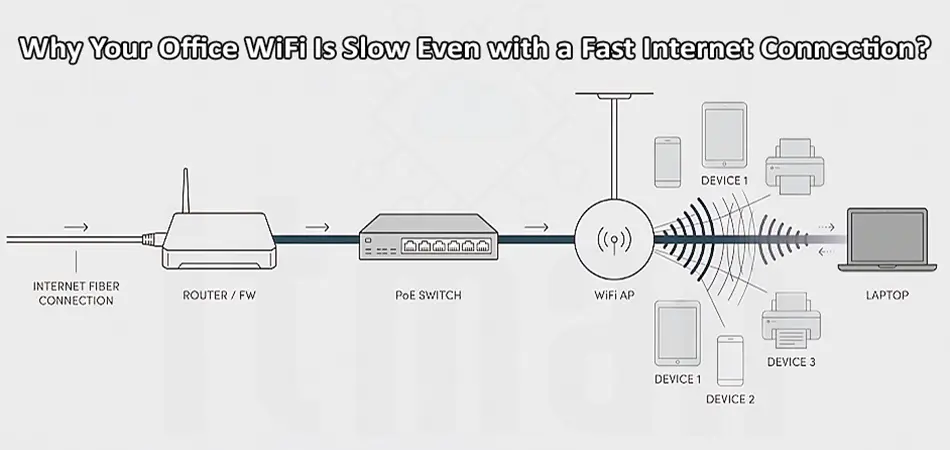
Your ISP provides internet bandwidth to your router or firewall. For example, your office may have a 500 Mbps or 1 Gbps fiber connection. The router then distributes that connection across your wired and wireless network.
WiFi adds another layer between your device and the router. Your laptop or smartphone communicates with an access point over radio signals, and the access point connects to the wired network.
This means you can have a 1 Gbps internet connection while getting only 50 or 100 Mbps over WiFi in certain parts of the office.
So, if Your Office WiFi Is Slow, don’t immediately blame the internet service provider. First, identify whether the problem is with the internet connection, WiFi, switching infrastructure, or the individual device.
1. Weak WiFi Signal Can Make Your Office WiFi Slow
One of the most common reasons Your Office WiFi Is Slow is poor signal strength. WiFi signals become weaker as they travel farther from an access point. Walls, concrete, glass, metal cabinets, elevators, and other physical obstacles can further reduce signal quality. A user sitting close to an access point may get excellent performance, while another employee working behind several walls may experience slow speeds and unstable connectivity.
The solution is not always to increase the transmit power of the access point. In many offices, adding or repositioning access points is a better approach. A properly designed wireless network should provide sufficient coverage without creating excessive overlap between access points.

2. Too Many Devices Can Overload an Access Point
Modern offices can have dozens or even hundreds of wireless devices. Laptops, smartphones, tablets, printers, scanners, cameras, IoT devices, and guest devices may all compete for wireless resources. Even if an access point supports a large number of clients, performance can decrease when many devices are actively transmitting data at the same time.
This is another common explanation for why Your Office WiFi Is Slow during busy working hours but appears normal early in the morning. For larger offices, deploying multiple properly positioned access points can distribute clients and wireless traffic more effectively. Enterprise WiFi systems from manufacturers such as Cisco, Ubiquiti, and other professional networking brands can also provide centralized management and visibility into client usage.
3. WiFi Interference Can Affect Performance
Wireless networks operate using radio frequencies, and interference can significantly reduce performance. The 2.4 GHz band is particularly vulnerable because many devices use it, including Bluetooth devices, wireless peripherals, some security equipment, and neighboring WiFi networks.
If several nearby networks use the same or overlapping channels, devices may have to wait before transmitting. This increases latency and reduces throughput. Therefore, if Your Office WiFi Is Slow, checking channel utilization should be part of the troubleshooting process.
For many business environments, 5 GHz provides better performance than 2.4 GHz, while newer WiFi 6 and WiFi 7 deployments can offer additional capacity when properly designed. However, simply enabling the newest WiFi standard does not automatically fix a poorly designed network.
4. Poor Access Point Placement
Access point placement has a major impact on wireless performance. Installing an AP in a corner of the office, inside a cabinet, behind a wall, or in another obstructed location can create coverage problems. A common mistake is installing one powerful access point and expecting it to cover an entire office. Higher transmit power does not necessarily solve the problem because WiFi communication is two-way. Your laptop also needs enough transmit power to communicate back to the access point.
Professional WiFi design considers the building layout, wall materials, user density, expected traffic, AP placement, channel planning, and required signal strength. If Your Office WiFi Is Slow, moving the access point by only a few meters can sometimes make a noticeable difference, but larger offices usually require a proper wireless survey.
5. Your Access Point May Be Connected to a Slow Switch Port
Sometimes the WiFi itself is not the problem. An access point may have a high-performance wireless radio but be connected to the network through a limited Ethernet connection. For example, if a modern access point is connected through a 100 Mbps port, the wired connection can become a bottleneck. Check the switch port connected to the AP and verify its negotiated speed. For business networks, gigabit Ethernet is typically the minimum expected connection for modern access points, while some high-performance WiFi deployments can benefit from 2.5GbE or faster connections.
This is why troubleshooting Your Office WiFi Is Slow should include the complete path from the client device to the internet, not just the wireless signal.
6. Old WiFi Hardware Can Be the Bottleneck
Older routers and access points may not be capable of efficiently handling modern office traffic. Older WiFi standards generally provide less capacity and lower real-world performance compared with newer standards.
If your business is still using old 802.11n equipment while employees regularly use cloud applications, Microsoft 365, video conferencing, VoIP, cloud backups, and large file transfers, upgrading the internet connection alone may not improve the experience. When Your Office WiFi Is Slow, check the age and capabilities of your access points, wireless controllers, switches, and router.
7. Incorrect Channel Configuration
Automatic configuration is useful, but it is not always perfect. In an office with multiple access points, poor channel planning can result in unnecessary co-channel and adjacent-channel interference.
Using the same channel on neighboring APs without proper planning can increase contention. On the other hand, using excessively wide channels in a crowded environment can also reduce overall performance. A professional wireless configuration should balance channel width, transmit power, channel reuse, and client density. For this reason, solving why Your Office WiFi Is Slow may require more than changing the WiFi password or restarting the router.
8. DNS and Network Configuration Problems
Not every “slow WiFi” complaint is actually caused by WiFi. Users may describe a network as slow when websites take a long time to start loading, applications frequently disconnect, or cloud services respond slowly.
DNS problems, high latency, packet loss, incorrect routing, firewall rules, or overloaded network devices can produce symptoms that look like poor WiFi performance. Run separate tests:
- Test the internet connection over Ethernet.
- Test WiFi next to the access point.
- Test WiFi from the user’s normal workspace.
- Compare latency and packet loss.
- Check DNS response time.
- Check switch port statistics.
- Check access point CPU, memory, and client load.
This helps determine exactly where the performance problem starts.
9. High Latency and Packet Loss
Speed is not the only measurement that matters. An internet connection may show 500 Mbps in a speed test but still provide a poor user experience if there is high latency or packet loss.
Packet loss can cause video calls to freeze, VoIP conversations to become distorted, websites to load inconsistently, and remote desktop sessions to feel sluggish. If Your Office WiFi Is Slow, test latency and packet loss instead of relying exclusively on download speed. Tools such as ping, traceroute, and network monitoring platforms can help identify whether the issue exists between the client and AP, AP and switch, or network and ISP.
10. Guest and Employee Traffic May Be Sharing the Same Network
Another reason Your Office WiFi Is Slow can be poor traffic segmentation. If guest users, employees, IoT devices, cameras, and other equipment all share the same network without appropriate VLAN and bandwidth policies, important business traffic may compete with less important traffic.
A better design separates different types of traffic using VLANs and appropriate firewall or Quality of Service policies. For example, a business might use separate VLANs for:
- Employees
- Guests
- VoIP phones
- CCTV
- IoT devices
- Network management
This improves security and can make network troubleshooting significantly easier.
11. Your Router or Firewall May Be the Real Bottleneck
If WiFi performance looks good but users still complain about slow internet, the router or firewall should be investigated. Security features such as deep packet inspection, VPN processing, content filtering, intrusion prevention, and traffic inspection can consume significant resources on some devices.
A firewall that is overloaded may become the bottleneck even when the ISP connection has plenty of available bandwidth. Check CPU utilization, memory usage, interface throughput, packet drops, and active sessions.
How to Fix Your Office WiFi Is Slow: A Practical Approach
Instead of randomly replacing equipment, troubleshoot the network systematically. Start by testing the internet connection directly through Ethernet. If wired performance is already poor, the problem is probably not WiFi.
Next, perform a WiFi speed test close to the access point. Then repeat the test from the location where users experience the problem. If performance drops significantly with distance, investigate coverage and AP placement.
If performance is poor everywhere, check AP utilization, channel interference, Ethernet uplink speed, switch port errors, and network configuration. For multiple APs, also check whether clients are properly roaming between access points. Poor roaming behavior can cause users to remain connected to a distant AP even when a better AP is available.
Professional Office WiFi Installation & Troubleshooting in Dubai
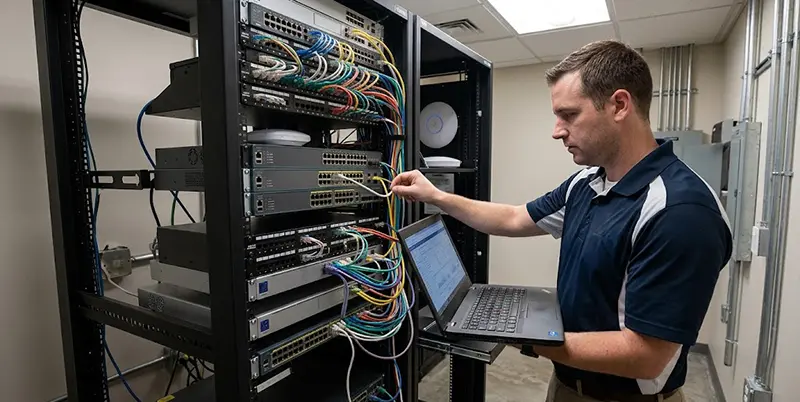
If Your Office WiFi Is Slow, our experienced network technicians in Dubai can inspect and troubleshoot your entire wireless network. From access point placement and signal coverage to channel interference, PoE switches, VLAN configuration, network congestion, and faulty hardware, we can identify the actual bottleneck and provide the right solution. Whether you need to optimize an existing office WiFi network or install a new business-grade wireless infrastructure, our team can handle the installation, configuration, testing, and performance optimization to ensure a stable and reliable connection throughout your office.

When Should You Upgrade Your Office WiFi?
If troubleshooting confirms that your hardware is outdated or overloaded, an upgrade may be necessary. For a modern office, consider:
- WiFi 6 or newer access points
- Gigabit or multi-gigabit Ethernet uplinks
- Managed PoE switches
- Centralized WiFi management
- Proper VLAN configuration
- Separate guest WiFi
- Channel and RF optimization
- Adequate AP density
- Network monitoring
- QoS where required
The goal should not simply be “maximum WiFi speed.” A business network should provide consistent coverage, low latency, reliable roaming, sufficient capacity, and predictable performance.
Final Thoughts
If Your Office WiFi Is Slow despite having a fast internet connection, upgrading your ISP package may not solve the problem. The real bottleneck could be your access point placement, wireless interference, overloaded APs, old hardware, slow Ethernet uplinks, poor channel planning, network congestion, or router and firewall limitations.
The best solution is to troubleshoot the entire network from the user’s device to the internet rather than focusing on download speed alone. A well-designed office WiFi network combines the right access points, proper placement, sufficient wired capacity, PoE switching, VLANs, RF optimization, and continuous monitoring. When these components work together, employees can get much closer to the performance they expect from their high-speed internet connection.