





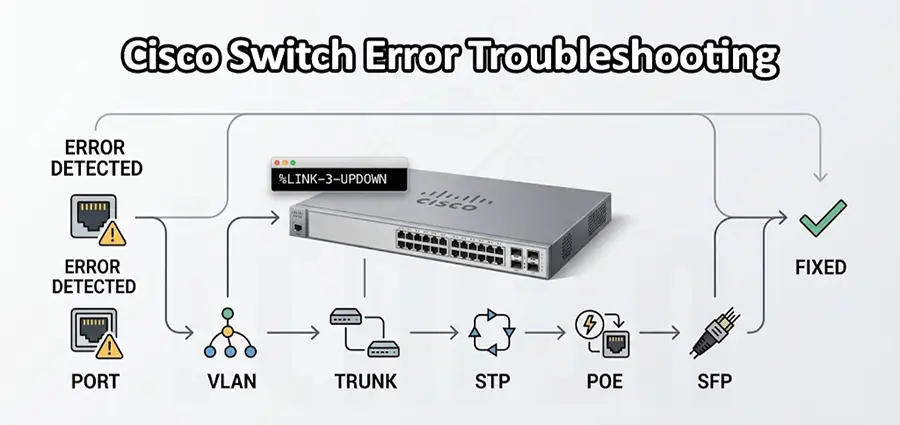
Cisco switches are designed to provide stable and reliable network connectivity, but even a well-configured switch can develop problems over time. A port may suddenly go down, users may lose access to the network, VLANs may stop communicating, or the switch may report interface and hardware errors. In many cases, these problems are not caused by a completely failed switch. A damaged cable, incorrect configuration, VLAN mismatch, high CPU usage, or an unstable SFP can produce similar symptoms.
This guide explains Cisco Switch Error Troubleshooting in a practical way, helping you identify the cause of common Cisco switch problems and understand which checks should be performed before replacing the hardware.
How to Start Cisco Switch Error Troubleshooting
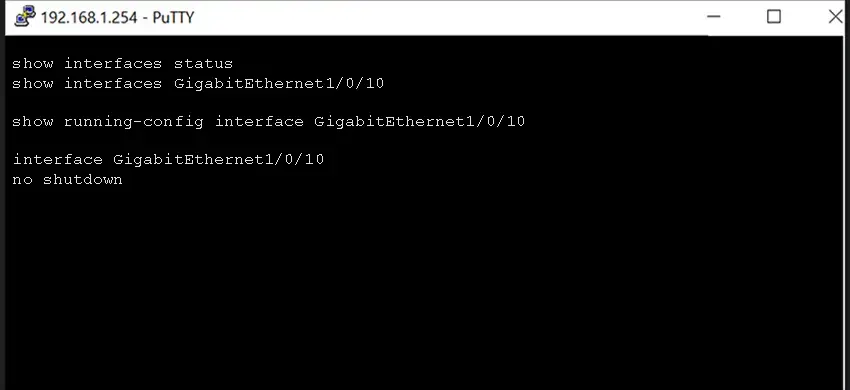
The most important part of troubleshooting is identifying exactly what has changed. Before modifying the configuration, determine whether the problem affects one device, one port, an entire VLAN, or multiple switches. If only one computer has lost connectivity, for example, there is little reason to assume that the entire switch has failed. Start by checking the general status of the interfaces:
show interfaces statusThis gives you a quick overview of which ports are connected, disconnected, or disabled. If you identify a problematic port, examine it in more detail with:
show interfaces GigabitEthernet1/0/10This command provides information about link status, speed, duplex, traffic, packet errors, CRC errors, and other interface statistics. The goal is to move from the simplest possible cause to more complicated ones. Check the physical connection first, then the interface configuration, VLANs, trunks, Layer 3 connectivity, and finally the switch itself.
Cisco Switch Port Is Down
A switch port that remains down is one of the most common Cisco switch problems. The first question is whether the port is physically down or administratively disabled. Use:
show interfaces statusIf the interface has been configured with shutdown, it will not establish a connection even when the cable and connected device are working correctly. You can verify the configuration with:
show running-config interface GigabitEthernet1/0/10If the port should be active, it can be enabled with:
interface GigabitEthernet1/0/10
no shutdown
If the port is already enabled but there is still no link, investigate the cable and the device at the other end. Testing the same cable and endpoint on another known-good port is a simple way to determine whether the problem is related to the switch interface or the connected equipment.
CRC Errors and Interface Errors
CRC errors are particularly important because they can indicate a physical-layer problem. You can find them in the output of:
show interfaces GigabitEthernet1/0/10A small number of historical errors does not necessarily mean that the switch is defective. What matters is whether the counters continue increasing while the connection is being used. If CRC errors are increasing, start by replacing the Ethernet cable. If the problem continues, test the patch-panel connection and the device at the other end. For fiber connections, the SFP, fiber connectors, polarity, and optical signal should also be checked. When a connection experiences packet loss, intermittent connectivity, or very poor performance, interface errors can provide an important clue about whether the problem is physical rather than a VLAN or routing issue.
Cisco Switch VLAN Errors
A device can have a perfectly healthy physical connection and still have no network access because it is connected to the wrong VLAN. The command below shows the VLANs configured on the switch and the ports assigned to them:
show vlan briefFor a specific interface, you can get more detailed information with:
show interfaces GigabitEthernet1/0/10 switchportIf a user is supposed to be connected to VLAN 20 but the access port is assigned to VLAN 30, the device may receive the wrong network configuration or be unable to communicate with other systems. VLAN problems become even more important when multiple switches are involved. A VLAN can exist correctly on one switch but fail to reach another switch because it is not being carried across the trunk.
Troubleshooting Cisco Trunk Problems
Trunk links carry traffic for multiple VLANs between switches, routers, and other network devices. If a trunk is incorrectly configured, several users or entire VLANs can lose connectivity at the same time. Start with:
show interfaces trunkThis allows you to see which interfaces are operating as trunks and which VLANs are active across them. Suppose VLAN 50 works normally on one switch but users in that VLAN cannot communicate with devices connected to another switch. One possibility is that VLAN 50 is not allowed on the trunk between those switches.
The trunk configuration should therefore be checked on both sides. It is also important to verify that the VLAN actually exists on both switches and that the native VLAN configuration is consistent. Because trunk changes can affect many users simultaneously, they should be made carefully, particularly on production networks.
Spanning Tree and Network Loops
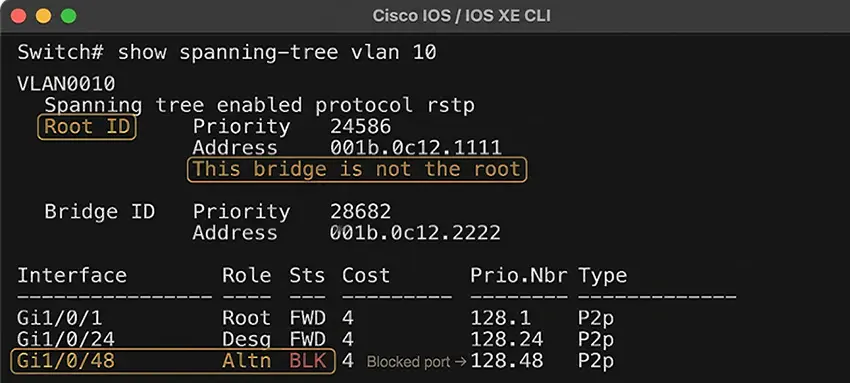
Spanning Tree Protocol, or STP, prevents Layer 2 loops from bringing down an Ethernet network. When STP is not behaving as expected, users may experience intermittent connectivity, high network utilization, or sudden topology changes.
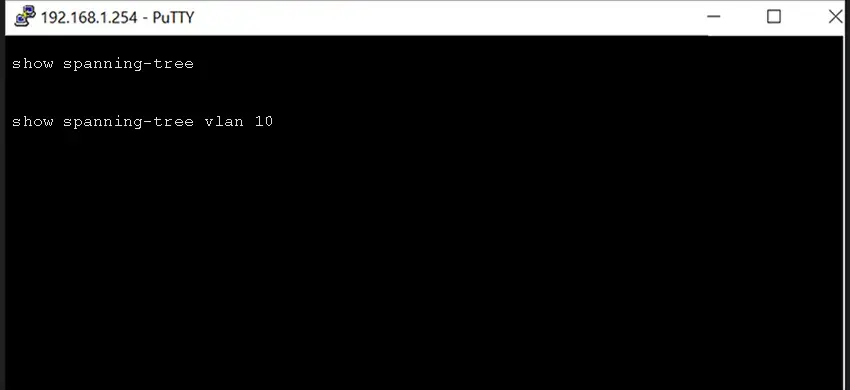
You can inspect the spanning-tree state with:
show spanning-treeIf necessary, check a particular VLAN:
show spanning-tree vlan 10This allows you to determine which switch is acting as the root bridge and which ports are forwarding or blocking. Unexpected STP changes should be investigated rather than solved by simply disabling Spanning Tree. Removing STP protection from a network with redundant Layer 2 connections can create a broadcast storm and potentially affect the entire network.
Cisco Switch Err-Disabled Ports
A Cisco interface can automatically enter an err-disabled state when a protection mechanism detects a serious condition. Depending on the configuration, this can happen because of port-security violations, BPDU Guard, UDLD, or other protection features. To identify affected interfaces, use:
show interfaces status err-disabledThe next step is to determine why the port was disabled. The switch logs are particularly useful:
show loggingFor example, if BPDU Guard caused the problem, simply running shutdown followed by no shutdown may restore the port temporarily, but the same problem will return if another switch is still connected where an endpoint was expected. The correct approach is to identify and correct the underlying condition before recovering the interface.
Cisco Switch PoE Problems
Power over Ethernet problems are common with IP phones, wireless access points, and security cameras. Sometimes the Ethernet link works correctly while the connected device does not receive enough power. Check the PoE status with:
show power inlineFor an individual port:
show power inline GigabitEthernet1/0/10If a PoE device is not powering on, check the switch’s available PoE budget, the cable, the connected device, and the power requirements of that device. A faulty cable can also cause problems that appear to be related to PoE when the actual issue is physical connectivity. If several PoE ports stop providing power simultaneously, the problem deserves more attention because it may involve the switch’s power supply, PoE hardware, or overall power budget.
SFP and Fiber Connection Errors
Fiber interfaces require additional checks because a problem can exist with the transceiver or fiber itself even when the switch configuration is correct. Start by checking the interface status and, where supported, the transceiver information:
show interfaces statusand:
show interfaces transceiverA fiber connection that remains down may be caused by an incompatible SFP, damaged fiber, dirty connectors, incorrect Tx/Rx polarity, or a problem with the remote device. Replacing the SFP with a known-good compatible unit is often an effective diagnostic step. The same principle applies to fiber cables: testing with a known-good cable can quickly help isolate the problem.
High CPU Usage on a Cisco Switch
A switch with unusually high CPU utilization may become slow to manage or behave unpredictably. High CPU usage can be caused by broadcast storms, Layer 2 loops, excessive management traffic, routing processes, or software-related problems. Check the CPU with:
show processes cpu sortedIf CPU usage is unusually high, do not immediately reboot the switch. First check the logs and interface traffic to determine what changed. A sudden increase in CPU usage together with STP events, interface flapping, or unusually high broadcast traffic can point toward a network loop or another network-level problem rather than a failed switch.
Cisco Switch Keeps Rebooting
Unexpected switch reboots require more careful investigation. A switch that repeatedly restarts may have a power problem, overheating issue, software crash, hardware failure, or another underlying fault. Start with:
show versionThis provides information such as uptime and software version. The logs should also be checked:
show loggingIf the uptime is very low and the switch has recently restarted, compare the reboot time with any available system messages. Repeated unexplained reboots should not be treated as a normal configuration problem. At this point, hardware diagnostics and a detailed software investigation may be necessary.
Check Cisco Switch Logs Before Making Major Changes
One of the most useful troubleshooting commands is:
show loggingCisco logs can reveal interface changes, spanning-tree events, authentication failures, hardware messages, power problems, and other events that may not be obvious from the current configuration. This is particularly valuable for intermittent problems. If users report that the network disconnects every morning around the same time, for example, checking the logs around that period may reveal an interface flap, STP event, or other recurring condition. The more specific the reported time and affected port, the easier it is to correlate the user experience with events recorded by the switch.
A Practical Cisco Switch Troubleshooting Approach
Effective Cisco Switch Error Troubleshooting is mainly about following the problem logically instead of changing configuration settings at random. Begin with the physical layer. Check the cable, link status, SFP, and connected device. Then examine the interface for errors and verify its configuration.
If the physical connection is healthy, move to VLAN and trunk configuration. For communication between different networks, continue with IP addressing, ARP, routing, and other Layer 3 settings. If the configuration appears correct, examine STP, CPU and memory utilization, logs, PoE status, and the overall health of the switch. This approach reduces unnecessary downtime because every test is designed to eliminate a specific possible cause.
When You Need Professional IT Support
Not every Cisco switch problem can or should be solved through configuration changes. If a switch is repeatedly rebooting, several interfaces are showing unexplained errors, PoE has stopped working, SFP ports remain down after testing known-good components, or the device appears to have a hardware fault, professional IT Support can save significant troubleshooting time.
A technician can inspect the switch, test ports and power components, analyze logs, verify the configuration, and determine whether the problem is related to hardware, software, cabling, or network configuration. This is especially important for business networks where extended downtime can affect servers, phones, access points, cameras, and users.
Cisco Switch Repair and IT Support in Dubai
If your Cisco switch is experiencing persistent errors, unstable ports, PoE problems, SFP or fiber issues, unexpected reboots, or suspected hardware failure, our team can help. We have Cisco technicians in Dubai who can inspect and troubleshoot your switch, identify the source of the problem, and provide Cisco switch repair services in Dubai when the hardware can be repaired. Having the switch properly diagnosed before replacing it can help you avoid unnecessary equipment costs and reduce network downtime.