








Windows Command Prompt may look old-fashioned compared with modern graphical tools, but it remains one of the most useful utilities built into Windows. With a few CMD commands, you can check your network connection, troubleshoot DNS problems, manage files and folders, inspect running processes, repair Windows components, and quickly obtain detailed information about your computer.
You do not need to be a system administrator to benefit from Command Prompt. Many commands are straightforward enough for everyday Windows users, while others become extremely useful when troubleshooting a PC or network.
In this guide, we cover 50 essential CMD commands every Windows user should know, explain what each command does, and provide practical examples you can actually use.
How to Open Command Prompt in Windows
The quickest method is to press Windows + R, type:
cmd
and press Enter.
You can also search for Command Prompt from the Start menu.
Some commands require elevated permissions. In that case, search for Command Prompt, right-click it, and select Run as administrator.
Essential CMD Commands
1. ipconfig – Check Your IP Configuration
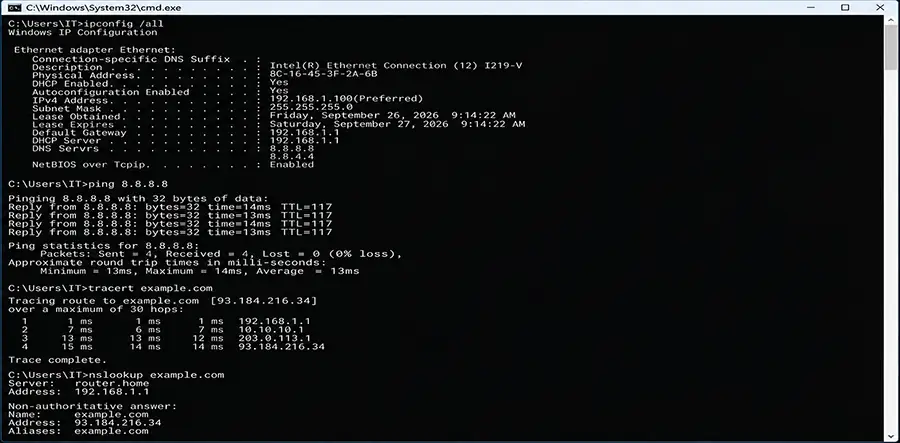
ipconfig displays basic network configuration information for your Windows computer.
Run:
ipconfig
You will see information such as your IPv4 address, subnet mask, and default gateway.
For considerably more detail, use:
ipconfig /all
This also displays information including your MAC address, DHCP status, DNS servers, and adapter details.
2. ipconfig /release – Release Your Current IP Address
If your computer receives its IP address through DHCP, this command releases the currently assigned address:
ipconfig /release
Your network connection may temporarily stop working until a new IP address is obtained.
This is particularly useful when troubleshooting DHCP and local network connectivity problems.
3. ipconfig /renew – Request a New IP Address
After releasing an IP address, request another one with:
ipconfig /renew
Windows contacts the DHCP server—usually your router on a home or small-office network—and requests an IP configuration.
Using /release followed by /renew can resolve certain IP assignment problems.
4. ipconfig /flushdns – Clear the DNS Cache
Windows stores DNS results locally to make websites and network services load faster. Occasionally, outdated or incorrect entries cause connectivity problems.
Clear them with:
ipconfig /flushdns
This is worth trying when a domain points to an old IP address or a website works on other devices but behaves incorrectly on your PC.
5. ping – Test Network Connectivity
ping is one of the most important network troubleshooting commands.
Example:
ping 8.8.8.8
Windows sends test packets to the destination and reports whether responses are received.
You can also test a domain:
ping example.com
This can help determine whether a connection problem involves basic connectivity, name resolution, or the remote destination.
6. tracert – See the Route to a Destination
tracert shows the network hops between your computer and a destination.
Example:
tracert example.com
If communication becomes slow or fails somewhere between your network and a remote server, tracert can help identify where the path changes or stops responding.
Remember that some routers intentionally do not respond to traceroute probes, so an asterisk does not automatically indicate a fault.
7. pathping – Combine Ping and Route Analysis
pathping combines characteristics of ping and tracert.
Run:
pathping example.com
It discovers the route and then collects statistics from the hops. It takes longer than a normal ping but can be useful when investigating packet loss along a network path.
8. nslookup – Troubleshoot DNS
nslookup lets you query DNS information.
Example:
nslookup example.com
It can show which DNS server answered the request and the IP addresses returned for the domain.
You can also query a particular DNS server:
nslookup example.com 8.8.8.8
This makes it useful for comparing DNS results from different servers.
9. netstat – View Network Connections
netstat displays active network connections and related information.
A useful variation is:
netstat -ano
It displays connections, listening ports, and their process IDs (PIDs).
If you need to determine which application is using a particular connection or port, you can match the PID with Task Manager or tasklist.
10. arp – View the ARP Cache
The ARP cache maps local IPv4 addresses to MAC addresses.
Run:
arp -a
This can be useful when troubleshooting LAN devices or checking which MAC address Windows has associated with a particular local IP address.
11. getmac – Find Your MAC Address
To quickly display the MAC addresses of your network adapters, use:
getmac
For more detailed output:
getmac /v
This is convenient when configuring MAC-based network policies or identifying adapters.
12. hostname – Find the Computer Name
Run:
hostname
Windows immediately displays the computer’s hostname.
This is especially useful when managing several PCs or identifying a machine on a local network.
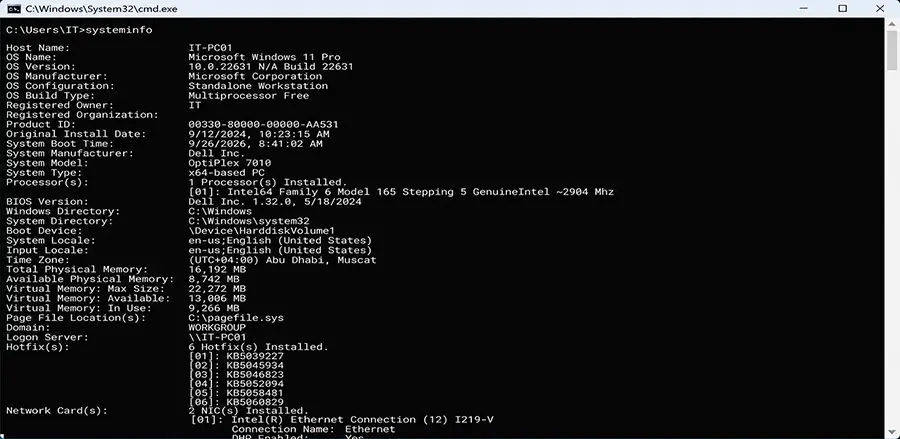
13. systeminfo – View Detailed System Information
systeminfo provides a large amount of Windows and hardware information in one place:
systeminfo
Depending on the system, the output can include the OS version, system manufacturer, model, BIOS information, installed memory, boot time, and network details.
It is one of the quickest CMD commands for getting an overview of a Windows PC.
14. whoami – Check the Current User
Run:
whoami
The command shows the account under which the current session is running, generally in a format such as:
COMPUTERNAME\username
It is particularly useful when working with multiple accounts, remote sessions, or different privilege levels.
15. tasklist – See Running Processes
tasklist displays currently running processes:
tasklist
The output includes process names and PIDs.
To search for a specific program, you can combine it with findstr:
tasklist | findstr chrome
This is useful when checking whether an application or service-related process is actually running.
16. taskkill – Stop a Running Process
If a program becomes unresponsive, taskkill can terminate it.
By executable name:
taskkill /IM notepad.exe
Or by PID:
taskkill /PID 1234
If normal termination fails, /F forces it:
taskkill /F /IM notepad.exe
Use forced termination carefully because unsaved application data can be lost.
17. chkdsk – Check a Drive for File-System Problems
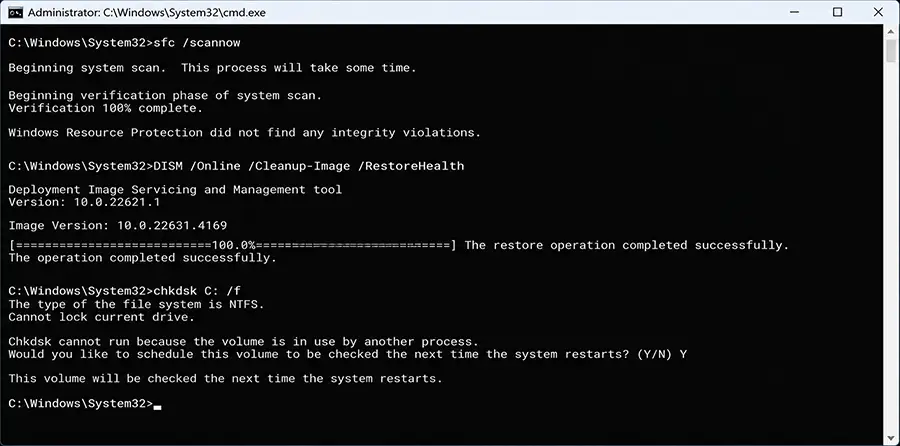
chkdsk examines a drive and reports file-system information and errors.
Example:
chkdsk C:
To attempt repairs:
chkdsk C: /f
If the system drive is in use, Windows may ask whether you want to schedule the check for the next restart.
18. sfc /scannow – Repair Windows System Files
System File Checker verifies protected Windows system files and attempts to replace corrupted versions.
Open CMD as administrator and run:
sfc /scannow
This is a common troubleshooting step when Windows components behave unexpectedly or system files may have become corrupted.
19. DISM – Repair the Windows Component Store
DISM can repair the Windows image used by Windows servicing and SFC.
A commonly used command is:
DISM /Online /Cleanup-Image /RestoreHealth
Run it from an elevated Command Prompt.
If SFC cannot repair certain files, DISM followed by another sfc /scannow is often a useful troubleshooting sequence.
20. dir – List Files and Folders
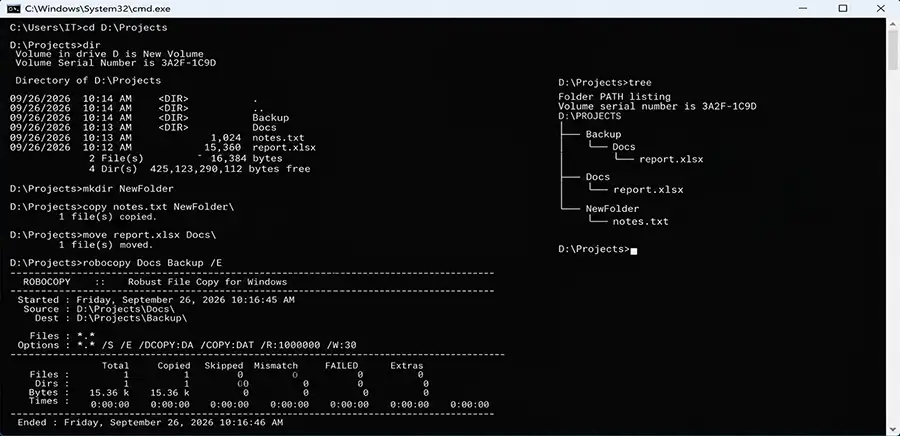
dir displays the contents of the current directory:
dir
To show hidden and system entries as well:
dir /a
You can also inspect another location directly:
dir C:\Users
It is essentially the command-line equivalent of browsing folder contents in File Explorer.
21. cd – Change Directory
cd changes your current working directory.
Example:
cd C:\Users
To move one directory upward:
cd ..
To jump to the root of the current drive:
cd \
Understanding cd is fundamental when working with files from CMD.
22. mkdir – Create a Folder
Create a new directory with:
mkdir NewFolder
You can also use the shorter equivalent:
md NewFolder
For example:
mkdir C:\Backup
creates a folder named Backup on the C drive if permissions allow it.
23. rmdir – Remove a Directory
Remove an empty directory using:
rmdir OldFolder
To delete a directory and its contents:
rmdir /s OldFolder
CMD asks for confirmation unless you also use /q.
Be careful with /s because it removes the files and subdirectories inside the selected folder.
24. copy – Copy Files
The copy command copies one or more files.
Example:
copy report.txt D:\Backup\
You can also specify the destination filename:
copy report.txt D:\Backup\report-old.txt
For complex folder structures and large backup operations, robocopy is generally more capable.
25. xcopy – Copy Files and Directory Trees
xcopy is more flexible than basic copy.
For example:
xcopy C:\Data D:\Backup\Data /E /I
/E includes subdirectories, including empty ones, while /I helps treat the destination as a directory.
Although still available, many modern Windows workflows are better handled by robocopy.
26. robocopy – Perform Advanced File Copies
robocopy is one of Windows’ most powerful built-in file-copy utilities.
Example:
robocopy C:\Data D:\Backup /E
It is particularly useful for large directory structures, backup scripts, and network copies because it offers extensive options for retries, logging, filtering, and synchronization.
Be especially careful with options such as /MIR, which can delete destination files that do not exist in the source.
27. move – Move Files
Move a file with:
move file.txt D:\Documents\
You can also use it to move directories in supported scenarios.
This is useful in scripts where files need to be automatically relocated after processing.
28. ren – Rename Files and Folders
Rename an item with:
ren oldname.txt newname.txt
The command also supports wildcard-based bulk renaming patterns, making it useful when organizing multiple files.
29. del – Delete Files
Delete a file using:
del file.txt
To request confirmation:
del /p file.txt
Be careful: files deleted through CMD normally do not go to the Recycle Bin.
30. type – Display a Text File
To display the contents of a text file directly inside Command Prompt:
type notes.txt
It is useful for quickly checking configuration files, logs, scripts, and small text documents without opening an editor.
31. cls – Clear the CMD Screen
After running many commands, clean up the Command Prompt window with:
cls
It clears the visible screen but does not undo or change any previous commands.
32. echo – Display Text or Variables
echo prints text:
echo Hello World
It can also display environment variables:
echo %USERNAME%
or:
echo %PATH%
echo is particularly useful when creating batch files.
33. set – View or Set Environment Variables
Run:
set
to display environment variables available to the current CMD session.
You can create a temporary variable:
set MYVAR=Hello
and display it with:
echo %MYVAR%
Variables created this way normally apply only to the current command environment.
34. where – Locate an Executable
Want to know which executable Windows will use?
Try:
where python
or:
where notepad
The command searches locations available through the current environment and can be extremely useful when troubleshooting PATH issues or multiple software installations.
35. find – Search for Text
find searches text for a specified string.
Example:
find "error" log.txt
It can also process output from another command through a pipe.
For more advanced matching, findstr is usually preferable.
36. findstr – Perform Advanced Text Searches
findstr supports more flexible searches.
Example:
findstr /i "error warning" log.txt
The /i option makes the search case-insensitive.
You can also combine it with other commands:
ipconfig /all | findstr /i "DNS"
This is an efficient way to filter long command output.
37. tree – Display Folder Structure
tree creates a visual representation of a directory hierarchy:
tree C:\Projects
To include files:
tree C:\Projects /F
This is useful when documenting or examining complicated folder structures.
38. assoc – View File Extension Associations
assoc displays file-extension associations.
For example:
assoc .txt
You can use it to understand how Windows categorizes different extensions.
Changing associations from the command line can affect application behavior, so avoid modifying them unless you understand the consequences.
39. fc – Compare Two Files
fc compares two files and reports their differences.
Example:
fc old.txt new.txt
It is handy for comparing configuration files, exported settings, scripts, and other text-based files.
40. driverquery – List Installed Drivers
Run:
driverquery
to display installed device drivers.
For additional information:
driverquery /v
This can help when investigating hardware, driver, or system compatibility problems.
41. powercfg – Diagnose Power and Battery Issues
powercfg provides detailed power-management functions.
Laptop users can generate a battery report:
powercfg /batteryreport
Windows creates an HTML report containing battery capacity and usage information.
Another useful command is:
powercfg /energy
which analyzes certain power-efficiency and configuration issues.
42. shutdown – Shut Down or Restart Windows
Shut down Windows:
shutdown /s /t 0
Restart immediately:
shutdown /r /t 0
You can also schedule a shutdown. For example:
shutdown /s /t 3600
schedules shutdown after 3,600 seconds, or one hour.
Cancel a pending shutdown with:
shutdown /a
43. gpupdate – Refresh Group Policy
On systems using Group Policy, run:
gpupdate
To force a broader refresh:
gpupdate /force
This is particularly relevant in business and domain-managed Windows environments after policy changes.
44. gpresult – Check Applied Group Policies
gpresult helps determine which Group Policy settings have been applied.
A useful summary is:
gpresult /r
Administrators frequently use it to troubleshoot situations where a domain or local policy does not appear to be taking effect as expected.
45. net user – Manage and Inspect User Accounts
Run:
net user
to list local user accounts.
For information about a particular account:
net user username
The command also supports account-management operations when appropriate permissions are available. Be cautious when changing accounts on shared or managed computers.
46. net share – View Shared Resources
Run:
net share
to display resources shared from the current Windows computer.
It can also create and remove shares with appropriate permissions, making it useful for Windows file-server and local network administration.
47. net use – Work with Network Shares
net use displays current network connections and can map network shares.
Example:
net use Z: \\SERVER\Shared
This maps the specified network share to drive letter Z, assuming the server, share, credentials, and permissions are valid.
To disconnect it:
net use Z: /delete
48. sc query – Check Windows Services
The sc utility communicates with the Windows Service Control Manager.
To list service information:
sc query
To inspect a particular service:
sc query wuauserv
This is valuable when troubleshooting services that have stopped or failed to start.
49. curl – Make HTTP Requests from CMD
Modern Windows versions include curl, which can communicate with web servers directly from the command line.
Example:
curl https://example.com
You can inspect HTTP response headers with:
curl -I https://example.com
For IT professionals and developers, curl is extremely useful for testing websites, APIs, redirects, and server connectivity.
50. help – Discover More CMD Commands
Finally, one of the easiest commands to overlook is:
help
It displays information about many built-in CMD commands.
For help with a specific supported command:
help copy
Many command-line programs also support:
command /?
For example:
robocopy /?
This displays the available syntax and switches, making it one of the best ways to learn unfamiliar commands without leaving the terminal.
Which CMD Commands Are Most Useful for Troubleshooting?
You do not need to memorize all 50 commands immediately. For general Windows troubleshooting, a smaller toolkit covers a surprisingly large number of problems.
For network issues, start with ipconfig, ping, tracert, nslookup, and netstat. Together, these commands can help identify IP configuration, DNS, connectivity, routing, and connection-related problems.
For Windows system problems, systeminfo, tasklist, chkdsk, sfc, and DISM are especially useful. For file management, learn cd, dir, copy, move, and robocopy.
CMD Commands Can Be Combined
One of the most powerful features of Command Prompt is the ability to combine commands.
The pipe operator (|) sends the output of one command to another.
For example:
netstat -ano | findstr ":443"
This filters the netstat output for entries containing port 443.
You can also redirect output to a file:
systeminfo > system-info.txt
Instead of displaying everything on screen, Windows saves the output to system-info.txt.
To append output without replacing existing content:
ipconfig /all >> network-log.txt
Once you understand piping and redirection, CMD becomes much more than a collection of individual commands.
Important Safety Tips Before Using CMD
Command Prompt gives you direct access to functions that can modify files, disks, accounts, services, and Windows itself. Always check a command before running it with administrator privileges.
Pay particular attention to commands involving deletion, recursive operations, disk repair, user accounts, services, or robocopy /MIR. A typo in a path can affect the wrong files.
If you find a CMD command online but do not understand what its switches do, run the command with /? first and review the syntax.
Conclusion
Learning these 50 essential CMD commands gives Windows users a faster and more precise way to understand and troubleshoot their computers. Simple commands such as ipconfig, ping, dir, and tasklist are useful for everyday diagnostics, while tools such as robocopy, netstat, sfc, DISM, and powercfg provide capabilities that even experienced IT technicians regularly rely on.
You do not need to memorize every command. Start with the commands relevant to your daily work, understand what their options do, and gradually expand your toolkit. When Windows develops a network, file, service, or system problem, Command Prompt can often tell you much more about what is happening than the graphical interface alone.