








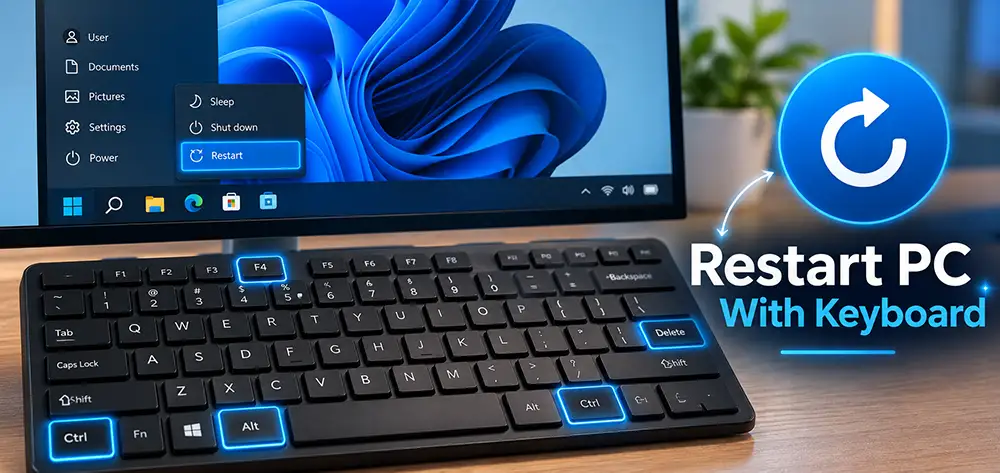
Restarting a computer is one of the simplest ways to solve temporary Windows problems, but what happens when your mouse stops working, the touchpad becomes unresponsive, or you simply want a faster way to reboot your PC? Fortunately, Windows provides several methods that allow you to restart a computer with keyboard shortcuts alone.
You do not necessarily need a mouse to access the Start menu or click the Restart button. Depending on the situation, you can use combinations such as Alt + F4, Ctrl + Alt + Delete, or Windows + X. You can even restart Windows by opening a command window entirely from the keyboard.
In this guide, we explain how to restart a computer with keyboard controls using five practical methods. We will also cover what to do when Windows is partially frozen and which restart method is safest in different situations.
Why Restart a Computer Using the Keyboard?
Most people restart Windows through Start > Power > Restart. While this is convenient, it depends on your mouse or touchpad working correctly.
Knowing how to restart a computer using only the keyboard can be useful when:
- Your mouse suddenly stops responding
- A laptop touchpad is disabled or frozen
- Windows Explorer is experiencing problems
- You are troubleshooting a Windows issue
- You prefer keyboard shortcuts for faster navigation
- You are working through Remote Desktop
- The Start menu does not respond properly
A normal restart closes Windows processes, shuts down the operating system, and starts it again. This can clear temporary software problems, restart background services, reload drivers, and free resources that may have become stuck.
However, you should always save your work before restarting whenever possible.
Method 1: Restart Computer With Keyboard Using Alt + F4
One of the easiest ways to restart a Windows computer without a mouse is the Alt + F4 method.
Before using the shortcut, make sure you are viewing the desktop. You can quickly display the desktop by pressing:
Windows + D
Then press:
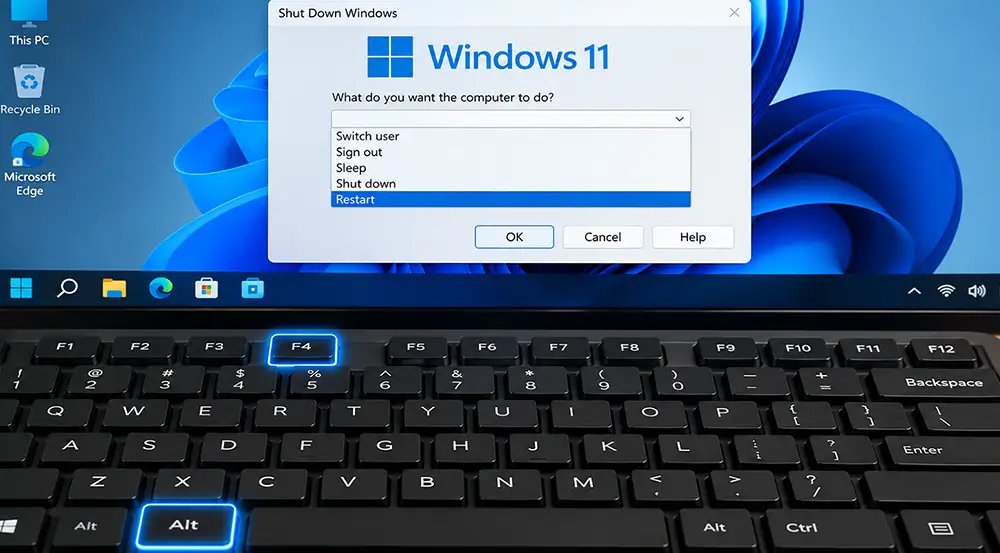
Alt + F4
Windows should display the Shut Down Windows dialog box.
Use the Up or Down Arrow keys until Restart is selected, then press:
Enter
The computer will begin restarting normally.
Shortcut sequence
The complete sequence is:
Windows + D → Alt + F4 → Select Restart → Enter
This is one of the most convenient methods because it performs a standard Windows restart without requiring the mouse.
Keep in mind that Alt + F4 normally closes the currently active application. If you press it while a program is selected instead of the desktop, Windows may close that program rather than displaying the shutdown menu. This is why pressing Windows + D first is useful.
Method 2: Restart Windows Using Ctrl + Alt + Delete
Another reliable way to restart a computer with keyboard controls is through the Windows security screen.
Press:
Ctrl + Alt + Delete
Windows will open a screen containing several system options.
From here, use the Tab key to move between available controls until the Power icon is selected. Depending on your Windows version and interface, you may need to press Tab several times.
Press Enter to open the power options.
Use the Arrow keys to select:
Restart
Then press:
Enter
Windows will restart.
This method is particularly useful when the desktop or an application is behaving abnormally but Windows itself is still responsive.
The Ctrl + Alt + Delete screen operates differently from normal application windows, so it may remain accessible even when a program has stopped responding.
Method 3: Restart Computer Using Windows + X
Windows also provides the Quick Link menu, sometimes called the Power User menu. It can be opened entirely from the keyboard.
Press:
Windows + X
Then press:
U
This opens the Shut down or sign out submenu.
Next, press:
R
The full shortcut sequence is therefore:
Windows + X → U → R
Your computer should immediately begin the normal Windows restart process.
This is one of the fastest keyboard methods once you memorize the sequence. It does not require navigating through several menus with the Arrow or Tab keys.
For users who frequently work without a mouse, Windows + X, U, R is an especially useful Windows shortcut to remember.
Method 4: Restart a Computer With the Run Command
Windows includes a built-in shutdown command that can restart the operating system. You can access it using only the keyboard.
Press:
Windows + R
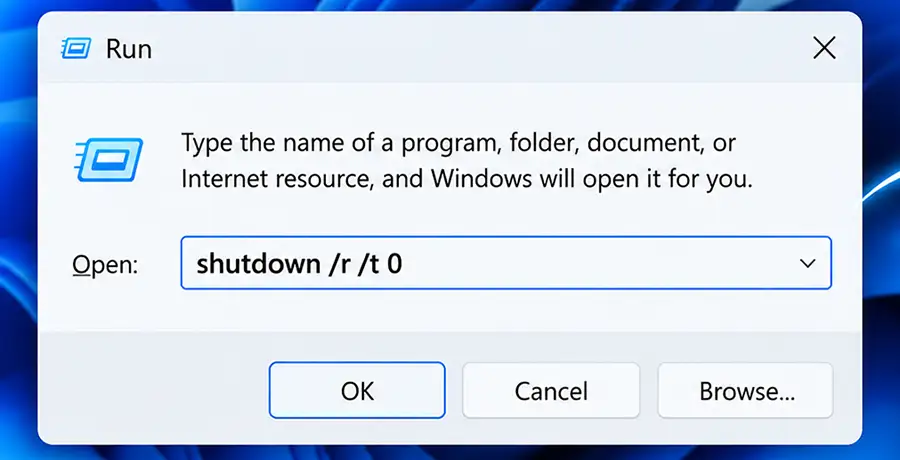
The Run dialog box will appear.
Type:
shutdown /r /t 0
Then press:
Enter
Windows should restart immediately.
The command contains several parameters:
shutdown tells Windows to initiate a shutdown-related operation.
/r instructs Windows to restart the computer instead of simply shutting it down.
/t 0 sets the delay before the operation to zero seconds.
This method can be useful for troubleshooting, system administration, Remote Desktop sessions, or situations where navigating the Windows interface is inconvenient.
Because the restart begins immediately, save any open documents before running the command.
Method 5: Restart Windows Through Command Prompt
You can also use the same shutdown command through Command Prompt or Windows Terminal.
Press:
Windows + R
Type:
cmd
Press:
Enter
When Command Prompt opens, type:
shutdown /r /t 0
Then press:
Enter
The PC will restart immediately.
Although this method requires a few more steps than using the Run dialog, it can be useful when you are already working in Command Prompt or performing Windows troubleshooting.
The same basic command can also be used in Windows Terminal or PowerShell.
Which Keyboard Restart Method Is the Fastest?
For everyday use, the Windows + X method is one of the quickest options:
Windows + X → U → R
Once memorized, the entire process takes only a few seconds.
The Alt + F4 method is also easy to remember:
Windows + D → Alt + F4 → Restart → Enter
For troubleshooting situations, Ctrl + Alt + Delete may be preferable because the security screen can sometimes remain responsive when the normal Windows desktop is experiencing problems.
The command-based method is particularly useful for administrators and advanced users because it provides a direct way to initiate a restart.
How to Restart a Computer Without a Mouse
If the mouse is completely unavailable, you can still control much of the Windows interface with several basic keyboard keys.
- Tab moves between buttons and interface elements.
- Shift + Tab moves backward through selectable elements.
- Arrow keys navigate through menus.
- Enter activates the selected option.
- Esc usually closes or exits the current menu.
- Windows key opens the Start menu.
Using these controls, you can navigate Windows even when the mouse or touchpad is not functioning.
If your mouse suddenly stops working, however, consider investigating the underlying problem after restarting. Possible causes include a disconnected USB device, Bluetooth connectivity problems, driver issues, USB port problems, or temporary Windows errors.
What If the Computer Is Frozen?
There is an important difference between an unresponsive application and a completely frozen computer.
If only one application is frozen, try:
Ctrl + Shift + Esc
This opens Task Manager. You may be able to select and close the problematic application without restarting the entire PC.
If Windows is responding poorly, try:
Ctrl + Alt + Delete
If the security screen appears, you can restart the system from there.
If none of the keyboard shortcuts respond and the display remains completely frozen, Windows may no longer be processing keyboard input. In that situation, keyboard restart methods may not work.
A forced power-off using the physical power button may eventually become necessary. However, this should be treated as a last resort because applications do not get an opportunity to close normally, and unsaved work can be lost.
Normal Restart vs. Forced Restart
A normal restart and a forced restart are not the same thing.
When you restart Windows normally, the operating system attempts to close applications and services properly before rebooting. This is the preferred method.
A forced shutdown interrupts power or forces the system to turn off without completing the normal Windows shutdown process.
For this reason, keyboard shortcuts such as Alt + F4, Windows + X, Ctrl + Alt + Delete, and the shutdown command should generally be attempted before holding down the physical power button.
Can You Restart a Laptop Using Only the Keyboard?
Yes. The same methods generally work on Windows laptops and desktop computers.
For example, you can restart a laptop with keyboard controls by pressing:
Windows + X → U → R
or:
Windows + D → Alt + F4 → Restart → Enter
These methods are especially useful if a laptop touchpad stops responding.
Some laptop keyboards use multifunction keys or manufacturer-specific layouts, but standard Windows shortcuts such as Windows + X and Ctrl + Alt + Delete normally remain available.
Useful Keyboard Shortcuts for Windows Troubleshooting
If you are learning how to restart a computer with keyboard shortcuts because your Windows system occasionally becomes unresponsive, several additional shortcuts are worth remembering.
Ctrl + Shift + Esc opens Task Manager directly.
Windows + D displays the desktop.
Alt + Tab switches between open applications.
Alt + F4 closes the active application.
Windows + R opens the Run dialog.
Windows + X opens the Quick Link menu.
Ctrl + Alt + Delete opens the Windows security screen.
These shortcuts can help you regain control of Windows without immediately restarting the system.
Should You Restart Windows Regularly?
Modern Windows computers do not need to be restarted constantly, but occasional restarts can still be beneficial.
Restarting Windows reloads many system components and background services. It may help resolve temporary network problems, application errors, driver glitches, memory-related issues, and certain update problems.
A restart may also be required after installing Windows updates, drivers, or some applications.
However, if your computer frequently freezes or requires repeated restarts, the underlying issue should be investigated rather than relying on restarting as a permanent solution.
FAQ
What is the keyboard shortcut to restart a computer?
There is no single dedicated Restart key in Windows. One of the fastest sequences is Windows + X, followed by U and then R.
How do I restart my computer without a mouse?
You can use Windows + X → U → R or press Windows + D, followed by Alt + F4, select Restart, and press Enter.
Can I restart Windows with Ctrl + Alt + Delete?
Yes. Press Ctrl + Alt + Delete, navigate to the Power icon using the keyboard, select Restart, and press Enter.
How do I restart Windows 11 using only the keyboard?
Windows 11 supports several keyboard restart methods, including Windows + X → U → R and Windows + D → Alt + F4 → Restart.
How do I restart Windows 10 with the keyboard?
The same common methods work in Windows 10. Windows + X → U → R is one of the fastest options.
What command immediately restarts Windows?
You can use shutdown /r /t 0. The /r parameter requests a restart and /t 0 specifies zero seconds of delay.
Does Alt + F4 restart the computer?
Not automatically. When the desktop is active, Alt + F4 opens the Shut Down Windows dialog. You can then select Restart and press Enter.
Why does Alt + F4 close my program instead of showing Restart?
Alt + F4 acts on the active window. Press Windows + D first to display and focus the desktop, then use Alt + F4.
What should I do if Ctrl + Alt + Delete does not work?
If Windows is completely frozen and does not respond to any keyboard input, the normal keyboard restart methods may be unavailable. A forced shutdown may be required as a last resort.
Will restarting my computer delete my files?
A normal restart does not delete files stored on your drive. However, unsaved changes in open applications may be lost, so save your work before restarting whenever possible.
Conclusion
Learning how to restart a computer with keyboard controls is useful when your mouse or touchpad stops working or when you simply want a faster way to reboot Windows. Windows provides several options, including Alt + F4, Ctrl + Alt + Delete, Windows + X, the Run dialog, and Command Prompt.
For a quick everyday restart, Windows + X → U → R is one of the easiest sequences to remember. If Windows is behaving abnormally, Ctrl + Alt + Delete provides another useful route. Command-based methods such as shutdown /r /t 0 are also valuable for troubleshooting and system administration.
Whenever possible, use a normal Windows restart rather than forcing the computer to power off. This gives the operating system and applications an opportunity to close properly and reduces the risk of losing unsaved work.