

Most WiFi routers come with a limited number of Ethernet ports, typically between one and four LAN connections. While this may be enough for basic home internet use, it quickly becomes a problem when you need to connect multiple computers, smart TVs, gaming consoles, printers, or other wired devices. Fortunately, you don’t need to replace your existing router to solve this issue. Learning how to add more Ethernet ports to your WiFi router is simple, affordable, and requires very little technical knowledge. The easiest and most reliable solution is to use a Gigabit Ethernet switch.
This compact networking device expands the number of available wired connections while allowing all connected devices to share your existing internet connection and local network. In this guide, we’ll explain how Ethernet switches work, how to connect one to your router, and how to choose the right switch for your home or office.
Why Do WiFi Routers Have Limited Ethernet Ports?
Most home and small-business routers are designed to provide wireless connectivity alongside a few wired connections. Manufacturers generally include a limited number of LAN ports to keep routers compact and affordable. However, modern homes and offices often have more wired devices than available Ethernet connections. Common examples include:
- Desktop computers and workstations
- Smart TVs and streaming devices
- PlayStation and Xbox gaming consoles
- Network printers and scanners
- Network Attached Storage (NAS) devices
- IP camera recorders (NVRs)
- VoIP phones with external power supplies
- Additional wireless access points
For example, suppose your router has four LAN ports, but you need to connect three computers, two printers, a smart TV, and a NAS device. Your router simply doesn’t have enough ports to accommodate all seven devices. Instead of purchasing a new router, you can expand your existing network using an Ethernet switch.
What Is an Ethernet Switch and How Does It Work?
An Ethernet switch is a networking device that connects multiple wired devices within the same Local Area Network (LAN). It receives Ethernet frames from connected devices and forwards them to the appropriate destination using MAC addresses. When connected to a WiFi router, the switch effectively extends the router’s wired network. Your router continues to handle important networking functions, including:
- Internet connectivity
- IP address assignment through DHCP
- Network Address Translation (NAT)
- Firewall and security policies
- Wireless network management
Meanwhile, the Ethernet switch provides additional physical connections for your devices. For most home users and small offices, an unmanaged Gigabit Ethernet switch is the ideal solution because it operates automatically without requiring software installation or configuration.
How to Add More Ethernet Ports to Your WiFi Router: Step-by-Step
Expanding your router’s Ethernet connections usually takes less than five minutes.
Step 1: Check Your Router’s Available LAN Ports
Look at the back of your WiFi router and identify its LAN ports.
These ports are typically labeled LAN 1, LAN 2, LAN 3, or LAN 4.
Make sure at least one LAN port is available to connect your Ethernet switch.
Do not confuse the router’s WAN or Internet port with its LAN ports. The WAN port is normally used to connect your router to your internet service provider’s equipment.
Step 2: Choose a Suitable Ethernet Switch
The next step is selecting an Ethernet switch with enough ports for your devices.
For a home entertainment setup or small workspace, a 5-port Gigabit switch may be sufficient.
For larger home networks or small offices, an 8-port switch offers additional flexibility.
When choosing a switch, consider:
- Number of Ethernet ports
- Gigabit Ethernet support (10/100/1000 Mbps)
- Plug-and-play operation
- Fanless design for quiet operation
- Power consumption
- Available space for installation
- Future network expansion
A Gigabit Ethernet switch is generally preferable to an older 10/100 Mbps switch, especially when transferring files between computers or using high-speed internet connections.
Step 3: Connect the Ethernet Switch to Your Router
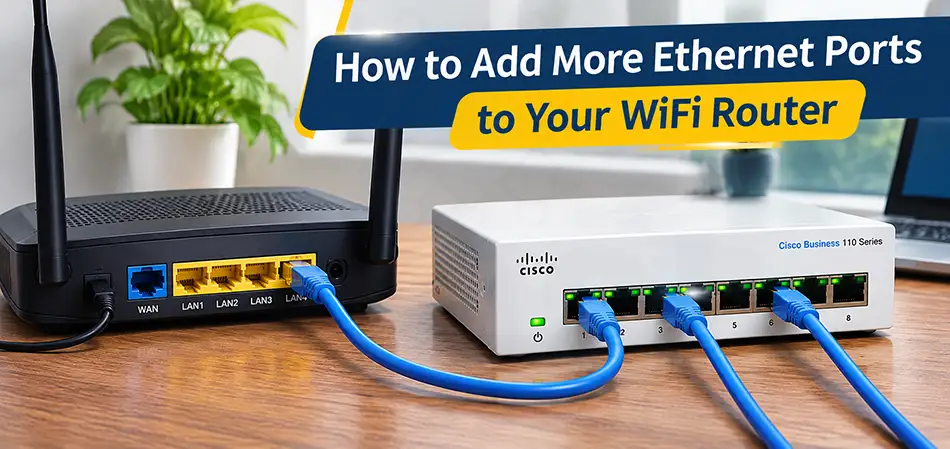
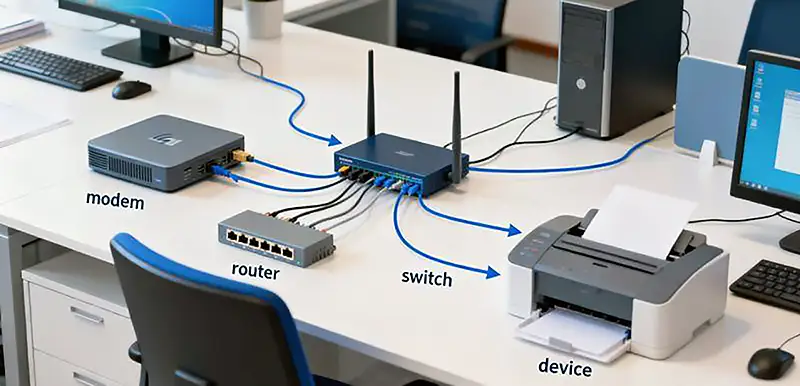
Use a Cat5e or Cat6 Ethernet cable to connect an available LAN port on your router to any Ethernet port on your unmanaged switch.
Most modern Gigabit switches support Auto MDI/MDIX, meaning you don’t need a special crossover cable.
The connection should look like this:
Internet → WiFi Router → Gigabit Ethernet Switch → Wired Devices
Once connected, the switch becomes part of your existing local network.
Step 4: Connect Your Wired Devices
Connect your computers, printers, smart TVs, gaming consoles, and other Ethernet-enabled equipment to the remaining switch ports.
For example, a 5-port switch connected to your router will normally provide four remaining ports for wired devices.
An 8-port switch will normally provide seven remaining ports.
Remember that one switch port is used for the connection to the router.
Step 5: Power On and Test the Connection
Connect the Ethernet switch to its compatible power adapter and switch it on.
Most unmanaged switches automatically detect connected devices and establish network links.
Check the LED indicators to confirm that the Ethernet connections are active.
You can then test your setup by opening a website, accessing a network printer, or transferring a file between connected computers.
No additional IP configuration is normally required when your router’s DHCP server is enabled.
Best Ethernet Switches to Expand Your WiFi Router Ports
If you’re looking for a reliable, easy-to-install Ethernet switch for your home or office in Dubai or anywhere in the UAE, Cisco offers compact Gigabit switches designed for small networks.
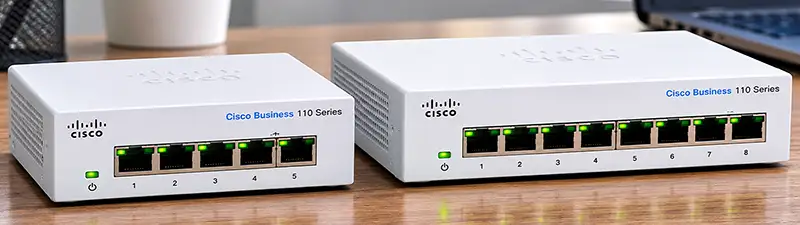
Two practical options are the Cisco CBS110-5T-D and Cisco CBS110-8T-D.
Cisco CBS110-5T-D: A Compact 5-Port Gigabit Ethernet Switch
The Cisco CBS110-5T-D is a compact unmanaged Gigabit Ethernet switch designed for small offices, home networks, and workspaces that require additional wired connections. It provides five Gigabit Ethernet ports and supports plug-and-play operation. Key features include:
- 5 × 10/100/1000 Mbps Ethernet ports
- Up to 10 Gbps switching capacity
- Unmanaged, plug-and-play functionality
- Fanless operation for quiet environments
- Compact desktop design
- Automatic speed negotiation
- No software configuration required
This model is particularly suitable for connecting a desktop computer, printer, smart TV, and gaming console to a single router connection.
Recommended for: Home offices, small workspaces, and users who need up to four additional wired device connections through one router LAN port.
Cisco CBS110-8T-D: More Ethernet Ports for Growing Networks
If you need additional connectivity for several computers or office devices, the Cisco CBS110-8T-D offers eight Gigabit Ethernet ports in a compact unmanaged switch. Like the 5-port version, it operates without complex configuration. Key features include:
- 8 × 10/100/1000 Mbps Ethernet ports
- Up to 16 Gbps switching capacity
- Plug-and-play installation
- Fanless operation
- Compact desktop form factor
- Automatic network speed negotiation
- Suitable for home and small-business networks
This switch is ideal for small offices with multiple workstations, printers, NAS systems, and other Ethernet-connected equipment.
Recommended for: Small businesses, growing office networks, and users who need up to seven wired device connections through one router LAN port.
Cisco 5 Port vs 8 Port Gigabit Switch: Which Should You Choose?
Choosing between these two Cisco switches depends primarily on how many devices you need to connect.
| Feature | Cisco CBS110-5T-D | Cisco CBS110-8T-D |
|---|---|---|
| Ethernet Ports | 5 | 8 |
| Ports Remaining After Router Connection | 4 | 7 |
| Ethernet Speed | 10/100/1000 Mbps | 10/100/1000 Mbps |
| Switching Capacity | 10 Gbps | 16 Gbps |
| Switch Type | Unmanaged | Unmanaged |
| Configuration Required | No | No |
| Fanless Design | Yes | Yes |
| PoE Support | No | No |
| Best Application | Home and small workspaces | Small offices and growing networks |
If you only need to connect three or four devices, the Cisco CBS110-5T-D is a practical choice. However, if you expect to add more equipment in the future, the Cisco CBS110-8T-D provides greater flexibility without requiring another network upgrade.
Will Adding an Ethernet Switch Slow Down Your Internet?
One of the most common concerns when expanding a wired network is whether an Ethernet switch reduces internet speed. Under normal conditions, a Gigabit Ethernet switch does not automatically slow down your connection. Each port can establish a link at up to 1 Gbps when connected to compatible equipment and suitable cabling. However, there are a few important limitations.
- First, all devices accessing the internet through the switch share the available internet bandwidth provided by your router.
- Second, if multiple devices simultaneously communicate with equipment outside the switch, the 1 Gbps uplink to the router may become a bottleneck.
- Third, if your internet plan provides speeds above 1 Gbps, a switch with only Gigabit Ethernet ports cannot deliver more than 1 Gbps over a single port.
For most everyday home and small-office applications, a Gigabit Ethernet switch provides excellent performance.
Can You Connect Multiple Ethernet Switches to One Router?
Yes. You can connect more than one Ethernet switch to a WiFi router. For example, you could install a 5-port switch near your entertainment system and an 8-port switch in your home office. Both switches can connect to separate LAN ports on your router.
You can also connect one switch to another when necessary, although this introduces additional shared uplinks. When expanding your network, avoid creating accidental Ethernet loops by connecting switches together through multiple redundant cables without appropriate loop prevention. For simple home networks, a straightforward tree topology is generally the easiest arrangement.
Can You Use an Ethernet Switch with Any WiFi Router?
In most cases, yes. Unmanaged Gigabit Ethernet switches use standard Ethernet networking technology and can operate with routers from many manufacturers. Examples include:
- TP-Link
- ASUS
- Netgear
- D-Link
- Huawei
- Linksys
- Cisco
The router simply needs an available Ethernet LAN connection. This means you can usually expand your network without replacing your existing router or changing your internet service provider. However, if your ISP device is operating only as a modem or bridge, you may still need a router to manage your local network.
Common Mistakes When Adding More Ethernet Ports
Although installing an Ethernet switch is straightforward, several common mistakes can cause connectivity problems.
Connecting the Switch to the Wrong Port
Connect the switch to a LAN port on your router rather than the WAN port.
Buying a 10/100 Mbps Switch
Older Fast Ethernet switches are limited to 100 Mbps per port. A Gigabit switch is a better choice for most modern networks.
Choosing Too Few Ports
Always consider future expansion. If you currently need four wired connections but expect to add more devices, an 8-port switch may be a better long-term investment.
Assuming Every Switch Supports PoE
Not all Ethernet switches provide Power over Ethernet.
The Cisco CBS110-5T-D and CBS110-8T-D are non-PoE models. Devices such as PoE cameras and certain wireless access points require a separate compatible power source, PoE injector, or PoE-capable switch.
Using Damaged Ethernet Cables
Faulty cables can cause unstable connections or force network links to operate at reduced speeds.
Use good-quality Cat5e or Cat6 Ethernet cables for reliable Gigabit connectivity.
Frequently Asked Questions
1. Can I add more Ethernet ports to my router without replacing it?
Yes. Connect an unmanaged Ethernet switch to an available LAN port on your router to expand the number of wired connections.
2. Do I need to configure a Cisco CBS110 switch?
No. Cisco CBS110 unmanaged switches are designed for plug-and-play operation and normally require no software configuration.
3. Can I connect an Ethernet switch to a WiFi mesh system?
Yes, provided the mesh node has a suitable Ethernet LAN port and supports wired client connections in its operating mode.
4. Does an Ethernet switch need its own power supply?
Yes. Standard desktop Ethernet switches such as the CBS110-5T-D and CBS110-8T-D require their compatible external power adapters.
5. Can two computers connected to the same switch share files?
Yes. If the devices are on the same network and file-sharing permissions are configured correctly, they can communicate through the switch.
6. Is an Ethernet switch better than a USB Ethernet adapter?
They serve different purposes. A USB Ethernet adapter adds a network interface to one device, while an Ethernet switch connects multiple wired devices to the same network.
7. Can I connect a printer directly to an Ethernet switch?
Yes, if the printer has an Ethernet network interface. Other devices on the network can access it when network settings and permissions allow.
8. Can I use an Ethernet switch without internet access?
Yes. A switch can connect devices within a local network even when no internet connection is available.
9. Is a Gigabit Ethernet switch suitable for 4K streaming?
Yes. A Gigabit Ethernet connection generally provides more than enough bandwidth for typical 4K video streaming applications.
10. How long can an Ethernet cable be between my router and switch?
For standard copper Gigabit Ethernet connections using suitable twisted-pair cabling, the maximum channel length is generally 100 meters.
Conclusion
If your WiFi router doesn’t have enough LAN ports, installing a Gigabit Ethernet switch is one of the simplest and most cost-effective solutions. You can expand your wired network in minutes without replacing your router, changing your internet plan, or learning complex network configuration.
For smaller setups, the Cisco CBS110-5T-D 5-Port Gigabit Switch provides reliable connectivity for a few additional devices. For larger home networks and small offices, the Cisco CBS110-8T-D 8-Port Gigabit Switch offers more room for expansion. Explore both models at ITMan.ae and choose the right Ethernet switch for your networking requirements.