

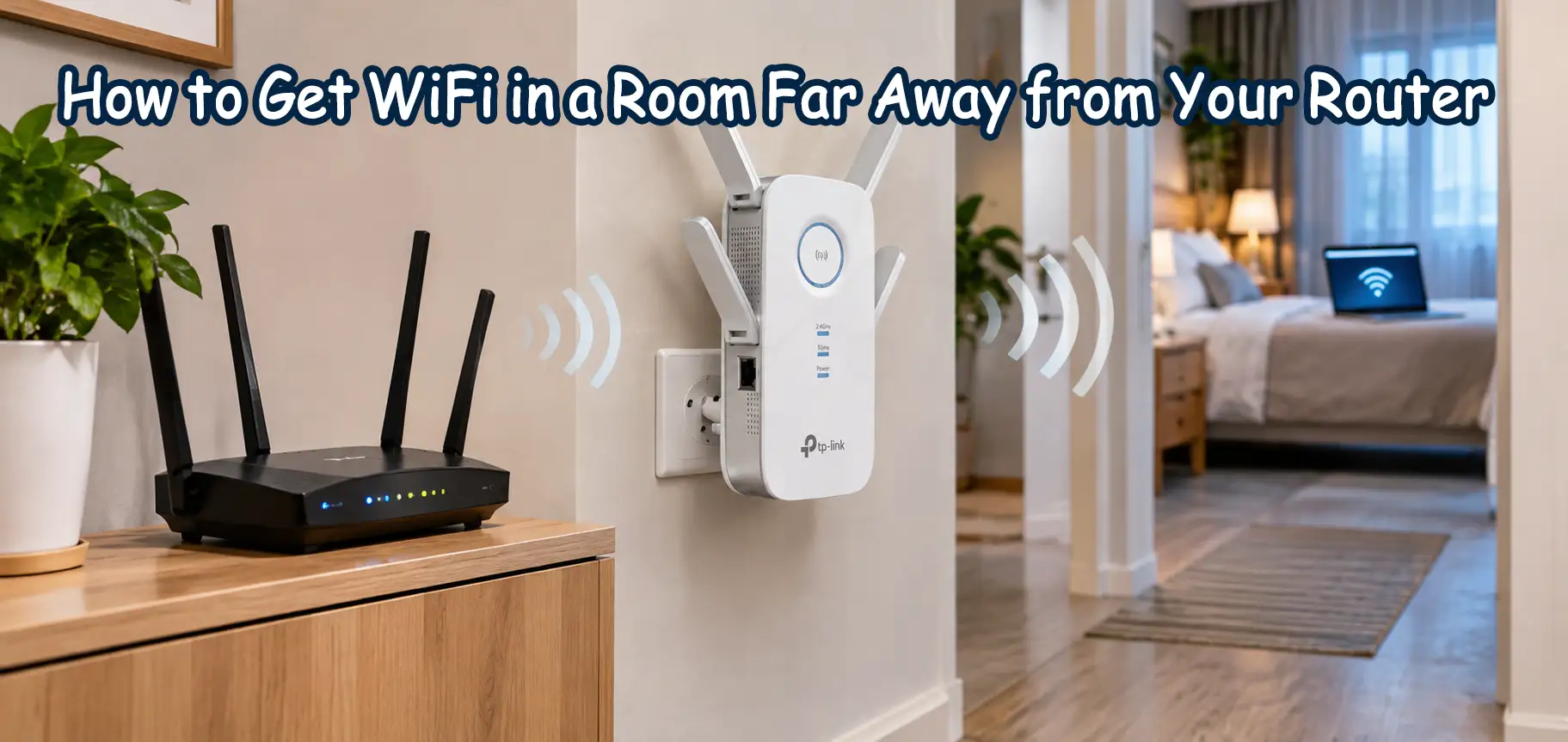
Having a fast internet connection doesn’t always mean you’ll enjoy strong WiFi throughout your home. You might have excellent internet speeds in your living room but experience slow downloads, buffering videos, or frequent disconnections in a bedroom, home office, or upstairs room. If you’re wondering how to get WiFi in a room far away from your router, several practical solutions can help you extend your wireless coverage without replacing your entire network.
The best solution depends on the distance between your router and the room, the thickness of your walls, your home’s layout, and the type of internet activities you perform. In this guide, we’ll explain how to identify the problem, improve your existing WiFi coverage, install a WiFi range extender, and use Powerline technology to connect rooms where ordinary wireless signals struggle to reach.
Why Is Your WiFi Signal Weak in Another Room?
Before purchasing additional networking equipment, it’s important to understand why your wireless connection becomes weaker as you move away from the router.
1. Distance from the Router
WiFi signals lose strength as they travel. A router positioned in one corner of your home may provide excellent coverage nearby but struggle to reach bedrooms or offices at the opposite end of the property.
2. Thick Walls and Building Materials
Concrete walls, reinforced structures, metal doors, and certain types of insulation can significantly reduce wireless signal strength. This is particularly relevant in apartments and villas with multiple walls separating rooms.
3. Interference from Other Devices
Nearby WiFi networks, Bluetooth devices, and household electronics can interfere with wireless communication.
The 2.4GHz band generally provides better coverage through obstacles, while 5GHz usually offers higher speeds at shorter distances.
4. Poor Router Placement
Routers installed inside cabinets, behind televisions, or close to the floor may deliver weaker coverage than routers positioned in open, elevated locations.
How to Get WiFi in a Room Far Away from Your Router
Step 1: Check Your WiFi Signal Before Buying Anything
The first step in getting WiFi in a distant room is identifying whether the problem is wireless coverage or your internet connection.
Follow these instructions:
- Stand close to your main router and connect your phone or laptop to WiFi.
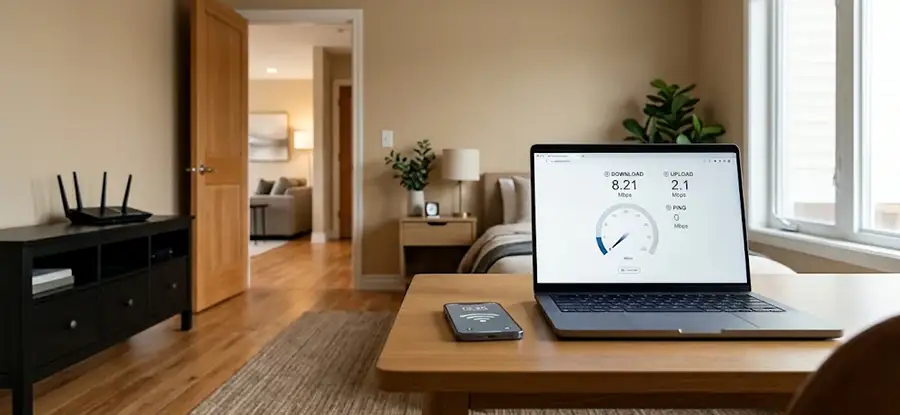
- Run an internet speed test and record the download speed, upload speed, and latency.
- Walk into the room where your connection is weak.
- Repeat the test using the same device and test service.
- Compare the results.
For example:
| Location | Example Download Speed | Connection |
|---|---|---|
| Living room, near router | 450 Mbps | Excellent |
| Hallway | 180 Mbps | Good |
| Bedroom | 25 Mbps | Weak |
| Distant home office | 5 Mbps | Unstable |
These figures are illustrative, not guaranteed speeds. If your connection is fast near the router but considerably slower in another room, WiFi coverage is likely contributing to the problem. If speeds are poor everywhere, investigate your router, internet package, or ISP connection before purchasing an extender.
Step 2: Improve Your Existing Router’s Coverage
Sometimes, improving WiFi coverage doesn’t require additional equipment.
Try the following adjustments:
- Position your router in an open, elevated location.
- Avoid placing it inside enclosed cabinets.
- Move it away from large metal objects and electrical appliances.
- Update the router firmware if an update is available.
- Test both 2.4GHz and 5GHz WiFi connections.
- Check whether neighboring networks are causing channel congestion.
If your router is installed at one end of the house, moving it closer to the center may improve coverage significantly.
However, if your bedroom or office is separated by multiple concrete walls, repositioning the router may not be enough.
In that situation, consider installing a WiFi range extender or Powerline WiFi adapter.
Step 3: Install a WiFi Range Extender for Another Room
A WiFi range extender receives your existing router’s wireless signal and retransmits it to an area with poor coverage.
This makes it a practical option for bedrooms, home offices, and rooms where the original router’s WiFi signal is still detectable but unreliable.
Recommended Product: TP-Link RE500 AC1900 Wi-Fi Range Extender
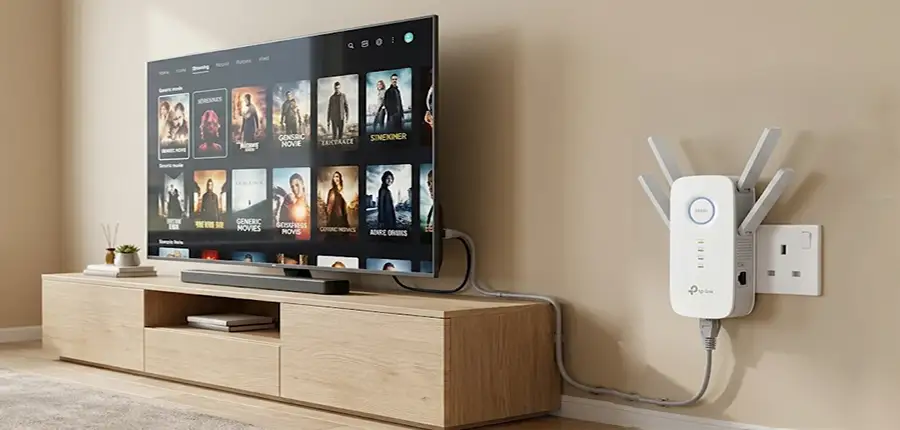
The TP-Link RE500 AC1900 is a dual-band WiFi range extender designed to improve wireless coverage in areas where your main router struggles to provide a reliable connection. It supports combined theoretical wireless rates of up to 1900 Mbps across its 2.4GHz and 5GHz bands. These are wireless link specifications, not guaranteed internet download speeds. Its external antennas help provide wireless coverage, while its Gigabit Ethernet port allows compatible wired devices to connect to the extended network.
When should you choose the TP-Link RE500?
Consider this model when:
- Your bedroom receives a weak but usable WiFi signal.
- You want better coverage for smartphones, laptops, or smart TVs.
- Your router is located several rooms away.
- You need an Ethernet connection for a nearby device.
- You want to extend your existing network without installing new Ethernet cabling.
How to Set Up the TP-Link RE500
Step 1: Choose a temporary installation location
Plug the extender into an electrical outlet close to your main router for initial configuration.
Step 2: Connect the extender
Use the TP-Link Tether app, a supported web-based setup method, or WPS if available and enabled on your router.
Follow the setup instructions for your device’s hardware version.
Step 3: Select your home WiFi network
Choose the existing router’s wireless network and enter its password when prompted.
Step 4: Configure the extended network
Complete the setup and confirm that the extender connects successfully to your router.
Step 5: Move the extender
Unplug it and position it between your router and the room requiring better coverage.
Do not place it directly in the area where the original WiFi signal is already extremely weak.
Step 6: Test the connection
Connect your phone or laptop to the extended network and repeat your speed test.
If performance remains poor, move the extender closer to the router and test again.
Step 4: Use a More Powerful Dual-Band WiFi Extender
For homes where several devices require wireless coverage, a higher-class extender may be worth considering.
Recommended Product: TP-Link RE650 AC2600 Dual-Band WiFi Range Extender
The TP-Link RE650 AC2600 is designed to extend dual-band wireless coverage and supports theoretical combined wireless rates of up to 2600 Mbps. Its four external antennas and Gigabit Ethernet port make it suitable for improving connectivity in rooms where several wireless or wired devices are used. The RE650 also supports MU-MIMO technology for more efficient communication with compatible wireless clients.
When Is the TP-Link RE650 a Better Choice?
The RE650 may be suitable for:
- Bedrooms with several connected devices.
- Home offices using laptops, smartphones, and smart devices.
- Areas requiring improved 5GHz wireless coverage.
- Homes where multiple family members use the extended network.
- Connecting a smart TV, desktop PC, or gaming console through Ethernet.
However, a higher AC rating doesn’t automatically mean the extender will reach farther through concrete walls. Both the RE500 and RE650 require a sufficiently strong connection to the main router.
How to Position the TP-Link RE650 Correctly
- Configure the extender near your router.
- Locate a power outlet between the router and the distant room.
- Check the extender’s signal indicator.
- Move it closer to the router if the incoming signal is weak.
- Connect your devices and test both coverage and speed.
For example, if your router is in the living room and your office is at the end of a hallway, placing the extender in the middle of the hallway may work better than installing it inside the office.
Step 5: Use Powerline WiFi When Thick Walls Block Your Signal
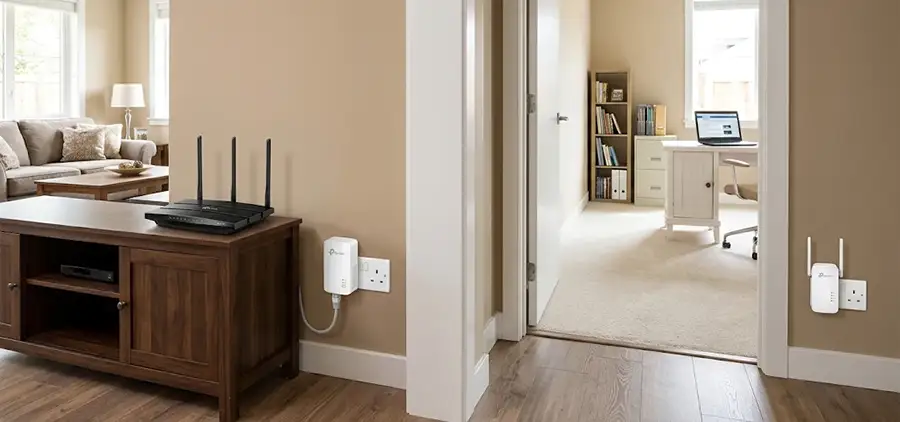
What if your router is on the ground floor and your bedroom is upstairs? Or what if several thick walls separate your home office from the router? In these situations, a conventional WiFi extender may struggle because it depends on receiving a wireless signal from the main router. A Powerline WiFi adapter offers another approach. Instead of relying entirely on wireless communication between rooms, Powerline technology uses your home’s existing electrical wiring to carry network data.
Recommended Product: TP-Link TL-WPA8630 KIT AV1300
The TP-Link TL-WPA8630 KIT combines Powerline networking with WiFi extension. The kit includes a Powerline adapter that connects to your router and a WiFi-capable Powerline unit that provides wireless coverage elsewhere in the property. The AV1300 rating describes the theoretical Powerline link class, not the actual internet speed you should expect. Its performance depends on your electrical installation, interference, and the connection between electrical circuits.
How to Install the TP-Link TL-WPA8630 KIT
Step 1: Connect the first adapter to your router
Plug the main Powerline adapter directly into a wall socket near your router.
Connect the adapter to a LAN port on your router using an Ethernet cable.
Step 2: Install the WiFi Powerline unit
Take the WiFi-enabled adapter to the distant bedroom, office, or upstairs room.
Plug it directly into a wall outlet.
Step 3: Pair the adapters
Use the Pair buttons according to the instructions supplied with your kit.
Wait until the Powerline connection indicator confirms that the devices are linked.
Step 4: Configure the WiFi network
Set up the wireless network using the supported configuration method. You can configure the WiFi name and password according to your preferences.
Step 5: Test your connection
Connect your phone or laptop to the Powerline unit’s WiFi and run a speed test.
Check connection stability, latency, and performance during normal use.
Important Installation Tips
For the best results:
- Plug both adapters directly into wall sockets.
- Avoid surge protectors and extension leads.
- Test different wall outlets if performance is poor.
- Be aware that electrical noise can reduce speeds.
- Confirm that the adapters can communicate across your property’s electrical installation.
Powerline performance varies considerably between buildings. Different circuits, phases, or electrical distribution arrangements may reduce performance or prevent communication.
Step 6: Compare the Three TP-Link WiFi Extension Solutions
Choosing the right device depends on your home’s layout and the connection method you need.
| Feature | TP-Link RE500 | TP-Link RE650 | TL-WPA8630 KIT |
|---|---|---|---|
| Product type | WiFi Range Extender | WiFi Range Extender | Powerline WiFi Kit |
| Wireless class | AC1900 | AC2600 | AC1200 WiFi class |
| Connection to router | Wireless | Wireless | Electrical wiring via Powerline |
| Ethernet connectivity | Yes | Yes | Yes |
| External antennas | 4 | 4 | Integrated wireless antennas |
| Suitable for | Weak WiFi in another room | Multiple devices in extended coverage area | Rooms separated by difficult walls |
| Requires usable router WiFi at extender location | Yes | Yes | No |
| Main limitation | Wireless backhaul quality | Wireless backhaul quality | Electrical wiring quality |
Which TP-Link Extender Should You Buy?
- Choose the TP-Link RE500 if you need a straightforward solution for extending an existing wireless network into another bedroom or office.
- Choose the TP-Link RE650 if you want a higher wireless performance class for an area with multiple connected devices, provided the extender can receive a good signal from the router.
- Choose the TP-Link TL-WPA8630 KIT if your main challenge is getting a network connection through thick walls or between floors and your electrical wiring supports a reliable Powerline connection.
Step 7: Find the Best Location for Your WiFi Extender
One of the most common installation mistakes is placing a WiFi extender too far away from the router.
Imagine the following layout:
Router → Living Room → Hallway → Bedroom
If the bedroom has almost no usable signal, installing a conventional WiFi extender inside the bedroom may provide little improvement.
Instead, position the extender in the hallway, where the original router’s signal is stronger.
The extender can then retransmit that connection toward the bedroom.
For Powerline adapters, the approach is different. You can place the WiFi Powerline unit directly inside the distant room, provided the electrical connection between the adapters works reliably.
Step 8: Test Your Extended WiFi Network
After installation, check whether the new equipment has actually solved your connectivity problem. Perform these tests:
- Run a speed test near the main router.
- Run another test in the distant room.
- Check whether video calls remain stable.
- Test video streaming and downloads.
- Check latency if you use online gaming or remote desktop applications.
- Walk between rooms and confirm your devices connect to the appropriate access point or extender.
Remember that a WiFi extender cannot increase the internet speed supplied by your ISP.
Wireless repeaters can also experience reduced throughput because they must communicate with both the router and connected devices over wireless links.
The objective is to achieve a reliable connection with sufficient speed for your actual activities.
WiFi Extender vs Powerline vs Ethernet: Which Is Better?
| Solution | Main Advantage | Main Limitation |
|---|---|---|
| WiFi Range Extender | Simple installation without new cabling | Requires a usable wireless backhaul |
| Powerline WiFi | Can reach rooms through existing electrical wiring | Performance depends on electrical conditions |
| Ethernet Cable + Access Point | Usually the most predictable and reliable performance | Requires network cabling |
| Mesh WiFi System | Convenient multi-node wireless coverage | Wireless backhaul may still be affected by walls |
If you’re renovating a villa or installing a network for a dedicated home office, Ethernet cabling with properly positioned wireless access points is generally the more reliable long-term solution.
For existing homes where running cables isn’t practical, WiFi extenders and Powerline adapters can provide convenient alternatives.
Common Mistakes That Make WiFi Extenders Perform Poorly
Even a capable WiFi extender may disappoint if installed incorrectly. Avoid these mistakes:
- Installing the extender where the router’s signal is already unusable.
- Expecting AC1900 or AC2600 to represent actual internet speeds.
- Placing networking equipment behind large metal objects.
- Connecting Powerline adapters through surge-protected power strips.
- Assuming every electrical circuit will support Powerline networking.
- Using 5GHz for maximum distance without testing 2.4GHz.
- Forgetting to check which WiFi network your device is connected to.
Correct placement and testing often matter more than purchasing equipment with the highest advertised speed.
Frequently Asked Questions
1. How can I get WiFi in a bedroom far from my router?
You can install a WiFi range extender between your router and bedroom. If thick walls block the wireless signal, consider a Powerline WiFi kit or a wired access point.
2. Can I extend WiFi to another room without running Ethernet cables?
Yes. WiFi range extenders work wirelessly, while Powerline WiFi kits use existing electrical wiring between adapters.
3. Will a WiFi extender work through concrete walls?
It may work, but concrete and reinforced walls can substantially weaken wireless signals. Placement and building construction determine the results.
4. Is the TP-Link RE650 better than the RE500?
The RE650 has a higher advertised wireless performance class, but the best choice depends on signal strength, connected devices, and your actual requirements.
5. Can I install a WiFi extender upstairs?
Yes, provided it can receive a sufficiently strong wireless signal from the main router. Otherwise, Powerline or a wired access point may be more effective.
6. Does a WiFi extender need a separate internet subscription?
No. It extends the connection provided by your existing router and internet service.
7. Can I connect my smart TV to a WiFi extender using Ethernet?
Yes. The RE500 and RE650 include Ethernet connectivity for compatible wired devices.
8. Will a WiFi extender improve online gaming?
It may improve connectivity in a weak-signal area, but it can also introduce additional latency. A direct Ethernet connection is preferable for latency-sensitive gaming.
9. Does Powerline WiFi work in every house?
No. Powerline communication depends on electrical wiring conditions and the relationship between circuits. Performance cannot be guaranteed in every property.
10. Can I use a TP-Link WiFi extender with another router brand?
Many TP-Link range extenders work with standard WiFi routers from different manufacturers. Check the specific device’s compatibility and configuration requirements.
Final Thoughts: Get Reliable WiFi in Every Room
Learning how to get WiFi in a room far away from your router starts with identifying the cause of weak coverage. In many homes, a correctly positioned WiFi extender can solve the problem without complicated installation or additional cabling. The TP-Link RE500 AC1900 is a practical option for extending WiFi into bedrooms and home offices. The TP-Link RE650 AC2600 offers a higher wireless performance class for areas with multiple connected devices. For rooms separated by thick walls or floors, the TP-Link TL-WPA8630 KIT provides an alternative using existing electrical wiring.